Eyebrow Ring
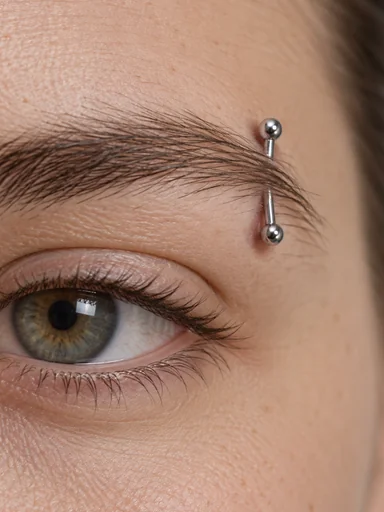
A small hoop through the outer edge of the brow.
Upload a selfie and try ear, eyebrow, lip, and nose piercings from 22 everyday styles, or describe your whole piercing setup. Only the jewelry is added; your face stays exactly the same.
Your photo stays in this browser during this UI preview.
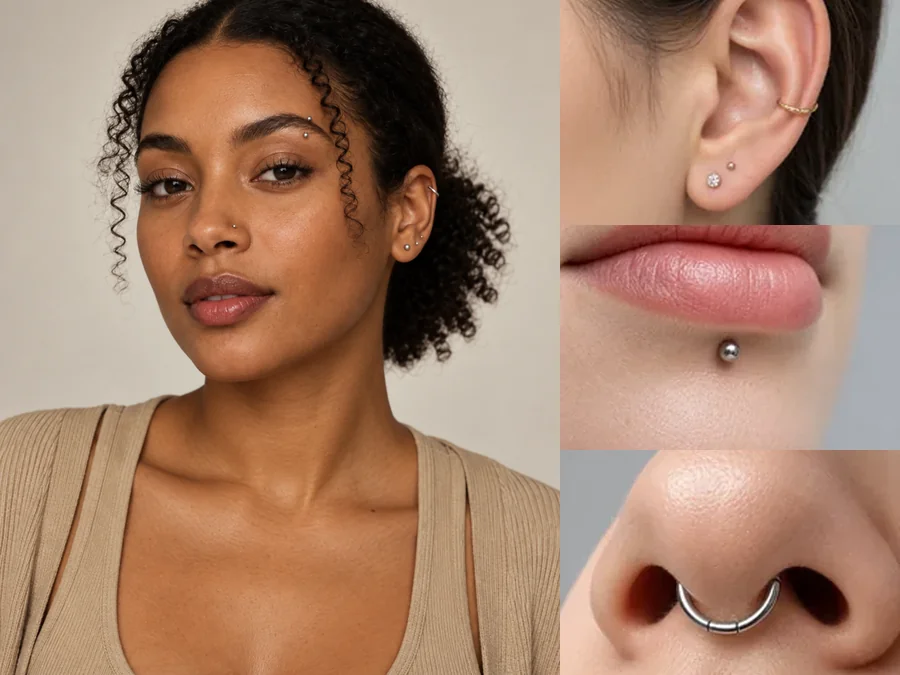
Reference example. It is not a result generated from your upload.
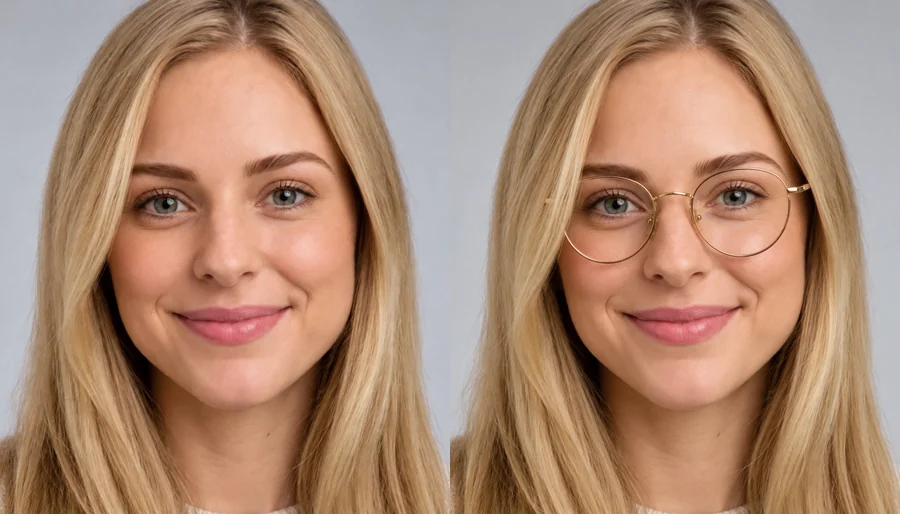
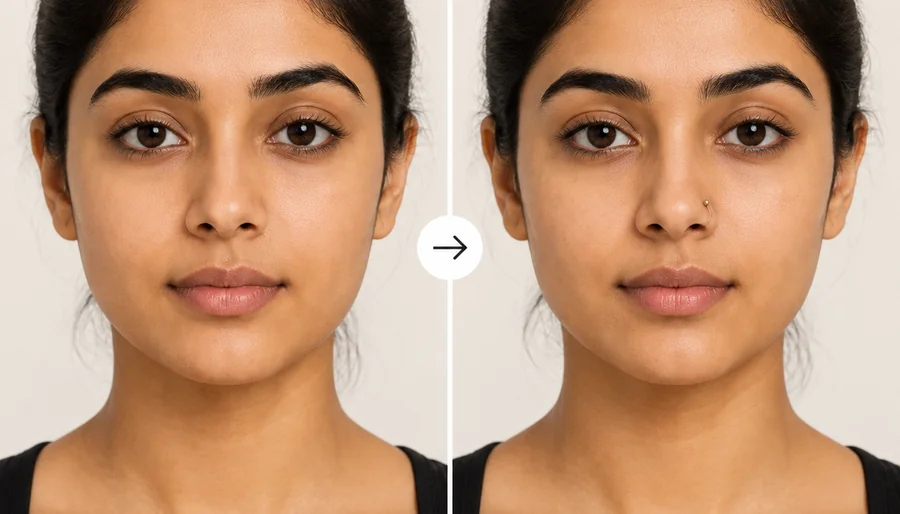
A piercing filter is a photo tool that adds realistic piercings to a selfie so you can see a new look before anything is permanent. This AI piercing generator finds the right spot on your ear, eyebrow, lip, nose, or cheek, sizes the jewelry to your features, and adds a soft contact shadow, so the stud or hoop looks pierced instead of pasted on.
Think of it as a virtual piercing tester online: one place to try on piercings virtually, compare placements, and plan a full piercing setup with your piercer. It is a visual piercing simulation for adults only. It cannot tell you how a piercing will heal or whether a placement suits your anatomy; a professional piercer can.
A few of the 22 styles. Tap Try on any card to load it in the workspace.
A small hoop through the outer edge of the brow.
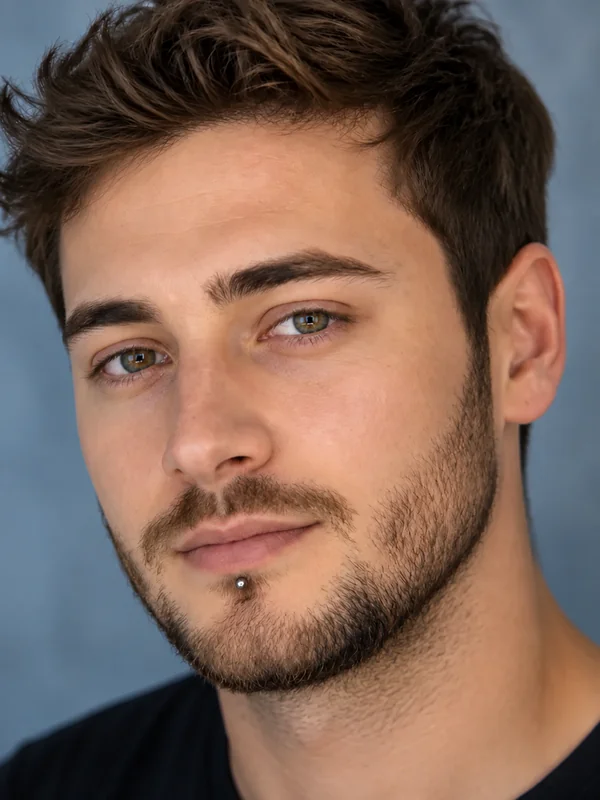
A single stud centered just below the lower lip.
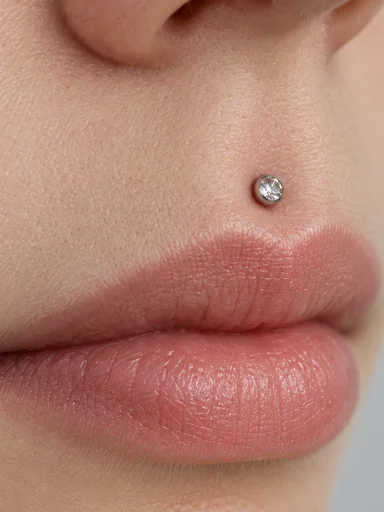
A stud in the groove above the upper lip.
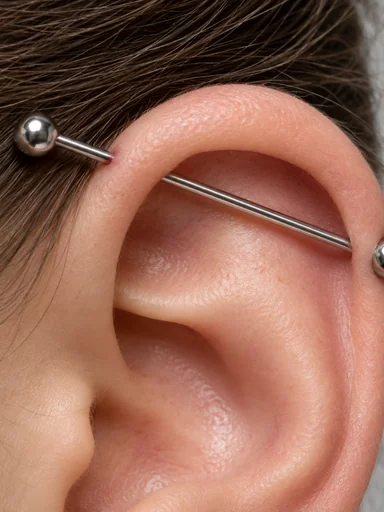
One long barbell connecting two holes in the upper ear.
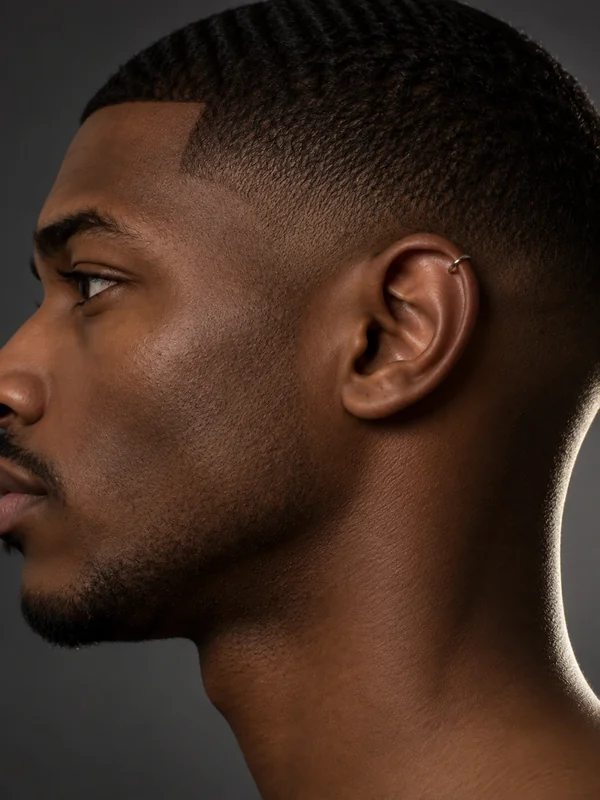
A thin hoop hugging the upper rim of the ear.

A ring through the septum that sits under the nose.
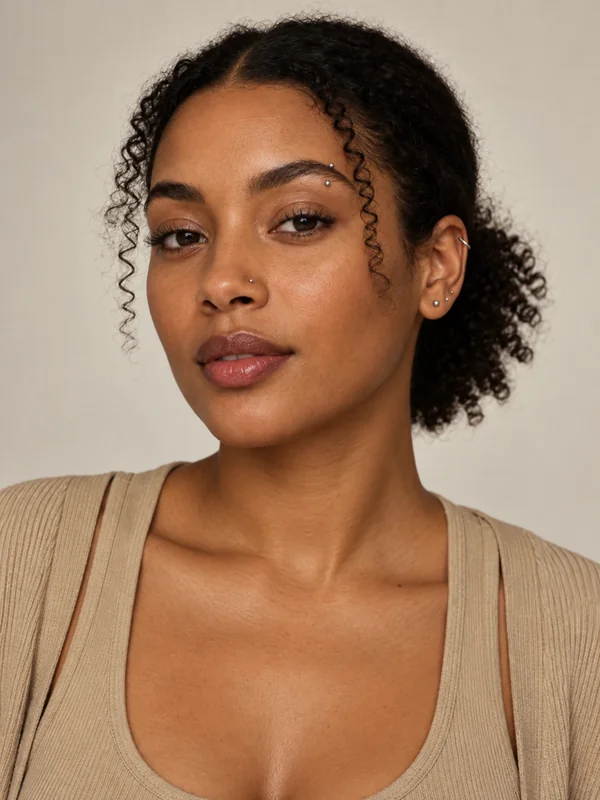
Several small pieces combined across the face and ears.
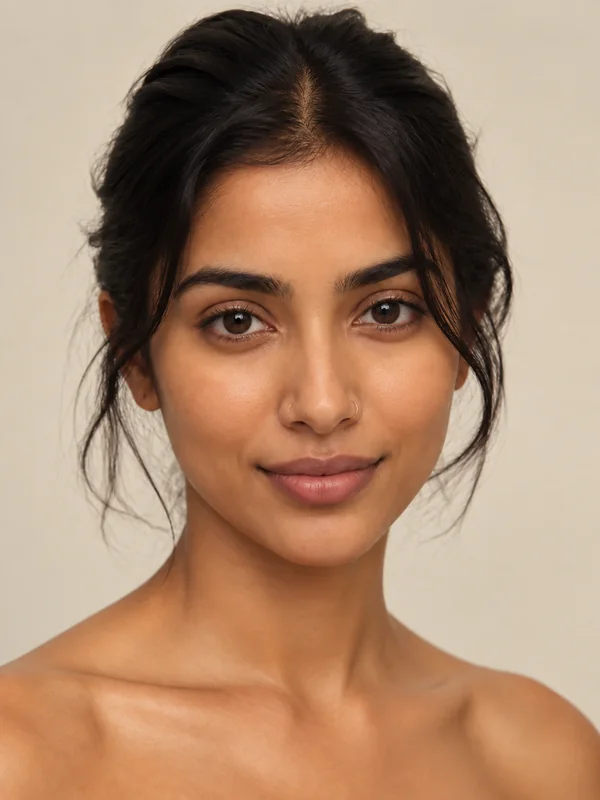
A thin hoop on the nostril, subtle or bold depending on the size.
From selfie to piercing preview, with no needle and no piercing filter app to install.
Use a clear photo of yourself (adults only) with the area you want pierced fully visible. Tuck hair behind your ear for ear piercings. JPG, PNG, and WebP up to 10 MB.
Open the Ear, Eyebrow & Face, Lip, or Nose & Septum tab and choose a stud, hoop, ring, or bar. To combine several piercings or change the metal, describe it in the optional note.
Generate up to four versions, compare placements side by side, and save the ones you want to show your piercer.
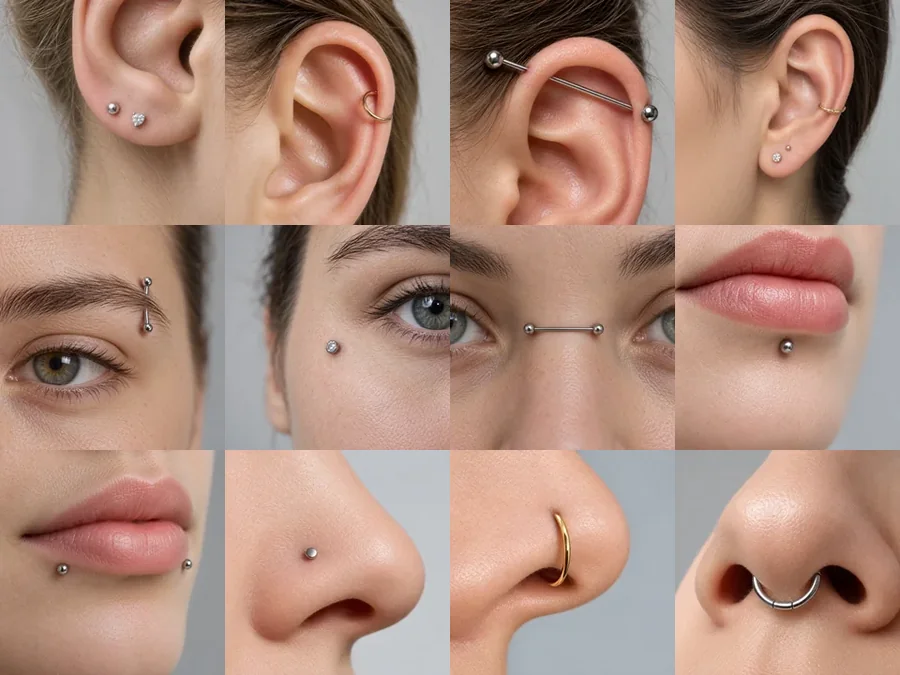
Twenty-two everyday styles across four tabs: lobe, helix, tragus, conch, and industrial on the ear; eyebrow, anti-eyebrow, bridge, and cheek dermals on the face; labret, snake bites, medusa, and side rings on the lip; plus nostril and septum basics.
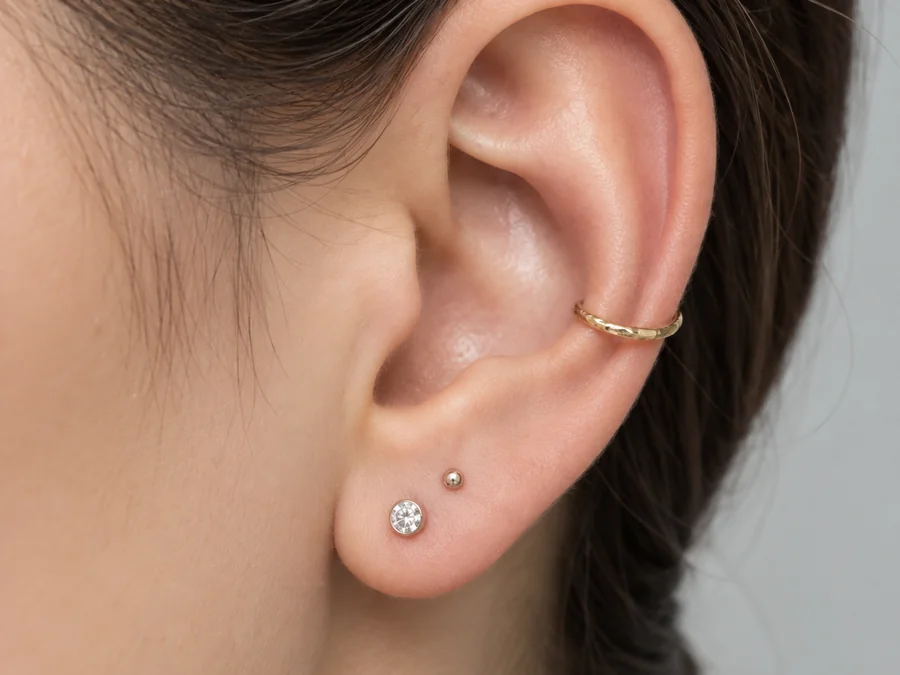
Planning a curated ear? The Ear tab is an ear piercings filter for lobes, helix, tragus, conch, and industrial bars. Start from the Ear Stack preset, then describe your dream piercing setup in the note, such as "two lobe studs, a helix hoop, and a tragus stud". Use the result as a map for spacing when you talk to your piercer.
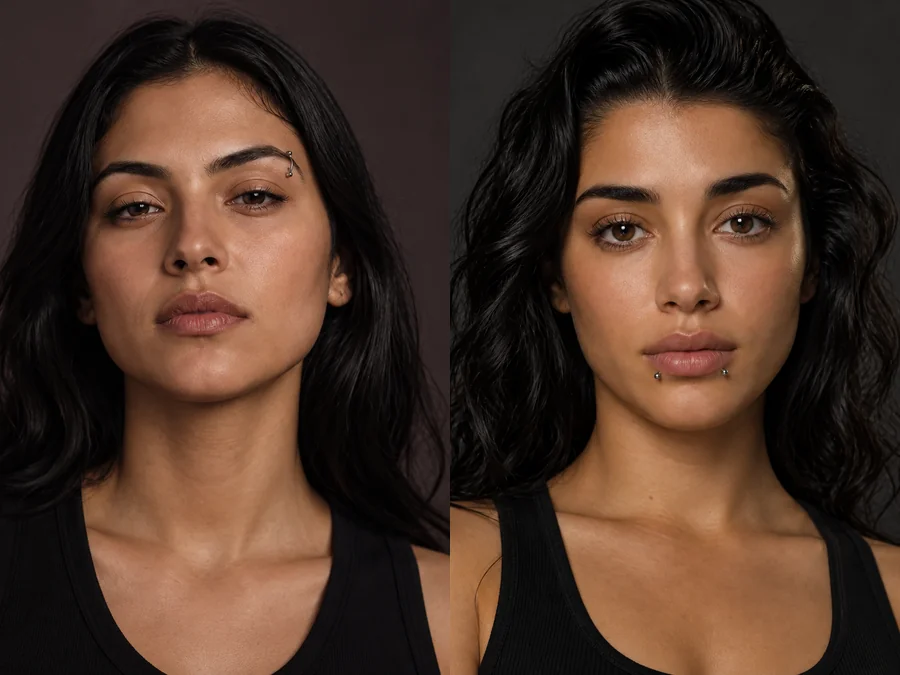
Eyebrow and lip piercings sit right in the middle of your face, so they are worth previewing. Compare an eyebrow ring with a barbell, or snake bites with a single labret, and rule out the ones that do not suit you.
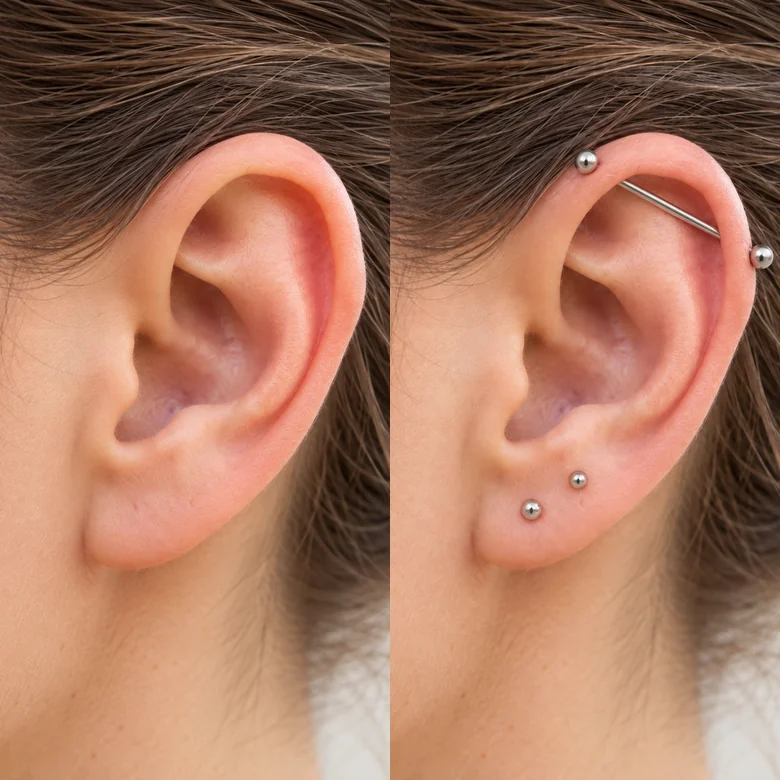
The piercing try on filter changes only the jewelry. Your face, skin, hair, and background stay as shot, and each stud or hoop is lit to match the photo with a soft shadow where it meets the skin.
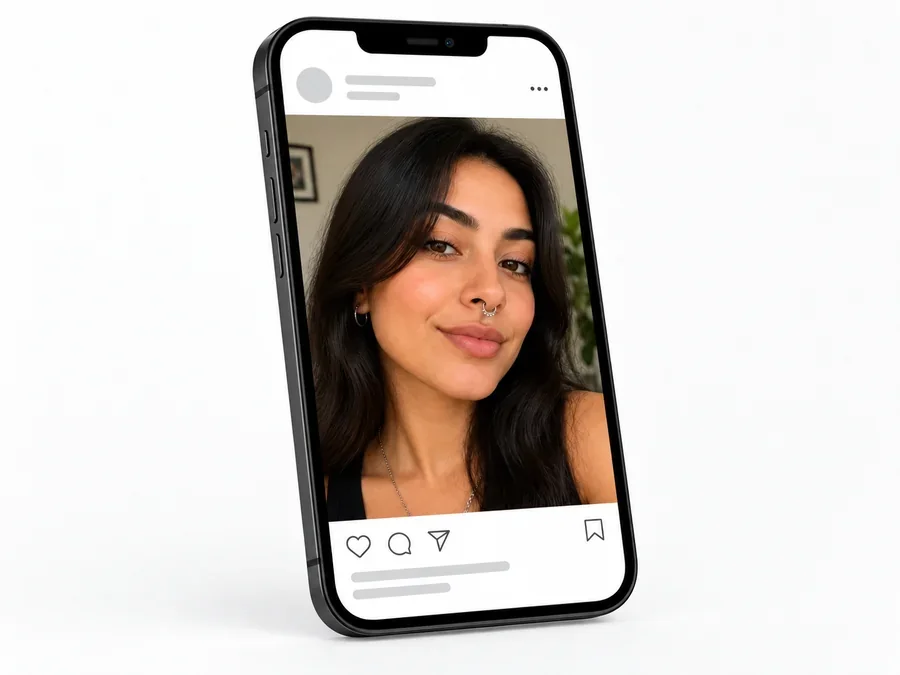
Compare placements and jewelry on your own face and book the one you actually want.
Lay out an ear stack or face combination and bring the preview to your piercer.
Try an edgy look for one photo with no piercing, no healing time, and no commitment.
Piercers and jewelry sellers can show adult clients a few styles on their own photo.
A clear photo of the right area makes the biggest difference.
Tuck hair back for ear piercings and keep lips and brows uncovered and in focus.
Avoid harsh shadows so the jewelry lands in the right place and the metal looks natural.
Write every piece and the metal, e.g. "gold helix hoop plus two silver lobe studs".
A preview is not a placement check. Your piercer decides what works for your anatomy.
Common ways adults preview piercings before the appointment.
Illustrative examples adapted from reference material, not verified reviews of EzImgMaker.
I planned my whole ear here, helix and conch included, then showed the preview to my piercer so the spacing was right the first time.
Seeing an eyebrow ring on my actual face told me in a minute that a barbell suited me better.
I compared snake bites with a single labret before booking. Having both previews side by side made it easy.
I use it to show adult clients two or three placements on their own selfie before we pick jewelry.
Answers to common questions about trying on piercings online.
Upload a clear selfie, pick a placement tab and a style, and generate. Try a few placements on the same photo, such as a helix hoop, an eyebrow ring, and a labret, to see which one suits your face best.
Ear (lobe, helix, tragus, conch, industrial, ear stack), eyebrow and face (eyebrow ring, barbell, double eyebrow, anti-eyebrow, bridge, cheek dermals), lip (labret, snake bites, medusa, vertical labret, Ashley, side ring), and nose basics (nostril stud, hoop, double nostril, septum ring).
Yes. Pick the closest preset, then list every piece in the optional note, for example "three lobe studs, a conch ring, and an industrial bar". It works like a piercing setup maker for a whole ear or face.
Cheek Dermals covers single-point dermal looks on the face. For a tongue piercing, upload a photo with your tongue visible and describe the barbell in the note. Both are previews only.
Each stud and hoop is placed where a real piercing would sit and lit to match your photo, with a soft contact shadow. Clear, well-lit photos with the ear fully visible give the best result.
No. This piercing filter online runs in your phone or desktop browser, so there is no piercing try on app or piercing photo app to install.
No. It is a visual piercing simulation, not medical advice. Swelling, healing, jewelry size, and whether a placement works depend on your anatomy, so consult a licensed professional piercer before getting pierced.
The tool is for adults previewing their own look. Do not upload photos of minors, and only upload photos you own or have permission to edit.
Only with the permission of an adult in the photo. Do not use edited piercing photos to mislead anyone about a real person.
Upload a selfie and try ear, eyebrow, lip, and nose piercings with the piercing filter.
For adults only. Piercing previews are visual illustrations, not medical advice or a prediction of a real piercing result. Consult a licensed professional piercer before getting pierced.