Upload a Portrait
Add a JPG, PNG, or WebP photo up to 10 MB where the eyes are open, in focus, and not hidden behind glare or sunglasses.
Upload a portrait, pick an eye color from the swatches or the color picker, choose a natural or vivid finish, and the AI recolors only the iris. Pupils, catchlights, lashes, and skin stay exactly as you shot them.
Popular eye colors
Fine-tune
Your photo stays in this browser during this UI preview.
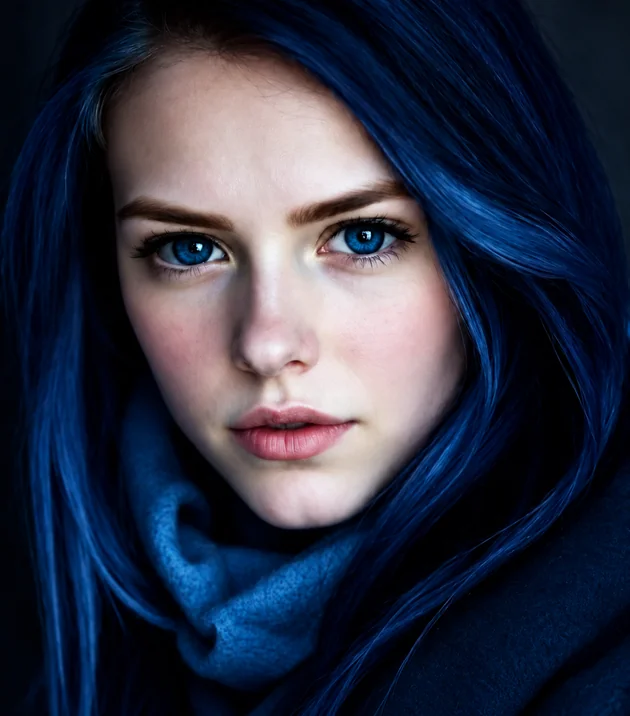
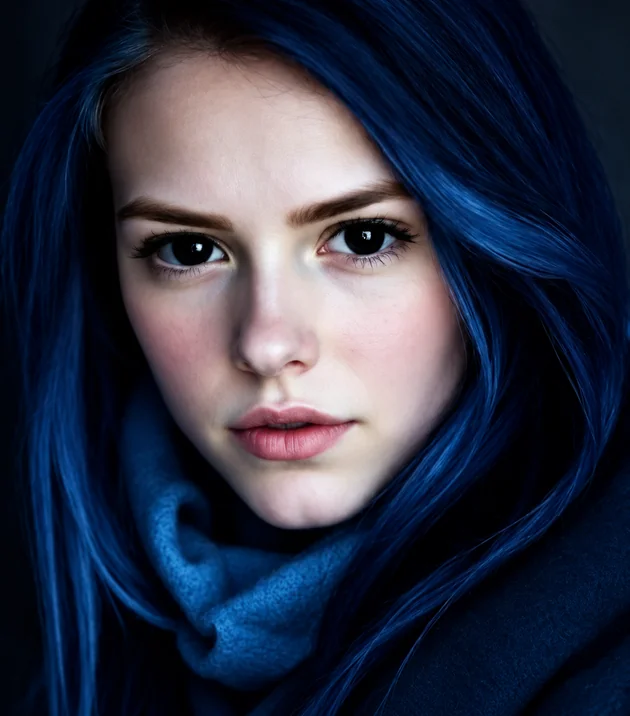
Reference example. It is not a result generated from your upload.
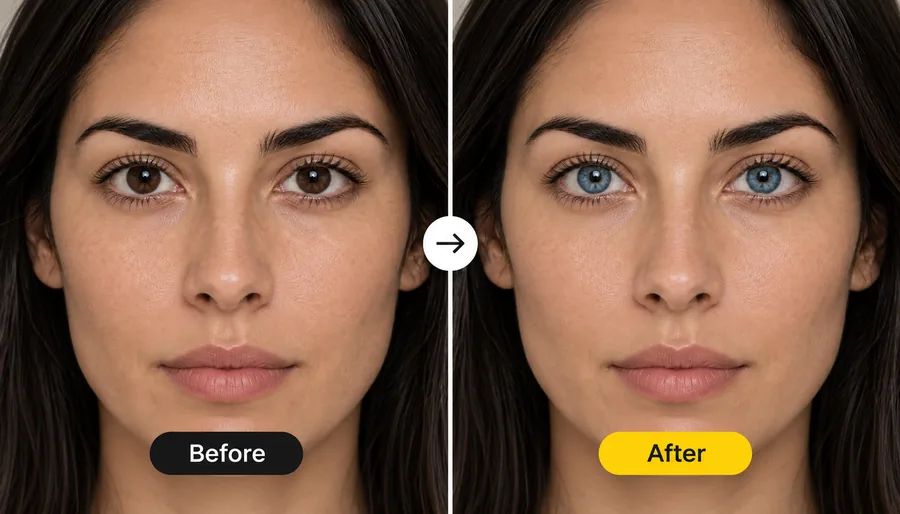
An eye color changer is an AI eye color editor that finds the iris in a photo and recolors it while leaving the pupil, the white of the eye, the lashes, and the reflections untouched. Instead of painting a flat colored circle by hand in a photo editor, you pick a color and the AI rebuilds the iris fibers and the darker outer ring in that shade, so the result looks like a real eye.
Use it to edit color of eyes for a profile picture, preview colored contact lenses, match a cosplay character, or simply see how you would look with hazel, green, grey, or amber eyes. It works as an eye color filter, an eye color simulator, and an eye color picture editor in one: any shade from the color picker, a natural or vivid finish, and an intensity slider. Only want blue? The blue eye filter has curated blue shades.
Change eye color in pictures and selfies in three steps, online, with no app to install and no manual masking.
Add a JPG, PNG, or WebP photo up to 10 MB where the eyes are open, in focus, and not hidden behind glare or sunglasses.
Tap a popular eye color or use the color picker for any shade, then choose Natural, Vivid, or Fantasy Glow and set the intensity. In a group photo, brush over the eyes you want to change.
Start the change, drag the slider to compare the new eye color with the original, and adjust the shade until it looks right.
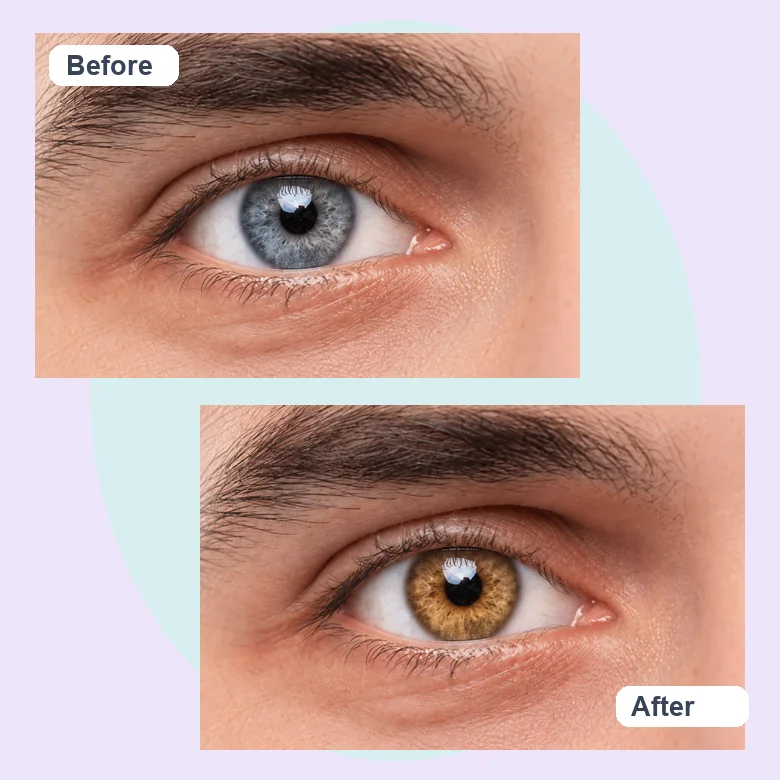
Unlike an eye color change filter that drops a flat disc over the eye, the AI eye color change keeps the pupil size, the catchlights, the limbal ring, and the iris texture, then recolors the fibers in between. Skin, lashes, eyebrows, and makeup stay as they were, so no one can tell where the edit starts.
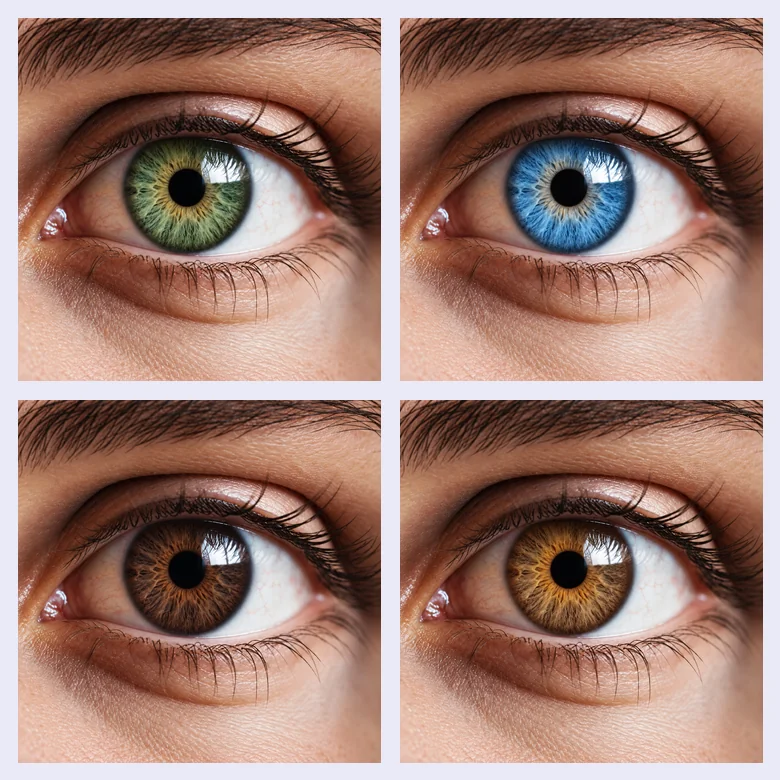
Start with natural shades like hazel, green, grey, or brown, or go bold with violet, gold, and red. The color picker covers shades no preset list has, and the intensity slider decides whether the change is subtle or striking.
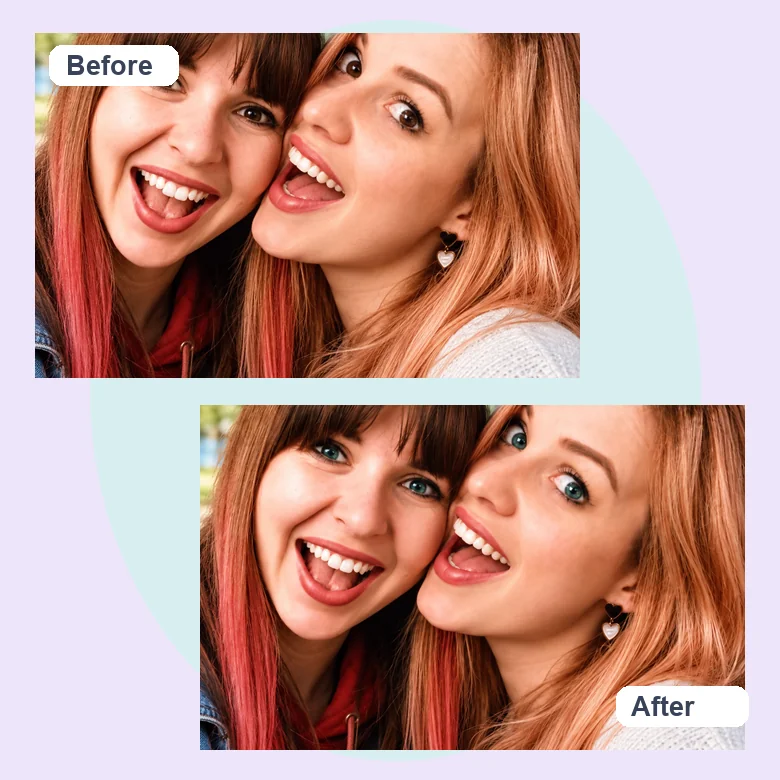
Every visible iris changes by default. To edit one person, or a single eye for a two-tone look, brush over just those eyes with the optional marker before you start.
Eye color changes work in both directions. Darken light eyes to warm or deep brown, or brighten dark eyes to blue or green, and the reflections stay where they were in the original eye color change photo.
A photo eye color changer is handy for much more than curiosity.
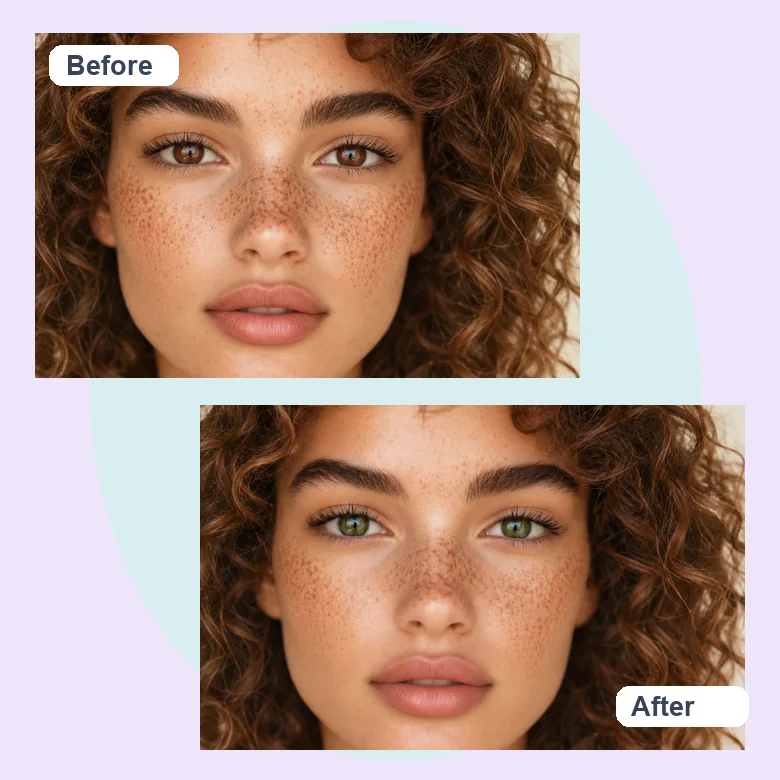
See hazel, grey, or green lenses on your own face before you order a pair, and compare a natural and a vivid version.
Match a character’s eye color, from icy blue to fantasy red, for cosplay photos, fan art references, and game avatars.
Make your eyes stand out in a selfie, or try a new look for social posts. Label edited photos when it matters.
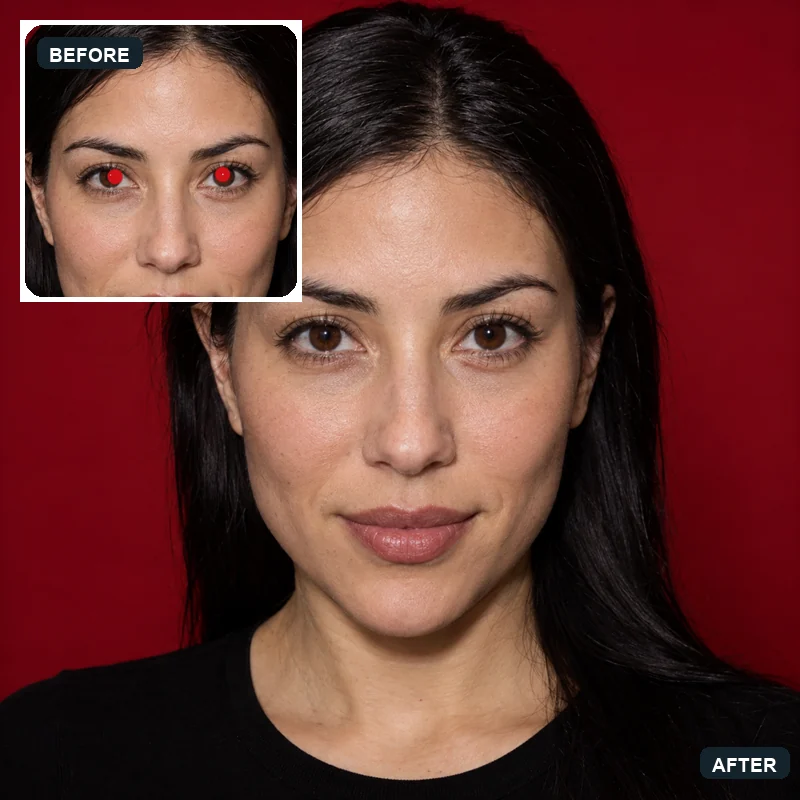
Restore the true color of eyes that turned grey or washed out under flash or office lighting.
Sharp, open eyes give the AI the most iris detail when you change eye color on photos.
Front-facing photos with clearly visible irises work far better than squinting or blurred eyes.
Avoid harsh flash and strong shadows that hide the iris or bounce off glasses.
Use the Natural finish and around 60–70% intensity for believable results, then push further if you like.
In photos with several people, brush over the eyes you want to change so the others stay untouched.
Common ways people put an eye color preview to work.
Illustrative examples adapted from reference material, not verified reviews of EzImgMaker.
I could not decide between grey and hazel contacts. Seeing both on my own selfie made the choice in a minute.
I needed bright violet eyes for a character photo. The color picker got the exact shade, and the reflections stayed natural.
Our group photo had one person with washed-out eyes from the flash. I marked just her eyes and the rest of the photo stayed as it was.
I turned my green eyes brown to see what I would look like with my dad’s eye color. Fun, and surprisingly realistic.
What people ask before they edit eye color online.
It is an AI eye color changer that detects the iris in a photo and recolors it while keeping the pupil, reflections, lashes, and skin. You choose the color, the finish, and the intensity; the AI rebuilds the iris in that shade.
Upload a portrait, tap one of the popular eye colors or pick any shade with the color picker, choose a finish and intensity, and start the change. Compare the result with the original and adjust if needed.
Yes. Natural shades such as hazel, green, grey, amber, and brown are one tap away, and the color picker accepts any color. Use the Fantasy Glow finish for red, violet, or gold character eyes, or describe something specific, like a gold ring around the pupil, in Extra instructions.
Yes. The Color intensity slider controls how much of the new color replaces the original. Lower values give a subtle tint that blends with your natural color; higher values give a full change.
By default every visible iris changes. To change eye color on a photo for just one person, brush or box over that person’s eyes with the optional marker, or write "only the person on the left" in Extra instructions.
The AI keeps the iris texture, the dark outer ring, and the catchlights, which is what makes an eye look real. Results depend on the photo: sharp, open, well-lit eyes give the most natural result.
The blue eye filter offers curated shades of blue only. The eye color changer is the open version: any color from the picker, a natural or vivid finish, intensity control, and an optional marker for group photos.
No. Whether you spell it color or colour, you can edit eye colour online in your browser on phone or desktop. This eye colour changer needs no install.
Only upload photos you own or have permission to edit, and do not use an edited photo to mislead anyone, for example in an ID photo or a profile meant to look unedited.
Upload a portrait and change eye color online: preview hazel, green, grey, or any shade you like on your own eyes.