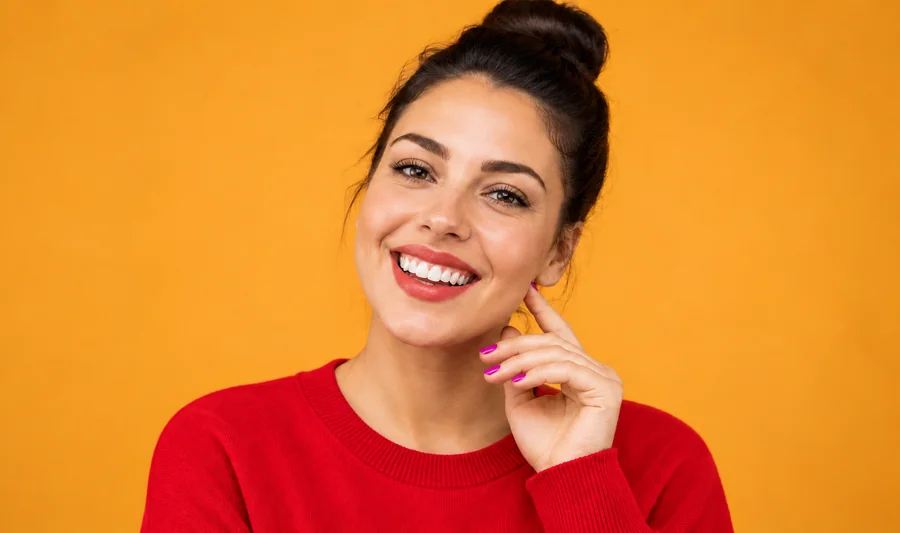
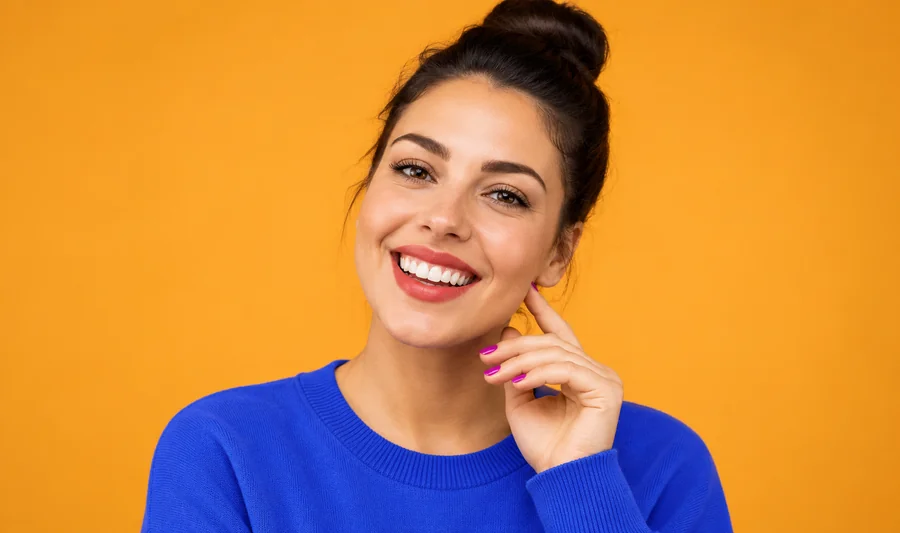
Sweater: Blue to Red
Change the color of a sweater from cobalt blue to a warm red while the knit texture, the neckline, and the soft studio light stay the same.
Upload a photo, pick the clothing item and a new color, and the AI recolors only that garment. Folds, prints, and lighting stay put, so the new color looks like it was there all along.
Popular recolors
Fine-tune
Your photo stays in this browser during this UI preview.
Reference example. It is not a result generated from your upload.
A clothes color changer is an AI photo editor that recolors one garment, such as a shirt, dress, jacket, or pair of pants, and leaves everything else alone. Instead of brushing a mask around every sleeve and painting over the fabric, you choose the clothing item and a new color, and the AI clothes color changer finds the garment, swaps the cloth color, and keeps the original folds, seams, and shadows.
It covers everyday edits like a T-shirt color change or a new shirt colour for a profile picture, as well as dress color changing for an event, product colorways for a shop, and quick outfit color tests before you buy. Only the color of clothes changes: your face, skin, hair, and background stay exactly as they were.
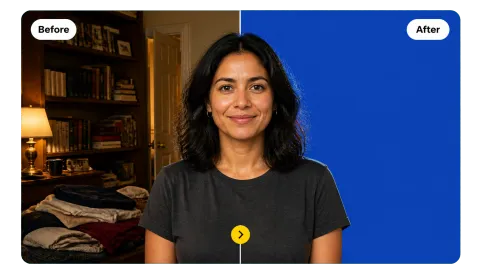
Drag each image to compare the original clothes color with the AI recolor.
Change the color of a sweater from cobalt blue to a warm red while the knit texture, the neckline, and the soft studio light stay the same.
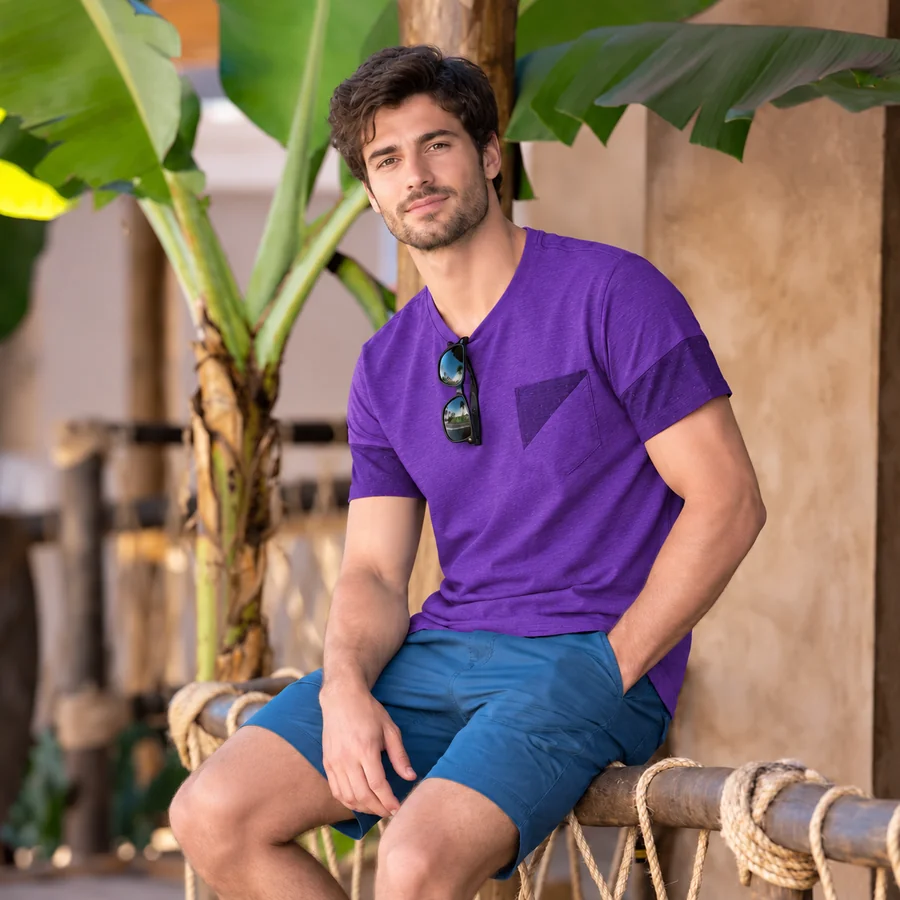
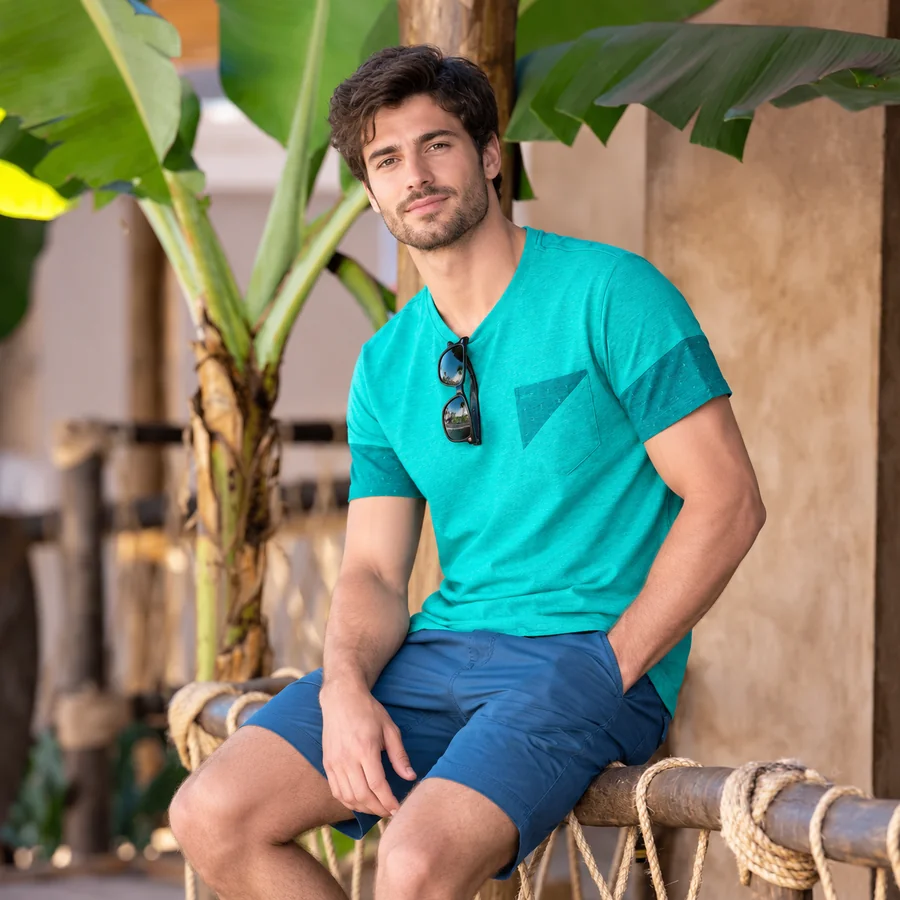
A quick T shirt colour change from teal to purple. The color of the shirt is new, but the print, the sunglasses hooked on the collar, and the shadows are untouched.
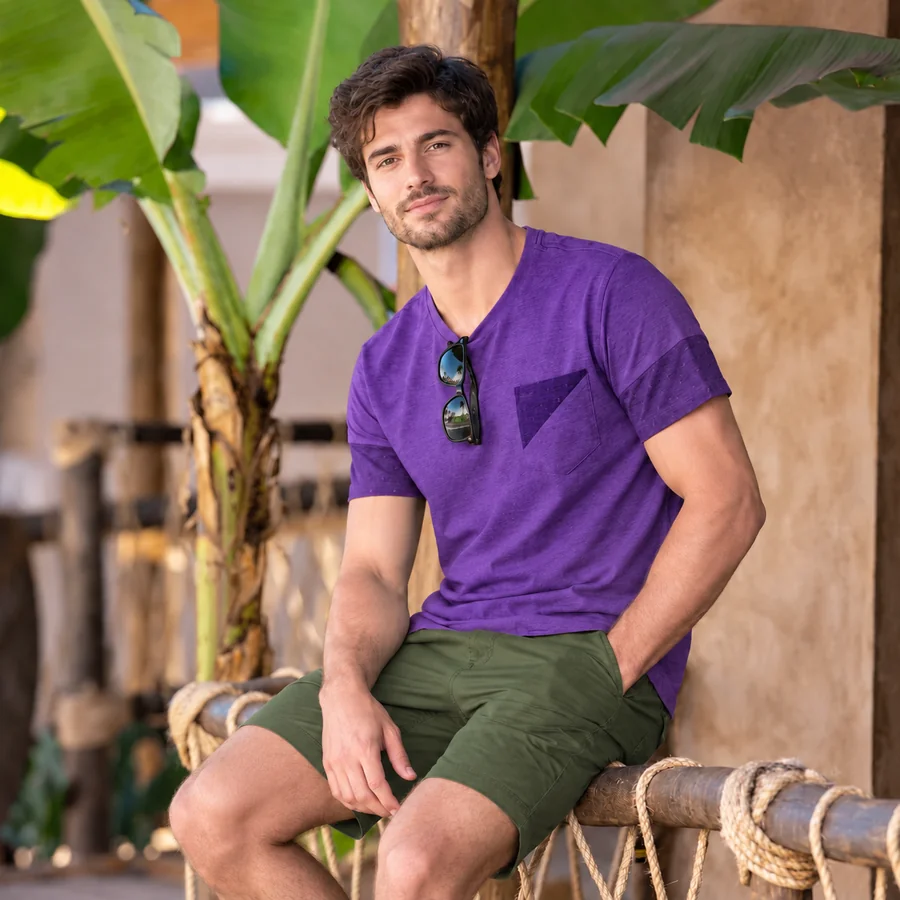
Change clothing color on more than one item at once. Here the T-shirt turns purple and the shorts turn olive green, a full outfit refresh from one photo.
Change color of clothes in picture files in three steps, right in your browser.
Add a JPG, PNG, or WebP photo up to 10 MB where the garment you want to recolor is clearly visible.
Choose Top / Shirt, Dress, Pants / Skirt, Jacket / Coat, or Whole Outfit, then tap a swatch or use the color picker. For example, change shirt color to navy or turn a dress red.
Start the recolor, compare the new clothes color with the original, and try another shade until it looks right.
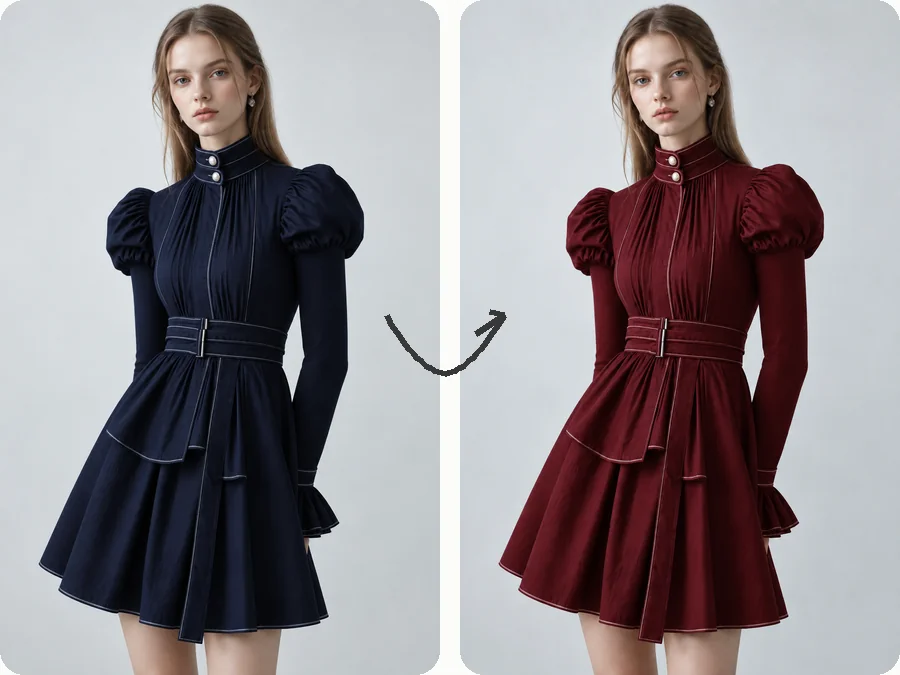
Wondering how the same dress looks in another shade? Pick Dress and a new color, and the dress color changer repaints the whole garment, including puffed sleeves, belts, and pleats, while the person and the backdrop stay untouched.
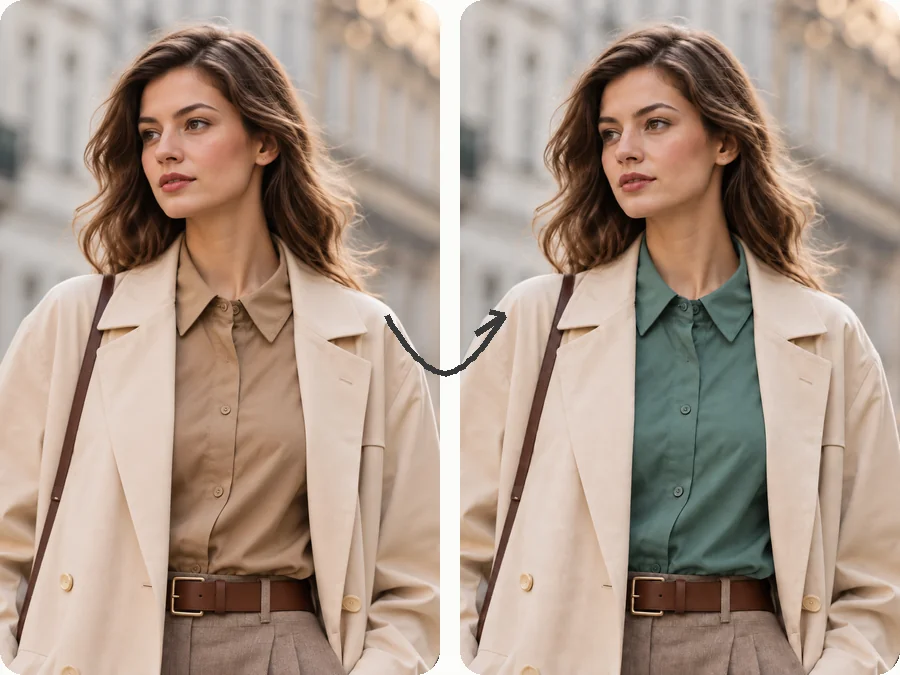
Change the color of a shirt under a blazer without touching the jacket, or recolor only the coat over a white tee. Choose the item, then use the instructions box for layered outfits, for example "only the shirt, keep the blazer beige".
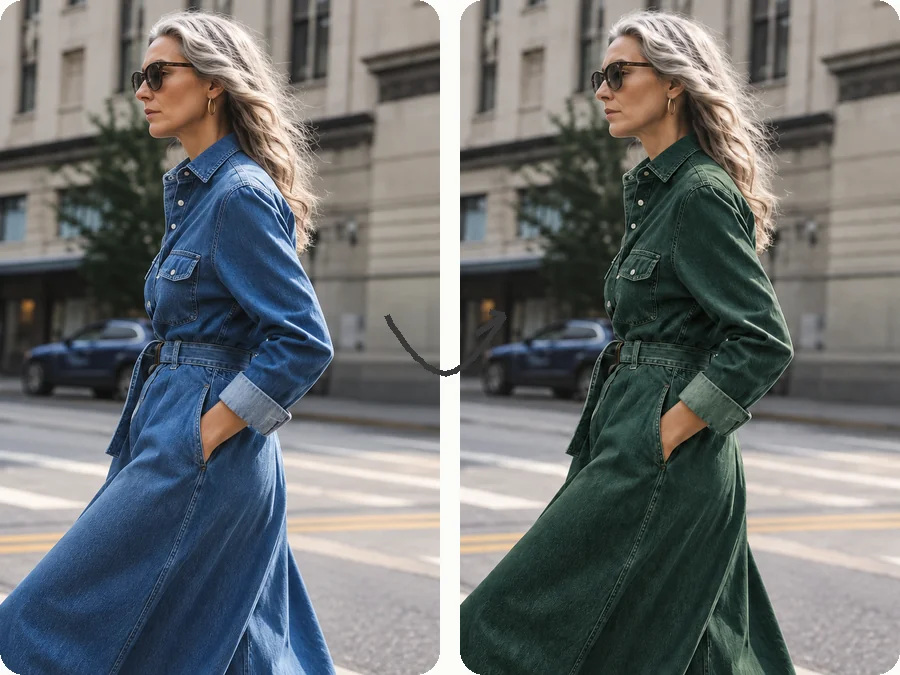
Denim still looks like denim and satin still shines. The AI changes the color on a shirt, dress, or coat while preserving stitching, wrinkles, highlights, and shadows, so the clothing color change looks photographed, not painted.
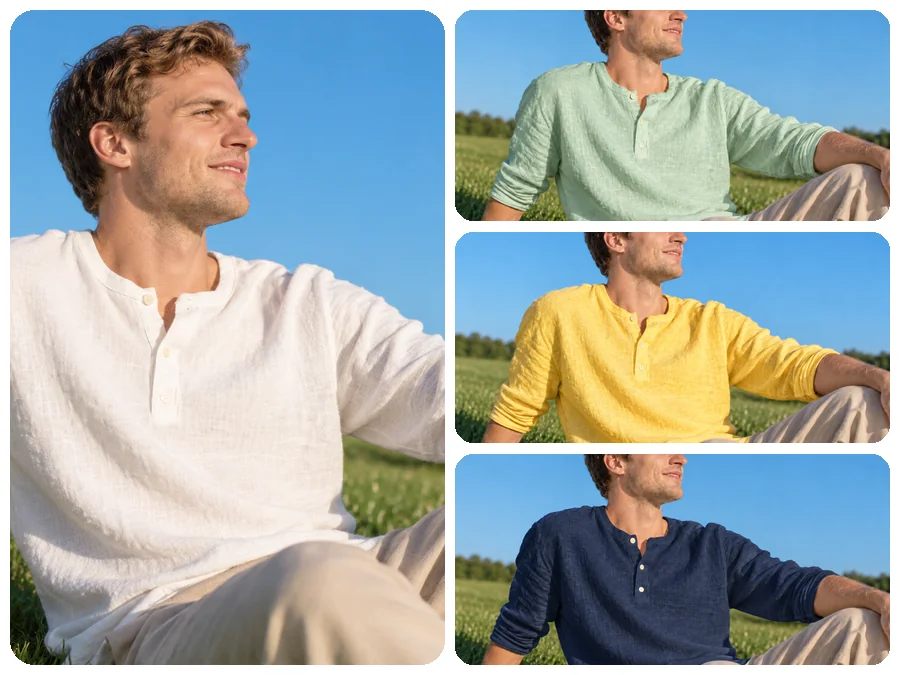
Shops and designers can show a product in several colors from a single photo. Use it as a shirt color changer for mint, yellow, and navy variants, or test a new colorway before ordering samples.
The most common reasons people recolor an outfit.

See how a jacket, dress, or sweater looks in another color on your own photo before you order it.
Create every color variant of a shirt or hoodie from one product shot for listings, ads, and sale banners.
Some ID photos need contrast with the background. Change a white shirt to a darker shade so it does not blend into a white backdrop, then check the official photo rules.
Coordinate group photos, bridesmaid looks, or team shirts by changing each outfit to the same color.
A few habits that make the new clothes color look real.
Recoloring works best when the item is fully visible and not cut off by the frame or covered by bags.
Even lighting keeps shading natural. Very dark or blown-out fabric has less detail to recolor.
Turning black clothes white is the hardest change. Try a mid-tone first, then go lighter.
For layered outfits, say which piece to change, such as "only the cardigan" or "the skirt, not the top".
Typical recoloring jobs from shoppers, sellers, and creators.
Illustrative examples adapted from reference material, not verified reviews of EzImgMaker.
The dress I loved only came in navy and burgundy. Recoloring my photo made it obvious that burgundy was the one.
We shoot one hoodie and create the other five colorways from it. The fabric texture holds up even when you zoom in.
My white shirt disappeared against a white ID photo background. Changing it to light blue fixed the contrast in one go.
I design team kits and use it to try club colors on real player photos before we send anything to print.
Answers to common questions about changing clothes color in photos.
A clothes color changer is an AI tool that changes the color of a specific garment in a photo, such as a T-shirt, dress, jacket, or pants, while keeping its texture, folds, and lighting. Unlike a global color filter, it only recolors the clothing you choose.
Upload the photo, choose the clothing item, pick a new color from the swatches or the color picker, and start the recolor. Compare the result with the original and adjust the shade if needed.
Yes. The AI detects the selected garment and recolors only that area. Faces, skin, hair, accessories, and the background stay the same. For layered outfits, add a short instruction such as "only the jacket".
Select Dress, choose the new color, and keep "Keep texture & print" on if the dress has lace, pleats, or a pattern. The AI rebuilds the dress in the new shade with the original shading, so straps, belts, and folds still look natural.
Yes. To change color of shirt in photo edits, select Top / Shirt and keep "Keep texture & print" on: the graphic or pattern stays and only the base color of the shirt changes. Choose "Make it solid" if you want a plain shirt in the new color.
No. This clothes color changer works in the browser on phone and desktop, so there is no app to change color of clothes to download or install.
Yes, but dark-to-light is the hardest recolor because very dark fabric hides detail. Use a well-lit photo and, if the first result looks flat, try a light gray or cream first.
Most guidelines ask for clothing that contrasts with the background, so avoid a white shirt on a white backdrop. Mid or dark colors such as navy or gray usually work. Recoloring the shirt is fine, but never alter your face, and always follow the official rules for your document.
Only upload photos you own or have permission to edit. Do not use recolored images to misrepresent a product you sell or to deceive anyone about a real person.
Upload a photo, choose the garment and the shade, and see the new clothes color in place.