Upload Your Veo or Gemini Clip
Add the MP4 you downloaded from Gemini or Flow, up to 60 seconds and 100 MB. The original download keeps the most detail around the corner.
Made a clip with Veo 3, Veo 3.1, or Gemini and the "Veo" mark sits in the corner? Upload your video, let the AI rebuild that corner on every frame, and keep the full shot and soundtrack.
Fine-tune
Your video stays in this browser during this UI preview.
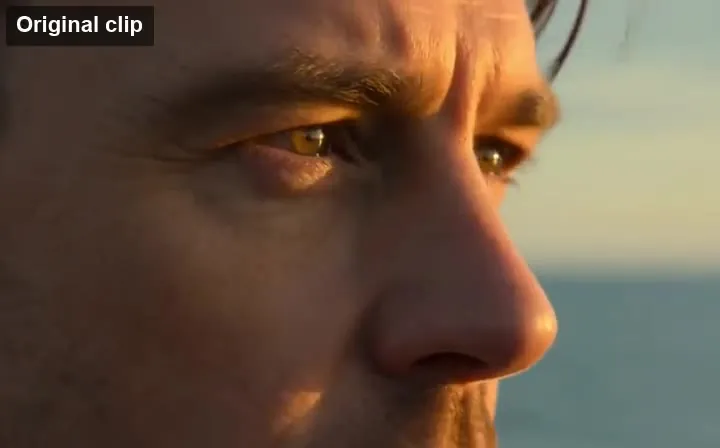
Reference example. It is not a result generated from your upload.
Videos you generate with Google Veo in the Gemini app usually carry a small "Veo" text mark in the bottom-right corner, and some Gemini exports show the Gemini Veo logo instead. Because the mark stays put for the whole clip, it is easy to spot in a montage, a pitch, or a social post. A Veo watermark remover detects that corner mark and rebuilds the background behind it frame by frame, so you keep the original 16:9 or 9:16 framing instead of cropping.
EzImgMaker works as a Veo 3 watermark remover and a Gemini video watermark remover in one: upload a clip you generated with Veo 3, Veo 3.1, or Gemini Omni, keep the default settings, and download the cleaned version with its generated audio. It is the Gemini watermark remover video makers need for moving footage, and it is meant for your own generations. It removes only the visible mark; the invisible SynthID signal stays, so the video can still be identified as AI-generated.
Three steps to remove Veo watermark marks without masking or cropping.
Add the MP4 you downloaded from Gemini or Flow, up to 60 seconds and 100 MB. The original download keeps the most detail around the corner.
These defaults find the corner mark on most Veo clips. Switch to "Gemini logo" or "Another spot" if your export looks different, and note any extra caption you want gone.
Click Remove Veo Watermark, play the clip through, and download it in 1080p or 720p with the generated sound kept.
Built around the fixed corner mark on Veo and Gemini videos.
Cropping out the bottom-right corner changes the aspect ratio and cuts into your subject. The Veo watermark remover fills the corner with the crosswalk, wall, or floor that should be there, so a 16:9 Veo clip stays 16:9.
Veo shots often move: swaying grass, waves, traffic, or a slow camera push. The AI uses neighboring frames to keep the rebuilt corner steady, so it does not shimmer while the texture moves.
A white Veo3 logo over a night sky or a dim interior is easy to see and easy to smear. The fill matches the dark tones and grain of the scene so the corner does not turn into a gray patch.
Use it as a Veo 3 logo remover for the text mark and as a Gemini omni video watermark remover for newer Gemini exports. Switch the mark type to remove a caption or logo you added yourself in the same pass.
Veo and Gemini videos can carry more than one kind of mark.
| Mark | Visible? | Where | Removed by EzImgMaker? |
|---|---|---|---|
| "Veo" text watermark | Yes | Bottom-right corner | Yes |
| Gemini logo on some exports | Yes | Usually a corner | Yes |
| Captions or logos you added | Yes | Anywhere | Yes (describe them) |
| SynthID | No (invisible) | Spread through the pixels | No, and we do not try to |
Removing the visible Veo watermark does not change the fact that the clip is AI-generated. Label it where you publish it.
Common reasons people clean the corner of clips they generated.
When several Veo clips are cut together, the same mark in every shot distracts. Clean them so your own titles and transitions carry the edit.
Concept videos for clients and teams read better without a corner stamp. Note on the slide that the footage is AI-generated.
Post your own Veo clips with their full frame, and turn on the platform’s AI-content label where it has one.
Scenes generated for lessons or onboarding look more consistent when every clip has a clean corner.
Small habits that make the rebuilt corner hold up.
Screen recordings blur the mark’s edges. The MP4 saved from Gemini or Flow gives the cleanest corner.
Clean each clip first, then add your own captions, color grade, and music.
If you also added text or a logo, describe it in the instructions box so it goes in the same pass.
Only clean videos you generated, and keep telling viewers the footage is AI-made.
Typical ways people clean their own Veo and Gemini clips.
Illustrative examples adapted from reference material, not verified reviews of EzImgMaker.
I stitch Veo 3 clips into short mood films. Cleaning the corner on each one made the cut feel finished, and the description says it is AI-generated.
The mark sat over dark water in my night shot. The rebuilt corner matched the reflections instead of leaving a gray smudge.
For pitch decks I generate product scenes in Gemini. Removing the corner mark keeps the frame clean for the client review.
I needed the full 16:9 frame for a presentation. Cropping cut off the subject; removing the mark did not.
Answers about removing the visible Veo and Gemini mark from videos you generated.
Upload the video, keep "Veo watermark" and "Auto-detect", and click Remove Veo Watermark. The AI rebuilds the corner on every frame. If your export shows the Gemini logo instead, choose "Gemini logo".
Use an inpainting tool like this one instead of a crop. It fills the corner with what should be behind the mark, so the aspect ratio and the edges of your shot stay the same.
The steps are the same for every version: upload, keep the defaults, remove. If the mark is in an unusual spot, choose "Another spot" and describe where it is.
Whether you can export Veo without watermark depends on the Google product and plan you use, and Google can change that. Check Google’s current terms for your plan. If your clip has the mark, this tool cleans the visible part.
No. SynthID is an invisible signal Google embeds in Veo videos to identify them as AI-generated. We only rebuild the visible corner mark and do not attempt to remove or hide SynthID.
Use it only on videos you generated or have permission to edit, and follow Google’s terms and the rules of the platform where you post. Keep labeling the clip as AI-generated, and never use a cleaned clip to impersonate someone or pass AI footage off as real.
Only the corner is rebuilt. You can download in 1080p or 720p, and Veo’s generated audio is kept unless you choose Mute.
No. Still images from Gemini or Nano Banana have their own sparkle logo and use the image tool. This page handles Veo and Gemini video clips.
MP4 or MOV up to 100 MB and 60 seconds. Vertical and widescreen Veo clips both work.
New users get free credits to try it. After that, video cleanup uses credits from a credit pack.
Upload a Veo 3 or Gemini video you generated and get the full frame back without the corner mark.
Veo, Gemini, and SynthID are trademarks of Google LLC. EzImgMaker is an independent tool and is not affiliated with or endorsed by Google. Remove marks only from videos you generated or have permission to edit, and keep disclosing AI-generated content.