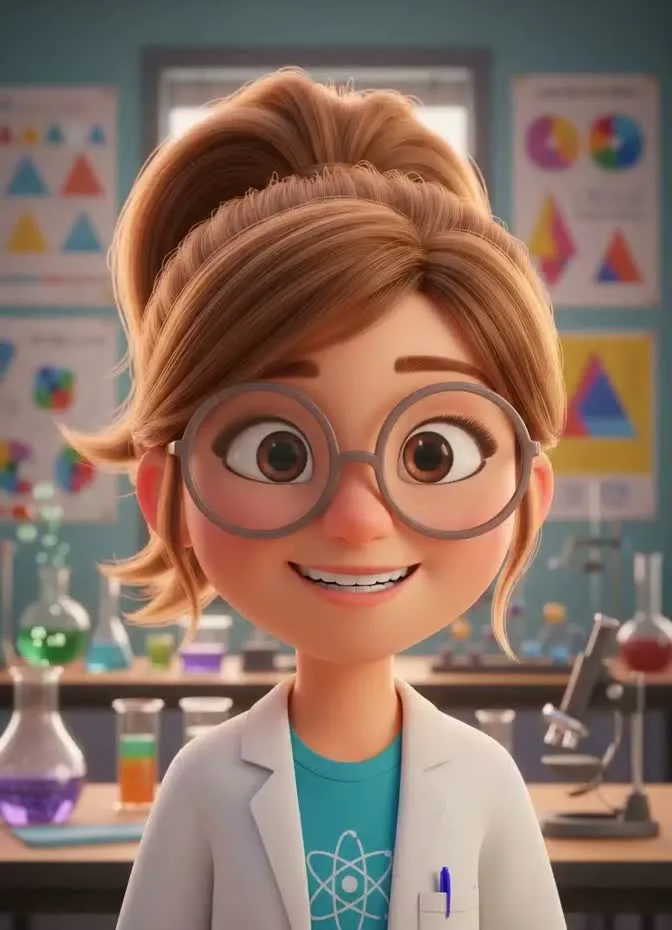
Cartoon scientist: the still
A 3D character render with a clear, front-facing face. Cartoon faces work well when the mouth is easy to find.
Upload one clear portrait, add up to 60 seconds of speech, and get a video where the face talks in sync with it. Use your own recording, an audio file, or a typed script read by a stock voice.
MP3, WAV, M4A or OGG · Up to 10 MB · 1–60 seconds. Expressive requires less than 60 seconds.
Reference example. It is not a result generated from your upload.
An AI talking photo is a short video made from a single still picture and a voice track. The AI reads the face in your portrait, then animates the mouth, jaw, eyes and head so the picture speaks the words in your audio, with lip movement timed to each syllable. The video runs as long as the speech, up to 60 seconds.
You decide what it says. Record yourself in the browser, upload a voice memo or narration, or type a script and pick one of eight stock voices. That makes it easy to make a photo talk for a greeting, a product intro or a short lesson, and to make an image talk that was never filmed at all: a painted portrait, a 3D character or your dog.
Each pair shows the picture that went in and the talking video that came out. Turn the sound on.
A 3D character render with a clear, front-facing face. Cartoon faces work well when the mouth is easy to find.
The same render speaking, with the eyebrows and head moving along with the voice.
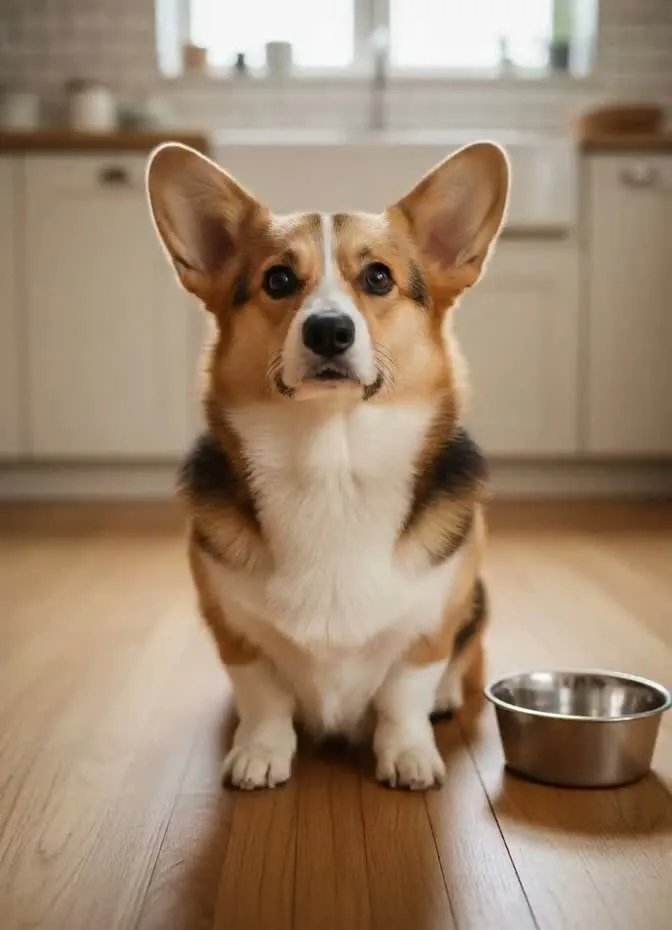
A pet photo taken at eye level, with the whole muzzle sharp and in view.
The corgi complains that dinner is late. A short, cheeky script is all a pet clip needs.
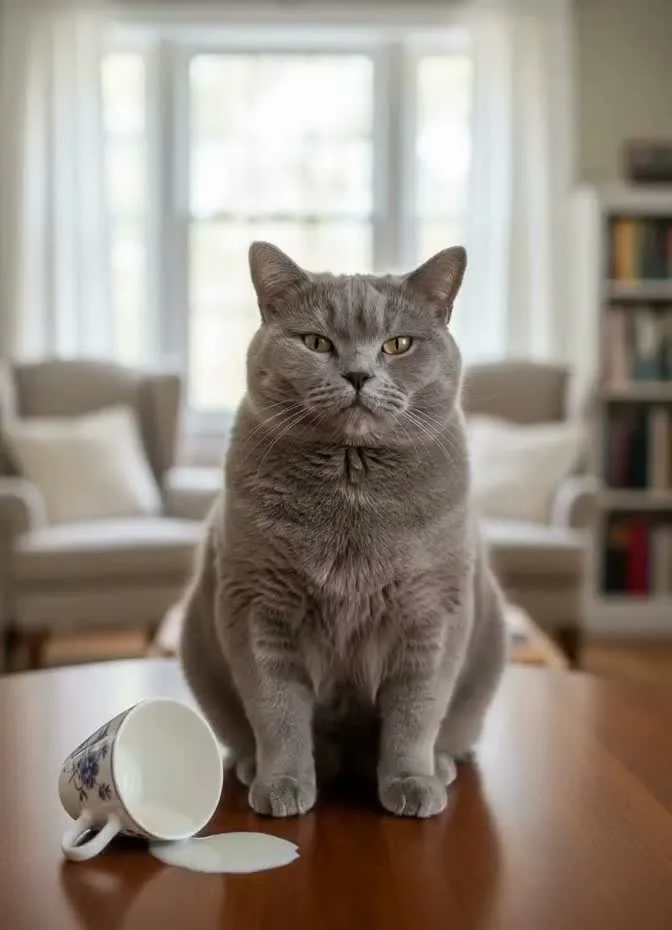
A grey cat sitting next to the evidence, photographed from the front.
The cat explains itself and regrets nothing. Funny lines suit pets better than long speeches.
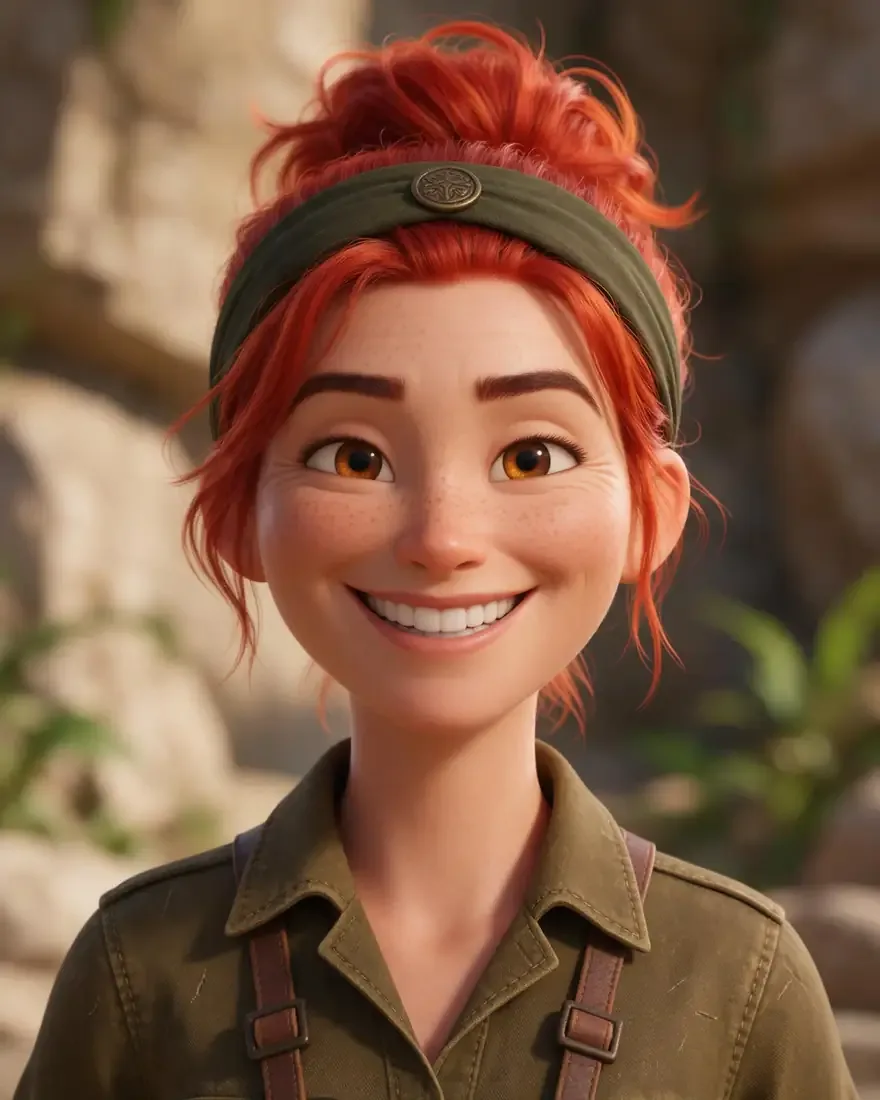
An original 3D character in a slight three-quarter pose with an open, readable face.
The explorer speaks to the camera: a quick way to give an original talking character a voice.
Everything happens in the panel above, on a phone or a computer.
Add a JPG or PNG up to 10 MB with one face looking roughly at the camera. A sharp, evenly lit face gives the cleanest lip sync.
Choose Upload audio for an MP3, WAV, M4A or OGG file, Record to speak into your microphone, or Type text to have a stock voice read your script. Speech can run from just over 1 second to 60 seconds.
Standard renders in 720p and Pro in 1080p. Expressive aims for livelier faces and gestures, also in 1080p, and takes speech under 60 seconds. Add an optional movement description if you want a nod or a hand gesture.
Tick the box to confirm you own the photo or have the person’s permission, press Generate Video, then play the result with sound before you download it.
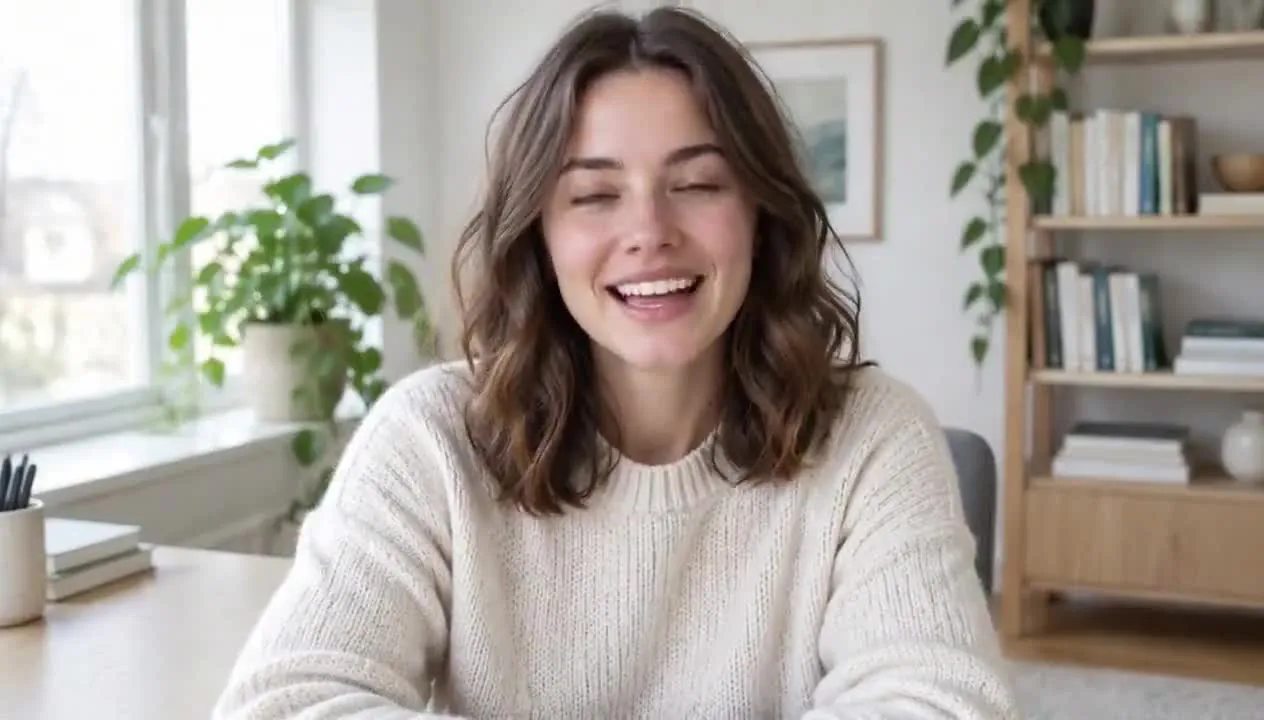
Record a greeting in the browser and the portrait says it back in your voice, with the mouth shaping each word. Use it for a thank-you message, a profile intro or a welcome video on a team page, without setting up a camera.
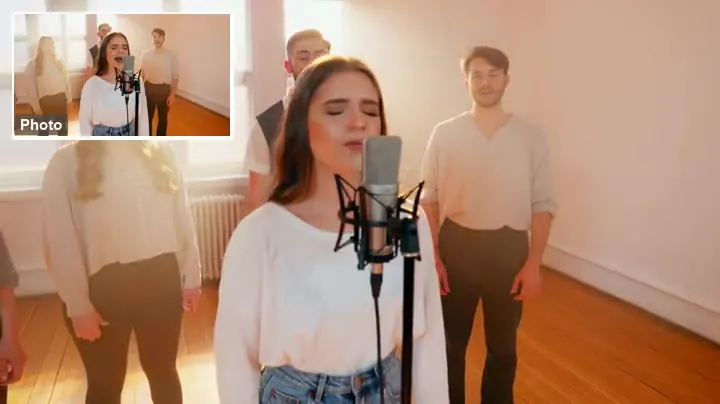
The voice track can be a song. Upload a vocal and the AI talking picture follows the melody, holding long notes and moving with the phrasing. An a cappella take or a vocal with quiet backing gives the mouth the clearest cues.
Expressive reaches past the face: shoulders, hands and posture move with the rhythm of the speech, as in this storyteller clip. Use a photo with the hands in frame and add a short movement note, such as “raises one hand while making a point” (up to 300 characters).
A painted portrait can speak too. Pro renders in 1080p, which keeps brushwork, pearls and fabric crisp while the lips move. Use artwork you made or have the rights to, with the face front-on and unobstructed.
A talking picture is quicker than filming and more personal than a block of text.
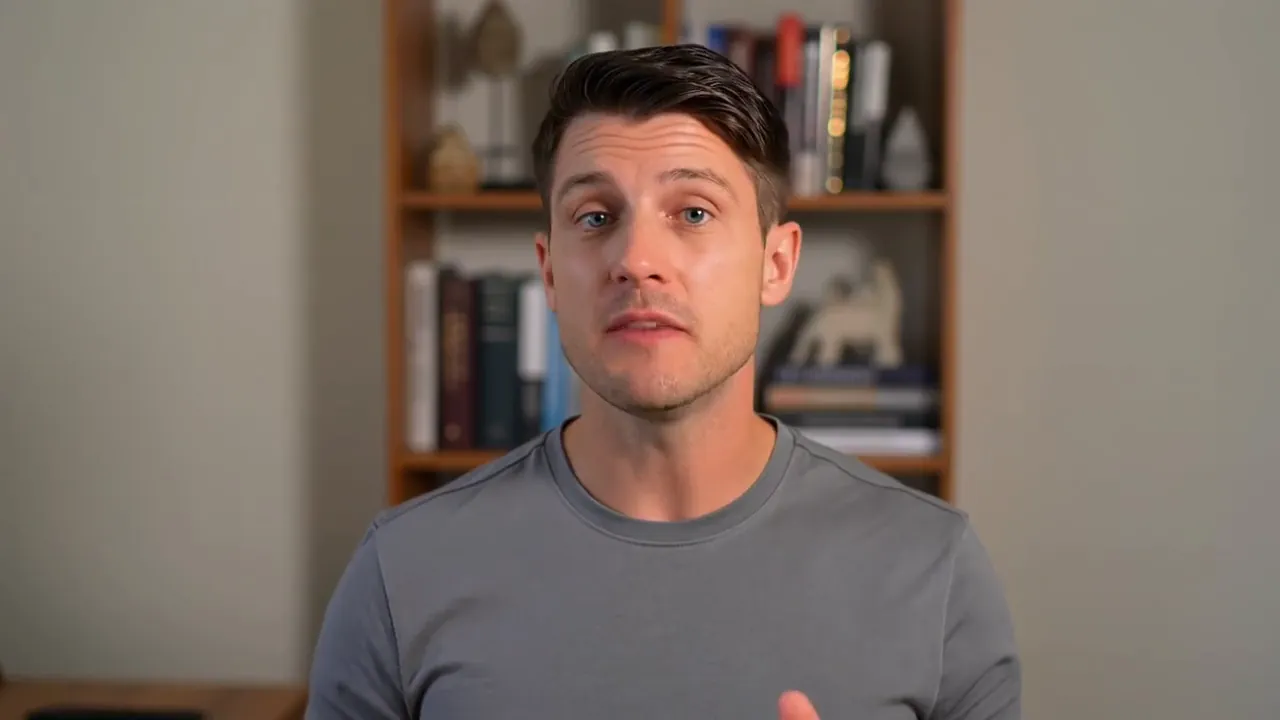
Put a speaking headshot on a listing page or a shop’s About section, in your own voice. It works as an AI photo talking head without booking a film shoot.
Turn a portrait or an illustrated mascot into a narrator who introduces a lesson, a quiz or a new unit.
Make photos talk for a birthday or an anniversary message, or let the family dog “explain” what happened to the couch.
Give an original talking character a voice for a pitch, a webcomic teaser or a social post.
Any talking picture AI depends on two things more than anything else: the face in the photo and the clarity of the audio.
A straight-on or slight three-quarter view works best. Profiles and steep angles hide half the mouth.
No hands, microphones, hair or sunglasses across the lower face. A relaxed, closed mouth in the photo animates more cleanly than a wide laugh.
Speak close to the mic in a quiet room. Background music, echo and two people talking at once blur the syllables the model follows.
Normal speed with short pauses reads best. Rushed speech or long silences can leave the mouth drifting.
Expressive accepts speech under 60 seconds, but clips of about 15 seconds or less hold their quality best. Split a long script into parts.
Use your own face, or get the person’s permission first. Never animate a public figure or make someone appear to say something they did not say.
Already have footage of the speaker? Swap in new audio and re-sync the mouth on real video instead of a still.
Open Lip SyncSharpen a soft, small or old portrait before you upload it, so the AI has a clear mouth and eyes to work with.
Fix the Photo FirstTurn a selfie into a cartoon version of yourself, then come back and make the cartoon talk.
Cartoon YourselfDesign an original character from a text prompt, then give it a voice here.
Design a CharacterA short video in which a still portrait speaks. You supply the picture and the words; the AI handles the lip movement, blinking and small head turns, so it looks as if the photo had been filmed while talking.
Upload a portrait, add speech by uploading, recording or typing it, choose Standard, Pro or Expressive, confirm you have permission, and press Generate Video. Most clips are ready in a few minutes.
Yes. Choose Expressive, the mode built for bigger gestures, and use a photo that shows the hands and upper body. Then add a short movement note, for example “gestures with both hands, then nods”.
Standard (720p) costs the fewest credits and suits social posts and quick tests. Pro makes the same kind of clip in 1080p for a sharper face. Expressive adds livelier motion, also in 1080p, and needs speech under 60 seconds. The Generate button shows the cost of each before you start.
It is free to try: new accounts get bonus credits on sign-up, and everything runs in the browser. Each video uses credits based on the mode and the length of the speech, shown on the button before you generate.
Yes. The examples above include a corgi, a cat, 3D characters and a classical painting. Expressive is designed for people, pets and anime-style characters alike. Pick an image where the mouth area is sharp, and for artwork use pieces you created or have the rights to.
Start from a character image you have the rights to: a 3D render, a drawing or an AI-generated portrait with a clear, front-facing face. Add the voice here. For a consistent talking avatar across several videos, reuse the same image and the same voice each time.
As long as the speech: from just over 1 second up to 60 seconds. Expressive needs speech under 60 seconds and looks best at about 15 seconds or less, so break longer scripts into several clips.
There is nothing to install. The tool runs in any modern mobile or desktop browser, and the Record option uses your phone’s microphone directly.
Your own, or photos of people who have given you permission. Do not animate public figures, celebrities or politicians, do not make anyone appear to say something they never said, and do not use the tool for impersonation or fraud. Label talking photos as AI-generated when you share them.
Pick a clear portrait, add a few seconds of speech, and watch the picture talk. Your own voice, an audio file or a typed script all work.
Talking photos are AI-generated videos, not real recordings. Upload only photos and audio you own or have permission to use, never animate public figures, and do not use the results to impersonate, deceive or harass anyone. Label them as AI when you share them.