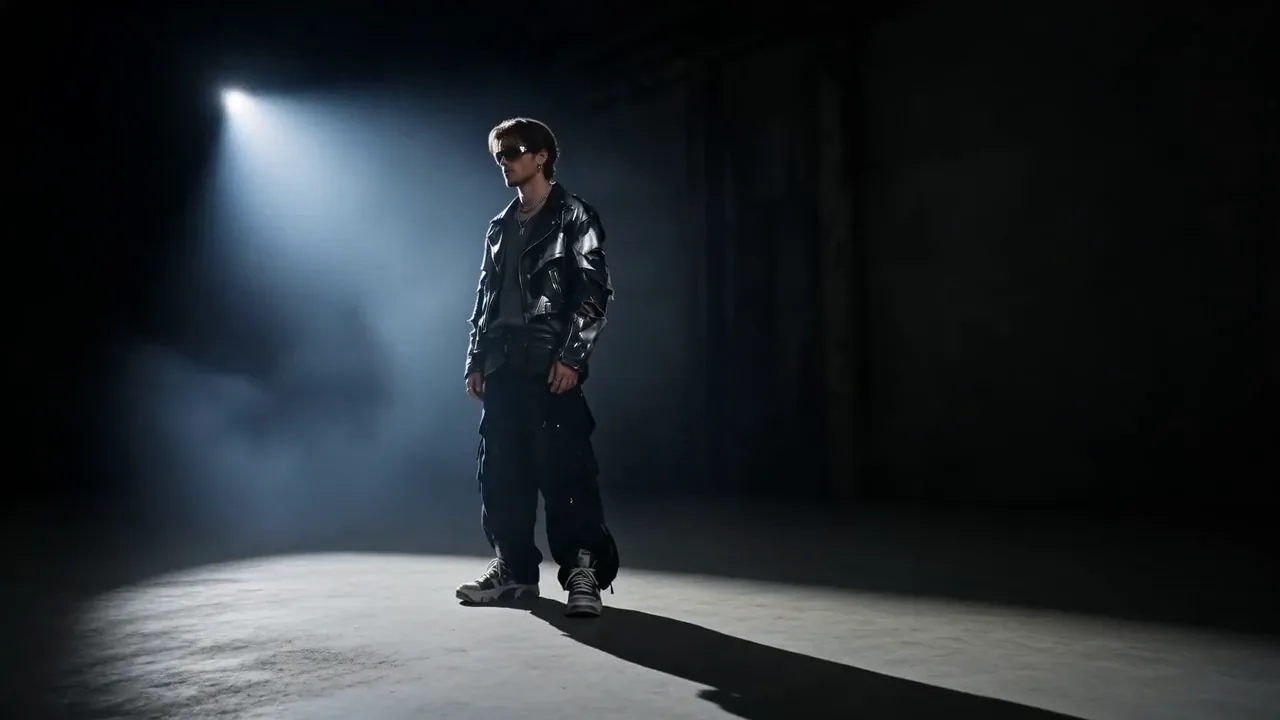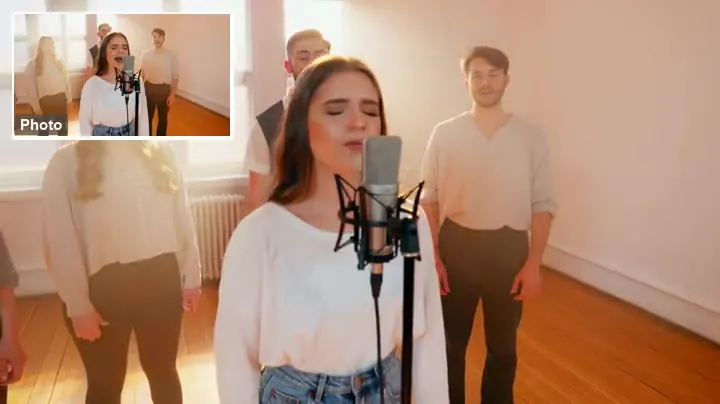
A Three-Shot Whale Sequence
One prompt, three shots: the whale breaches beside the lighthouse, the keeper looks up, and the glowing foam rolls in, all in a single 10-second clip with ocean roar and a score.
Write a prompt, bring one image to life, morph a first frame into a last frame, place up to three reference images in one scene, or keep a clip you upload going. PixVerse V6 renders 1 to 15 seconds from 360p to 1080p with optional sound and multi-shot cuts, and V6 Max is one switch away for text and image to video.
Three-shot cinematic sequence at night: a colossal whale made of glowing blue bioluminescent water bursts out of a black ocean beside a lighthouse; a bearded keeper in a yellow raincoat looks up in awe; the whale crashes back down as glowing foam rolls toward the rocks. Ocean roar and a swelling score.
Reference example. It is not a result generated from your upload.
PixVerse V6 (also written PixVerse 6, PixVerse 6.0, or PixVerse version 6) is the version 6 model in the PixVerse AI video family. One PixVerse V6 model covers five jobs: text to video, image to video from a single start frame, a first-to-last transition between two images, reference to video with up to three images of people, pets, or products, and Extend, which continues a video you upload. Each generation runs 1 to 15 seconds at 360p, 540p, 720p, or 1080p, and sound can be generated together with the picture.
PixVerse V6 Max is the premium tier of the same model. Here it handles text to video and image to video, costs more credits per second, and leaves out the Multi-shot switch; First-to-last transition, Reference to video, and Extend video always run on standard V6. You can use the PixVerse V6 model online on EzImgMaker with no app or API key: pick a mode in the workspace above and generate. The clips below are real PixVerse V6 outputs, and the hat-shop scene was made with V6 Max.
Three PixVerse V6 clips with the prompts that made them, sound included. Load a prompt into the workspace, then swap in your own subject.
One prompt, three shots: the whale breaches beside the lighthouse, the keeper looks up, and the glowing foam rolls in, all in a single 10-second clip with ocean roar and a score.
The style comes first in the prompt, "Claymation with a stop-motion feel", so the look is fixed before the action: a slow push-in as the bear lifts cinnamon buns from the oven.
A fast drone pass over turquoise braids and black sand that tilts up to pink peaks and a red cabin, with wind and rushing water on the soundtrack.
Four steps from an idea, a photo, or a clip you already have to a finished PixVerse V6 video.
Text to video needs only a prompt. Image to video takes a First frame, First-to-last transition takes a First frame and a Last frame, Reference to video takes one to three reference images, and Extend video takes an MP4 or MOV of up to 30 seconds.
In Text to video and Image to video, set Version to V6 or V6 Max. Turn Native audio on for generated sound, and on standard V6 turn Multi-shot on when one prompt should cut between several shots.
Open More settings, drag Duration anywhere from 1 to 15 seconds, choose 360p, 540p, 720p, or 1080p, and pick 16:9, 9:16, or 1:1 for text or reference clips. In Extend video, Duration is the number of new seconds.
The credit cost shows on the Generate button before you start. Download the MP4, or bring it back into Extend video to carry the scene past 15 seconds.
Set Version to V6 Max when you start from a prompt or a single image. Max uses more credits per second than standard V6 and has no Multi-shot switch, so save it for one continuous shot that matters. This hat-shop scene was animated from one start frame with V6 Max, sound included.
Upload the frame the clip should open on and the frame it should land on, then describe how one becomes the other. PixVerse V6 fills in the motion between them: here a woman walking down a sunset street changes from a long beige coat into a black blazer without a cut.
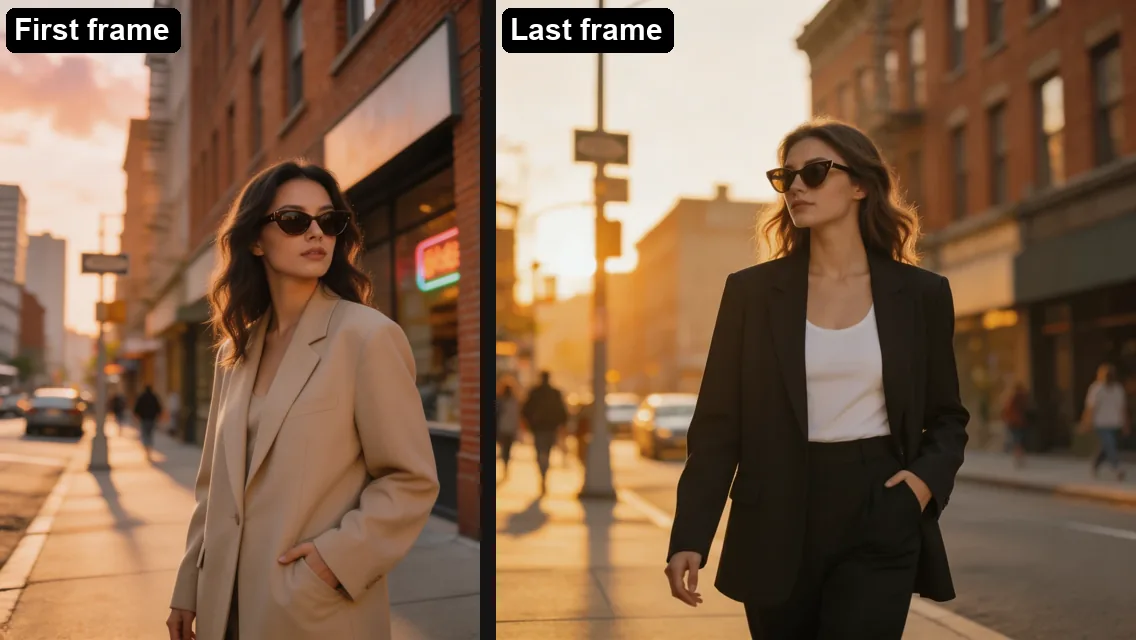
Both frames keep the same sunglasses, golden-hour street, and camera height, and she fills a similar part of the frame. Holding everything steady except the outfit is what lets PixVerse V6 turn the change into one continuous walk instead of a jump cut.
Start from one illustration or photo and describe what moves and what we hear. In this anime street scene the fox spirit's tail sways, lanterns glow through the mist, and she speaks quietly to the girl, while the look of the start frame holds.
What each version accepts and outputs in the workspace above.
| PixVerse V6 | PixVerse V6 Max | |
|---|---|---|
| Modes here | Text, image, first-to-last transition, reference, extend | Text to video, image to video |
| Clip length | 1–15 s (Extend adds 1–15 s) | 1–15 s |
| Resolution | 360p, 540p, 720p, 1080p | 360p, 540p, 720p, 1080p |
| Aspect ratio | 16:9, 9:16, or 1:1 for text and reference clips; uploads set the shape in other modes | 16:9, 9:16, or 1:1 for text; image to video follows your image |
| Uploads | Images: JPG, PNG, or WebP up to 20 MB; video: MP4 or MOV up to 30 s and 50 MB | One start frame: JPG, PNG, or WebP up to 20 MB |
| Multi-shot | Text and image to video | Not available |
| Native audio | Optional | Optional |
| Prompt length | 3–5,000 characters | Up to 5,000 characters |
| Credits per second | Standard rate | Higher than V6 |
Turning sound on adds to the cost in both versions, and Extend charges only for the seconds it adds. Your clip plus the extension can total up to 30 seconds. The exact cost appears on the Generate button before you generate.
Three video models on EzImgMaker side by side, using the settings each model page offers.
| PixVerse V6 | Kling 3.0 | Seedance 2.5 | |
|---|---|---|---|
| Clip length | 1–15 s | 3–15 s | 4–30 s |
| Resolution | 360p to 1080p | 720p, 1080p, 4K | 480p, 720p, 1080p |
| Start + end frame | Yes (first-to-last transition) | Yes | Yes |
| References | Up to 3 images | Up to 3 elements (images or a short video) plus a voice clip | Up to 30 images, 10 videos, and 10 audio clips |
| Extend a clip you upload | Yes, 1–15 s more | Not offered here | Not offered here |
| Native audio | Optional | On or off | On or off |
| Best for | Short clips, frame-to-frame morphs, extending footage | Multi-shot scenes with dialogue, 4K output | Long single takes guided by many references |
Each model has its own page on EzImgMaker, so you can run one prompt on all three and compare the results and the credit cost.
Turn two lookbook shots into an outfit-change transition for a product page, a lookbook reel, or a 9:16 ad.
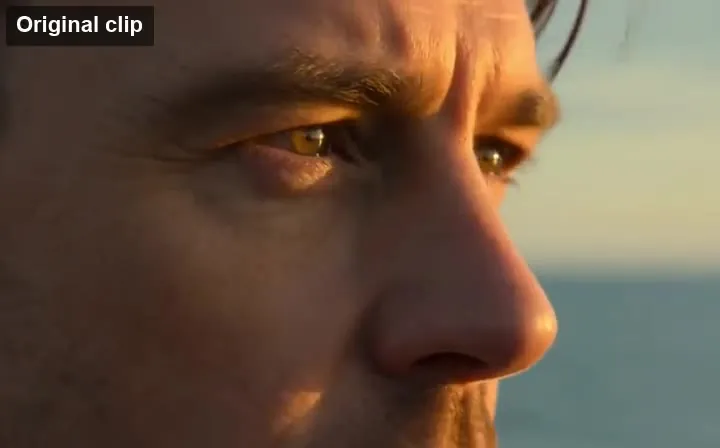
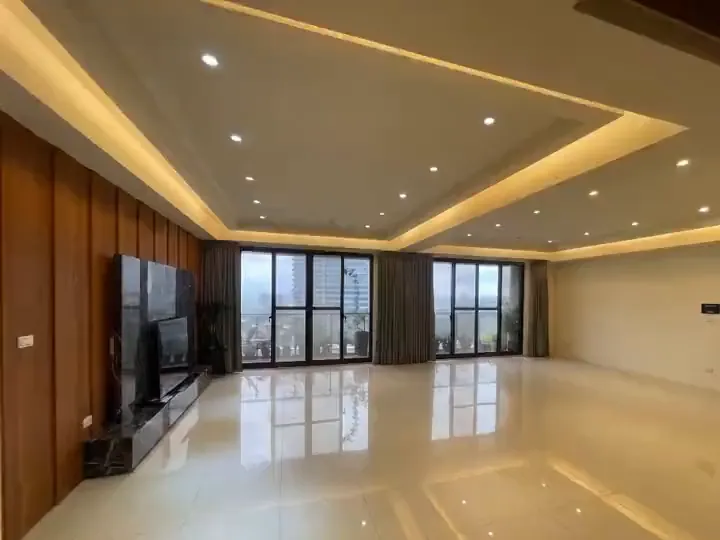
Upload the clip, describe what happens next, and add 1 to 15 seconds so the moment plays out.
Test claymation, anime, or storybook beats from a single drawing before committing to full animation.
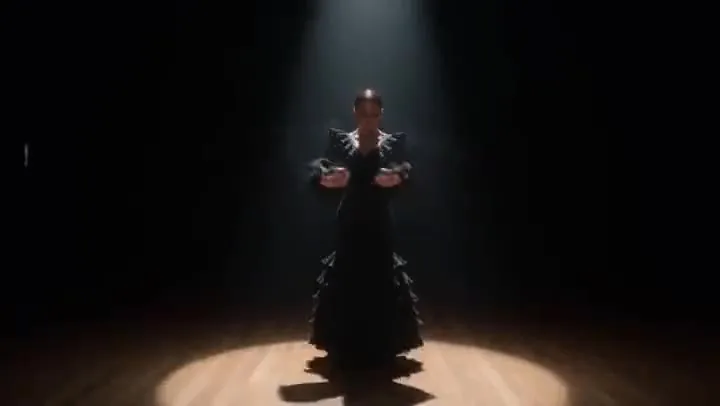
Vertical 9:16 clips like the puddle dancer, with splashes and city sound, for Reels, Shorts, and TikTok.
Six habits for PixVerse V6 prompts, drawn from the clips on this page.
For a transition, put the person or product at the same size and spot in the first and last frame, and let only what should change, such as the outfit or the season, differ.
Start an Extend video prompt with the motion already underway, such as "she keeps walking toward the camera", instead of a new scene, so the join stays smooth.
With Multi-shot on, say how many shots you want and split them with semicolons, as in the whale prompt: the breach; the keeper looking up; the crash.
With Native audio on, end with what we should hear, like "Ocean roar and a swelling score" or "Wind and rushing water". For silent B-roll, turn audio off and drop the line.
Lead with the look, such as "Claymation with a stop-motion feel" or "Anime night street", so the style is set before the action starts.
In Reference to video, say what each image shows ("the man in the green jacket", "the white mug") and where each one goes in the scene.
The main PixVerse page and close rivals on EzImgMaker, with the reason to pick each one.
The main PixVerse page runs V6 with eight aspect ratios, from 21:9 to 9:16, and named Fusion slots for two subjects and a background.
Read the guidePixVerse V6 vs Kling 3.0: choose Kling when you need up to five shots in one video or 4K output.
Read the guidePixVerse V6 vs Seedance 2.5: choose Seedance for single takes of up to 30 seconds guided by many reference files.
Read the guidePixVerse V6 vs Seedance 2.0: choose Seedance 2.0 for 4K output and for following the motion of a reference video.
Read the guideAnswers about PixVerse V6, V6 Max, transitions, Extend, and pricing.
PixVerse V6 is the version 6 video model from PixVerse, also searched as PixVerse 6 AI, PixVerse 6.0, or PixVerse AI V6. It makes 1 to 15 second clips from a prompt, a single image, a first and last frame, or up to three reference images, extends videos you upload, and can add synchronized sound. This page runs PixVerse V6 and V6 Max; older releases such as PixVerse V5 and V5.6 are not offered here.
PixVerse V6 is free to try on EzImgMaker: new accounts get free credits when they sign up. After that, the PixVerse V6 price of each clip depends on its length, resolution, whether sound is on, and the version. V6 Max costs more per second than standard V6, and Extend charges only for the new seconds. The exact cost appears on the Generate button before you start.
Both make 1 to 15 second clips from 360p to 1080p with optional sound. V6 Max is the premium tier, offered here for text to video and image to video only; it uses more credits per second and has no Multi-shot switch. Standard V6 covers all five modes, including First-to-last transition, Reference to video, and Extend video.
Choose First-to-last transition, upload a First frame and a Last frame (JPG, PNG, or WebP, up to 20 MB each), and describe the change, for example "she walks forward as the beige coat becomes a black blazer". PixVerse V6 animates the path between the two images. Frames with the same shape, subject position, and lighting give the smoothest result.
Yes. In Extend video, upload an MP4 or MOV of up to 30 seconds and 50 MB, describe what happens next, and set Duration to the number of new seconds, from 1 to 15. Your clip plus the extension can total up to 30 seconds, and only the added seconds are charged. Only upload footage you own or have permission to use.
Each generation is any whole number of seconds from 1 to 15. Choose 360p, 540p, or 720p for drafts and PixVerse 6 1080p for the final cut; there is no 2K or 4K option. Check the motion at a low setting first, then re-run the keeper in 1080p, and use Extend video to build scenes longer than 15 seconds.
Choose Reference to video and upload one to three images, such as a character, a pet, or a product, each a JPG, PNG, or WebP up to 20 MB. Describe each reference in words and say what they do together, then pick 16:9, 9:16, or 1:1. Upload only images you own or have permission to use, and never use someone’s likeness without their consent.
For short clips, yes. Its strengths are flexible lengths from 1 to 15 seconds, a dedicated first-to-last transition, extending footage you already have, and optional sound and multi-shot cuts. Its limits: 1080p is the highest resolution, this page takes up to three reference images, and V6 Max works only for text and image to video. If you need 4K or takes longer than 15 seconds, look at Kling 3.0 or Seedance 2.5.
Pick PixVerse V6 for quick 1 to 15 second clips, frame-to-frame transitions, and extending a clip. Pick Kling 3.0 for up to five shots in one video and 4K output. Pick Seedance 2.5 for 30-second takes guided by many references, or Seedance 2.0 when you want 4K with video or audio references. All four run on EzImgMaker, so you can test one prompt on each.
PixVerse V6 is developed by PixVerse. EzImgMaker is an independent site and is not affiliated with, endorsed by, or sponsored by PixVerse; we run PixVerse V6 through a third-party API provider, so you don’t need a PixVerse account or app to use it here.
Write a scene, upload two frames for a transition, or drop in a clip to extend, and PixVerse V6 renders it with sound.
PixVerse is a trademark of its owner. EzImgMaker is an independent site and is not affiliated with, endorsed by, or sponsored by PixVerse. Model names are used only to describe compatibility.