Window-Light Close-Up
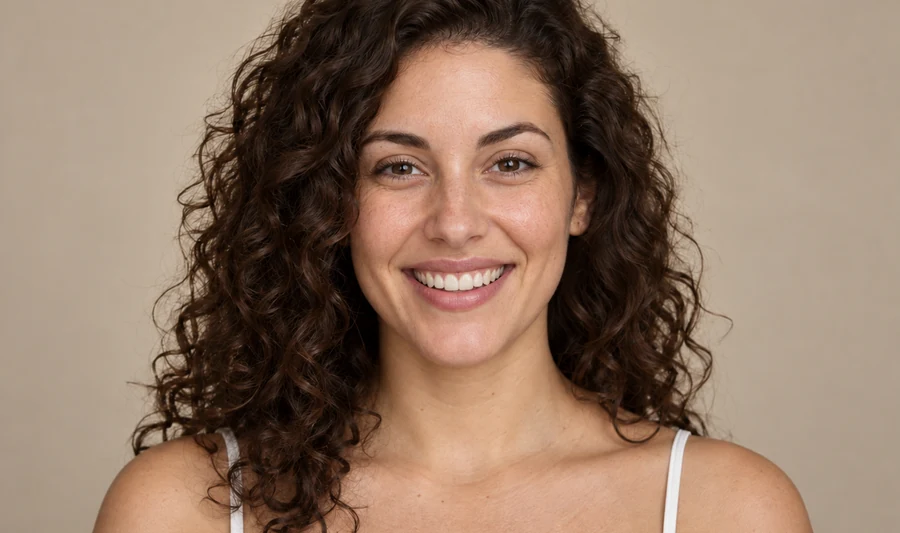
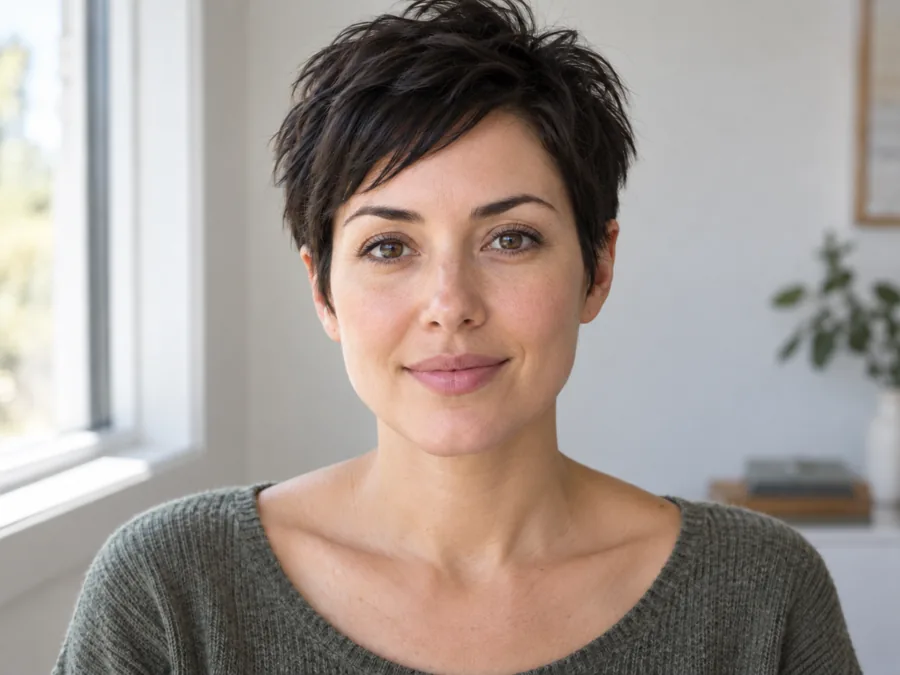
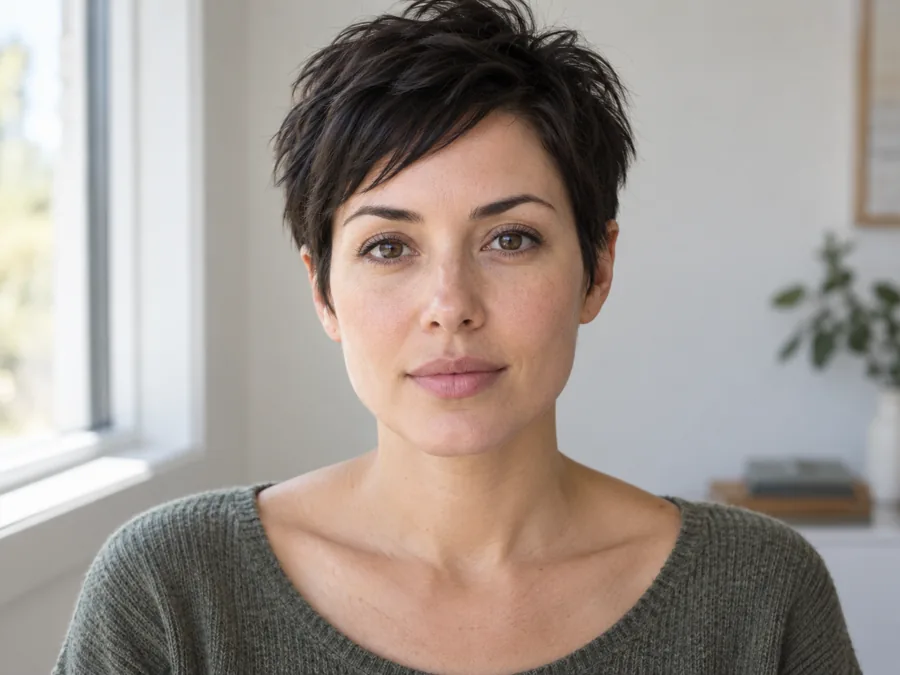
A moody close-up gains a soft closed-lip smile without losing its light, shadow or skin texture.
The one good photo where you forgot to smile? Upload it, pick a subtle, toothy or laughing smile, and the AI moves the lips, cheeks and eyes together like a real smile. Your face, hair, outfit, lighting and background stay exactly as they were.
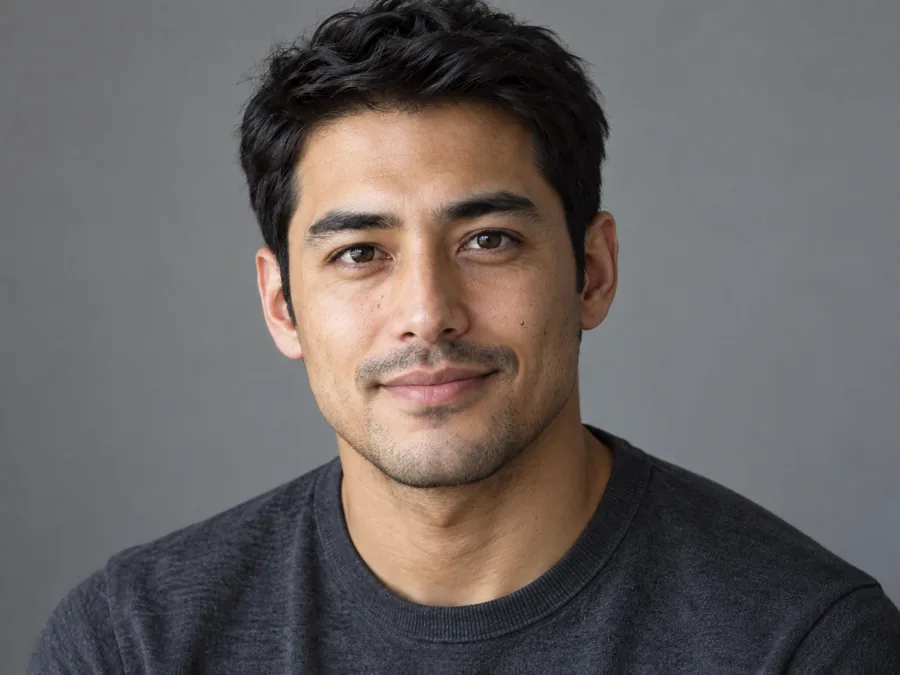
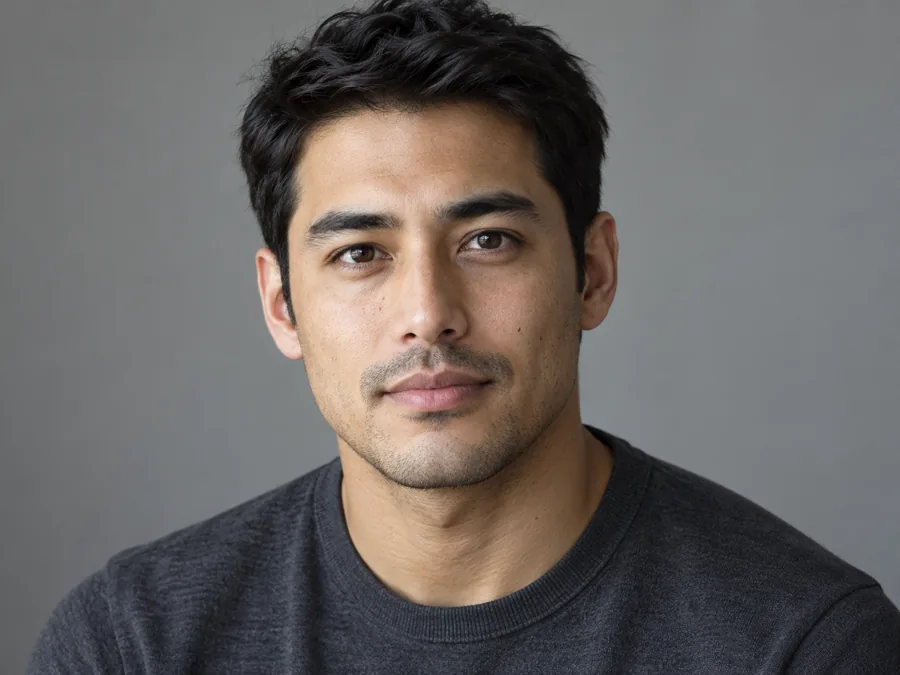
Reference example. It is not a result generated from your upload.
An AI smile filter changes the expression in a photo after it was taken. Instead of bending the lips like an old smiling filter, the smile AI rebuilds the mouth, cheeks and eyes together, so a straight face becomes a subtle smile, a toothy grin or a big laugh that looks captured in camera, not pasted on. It is the quickest way to add a smile to a photo when everything else about the shot is right.
Everything else stays: your identity, skin texture, hair, outfit, head angle, lighting and background. Pick from twelve looks, generate up to four versions and keep the one that feels like you. The same tool works the other way too, to remove a smile from a photo or soften smile lines, and it runs as a smile filter online in any phone or desktop browser.
Drag each slider. The face, light and background match the original photo; only the smile is new.
A moody close-up gains a soft closed-lip smile without losing its light, shadow or skin texture.

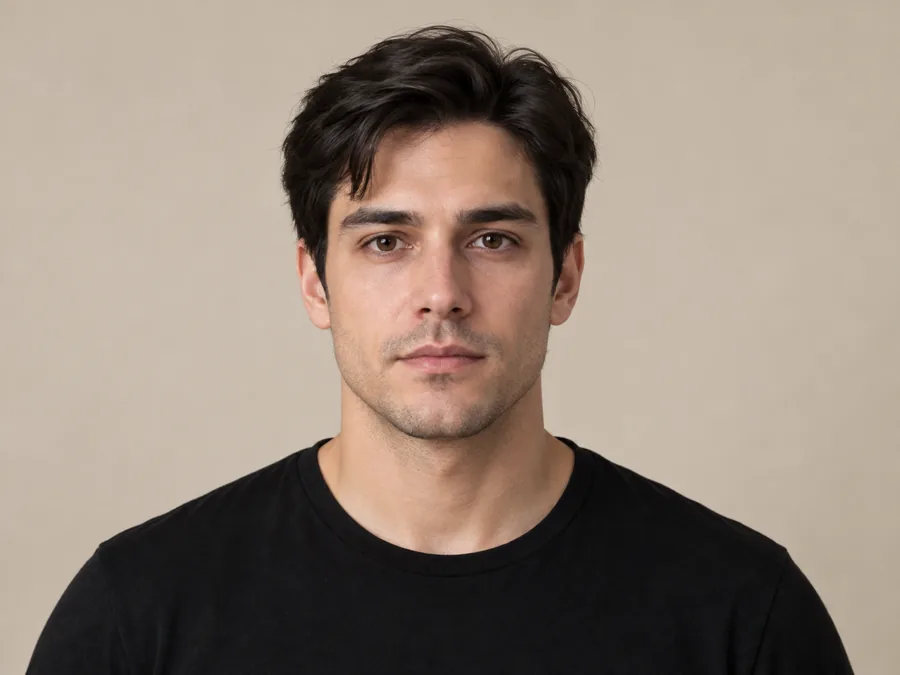
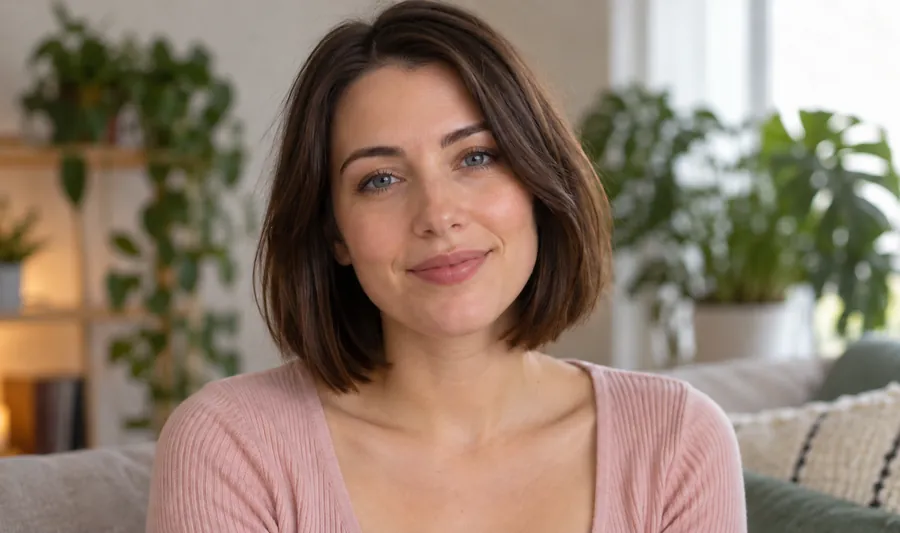
A stiff, straight-on portrait turns into a relaxed smile with a hint of teeth and friendlier eyes.
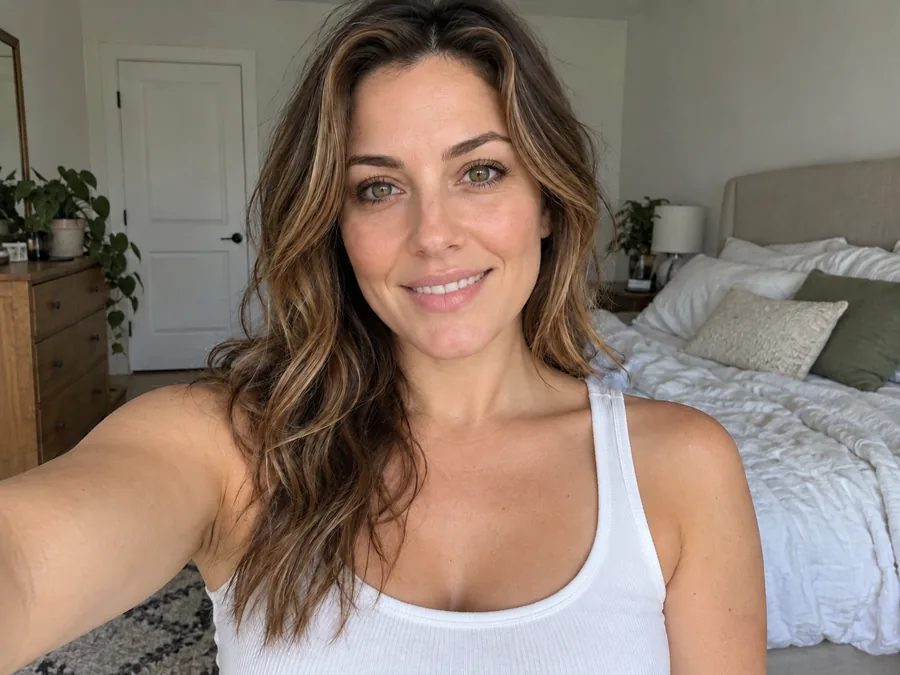
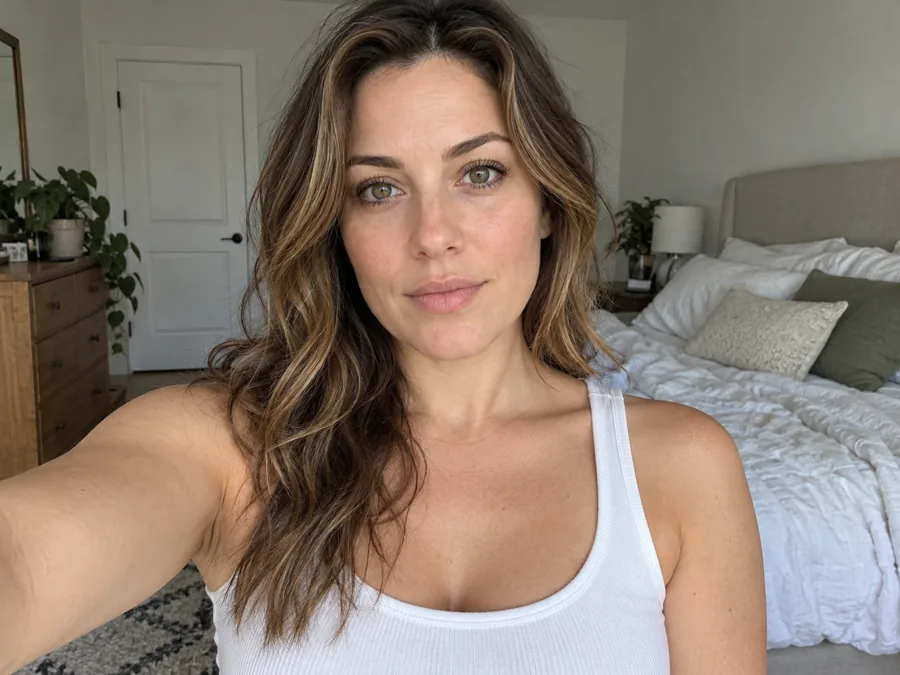
An arm’s-length selfie keeps its framing, room and light, while the expression warms up.
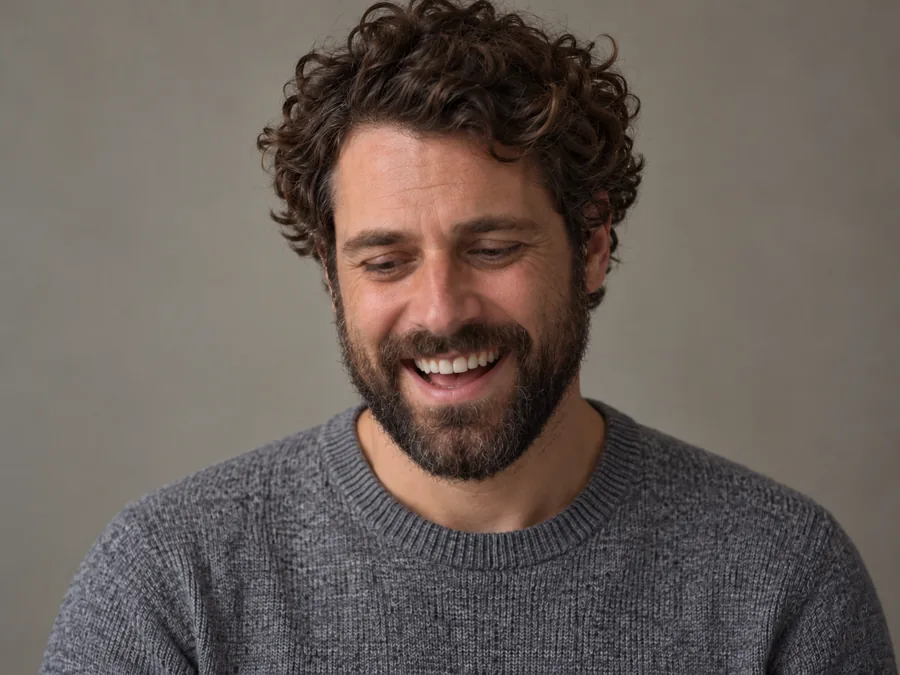
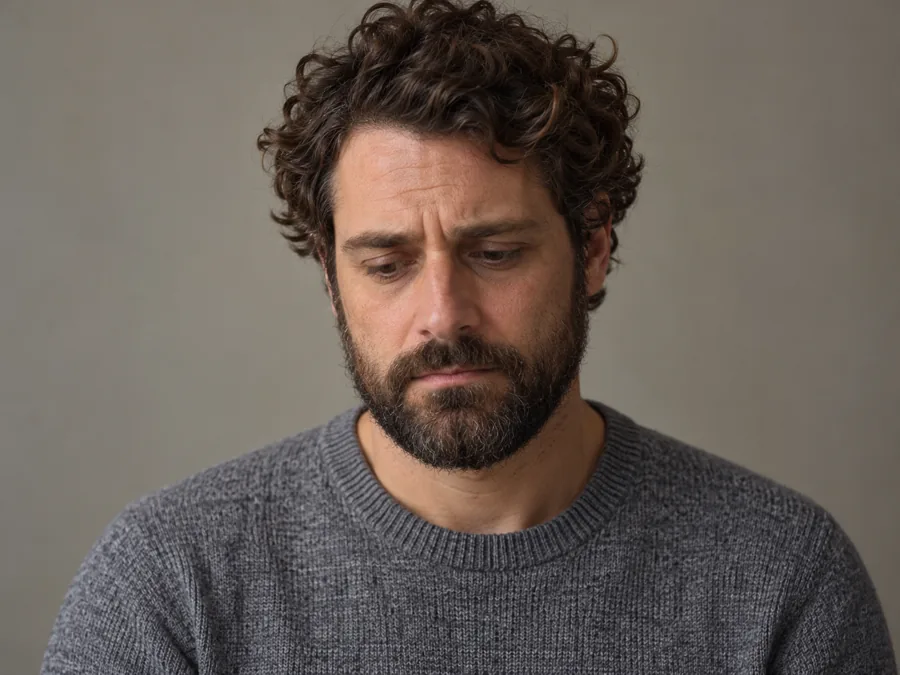
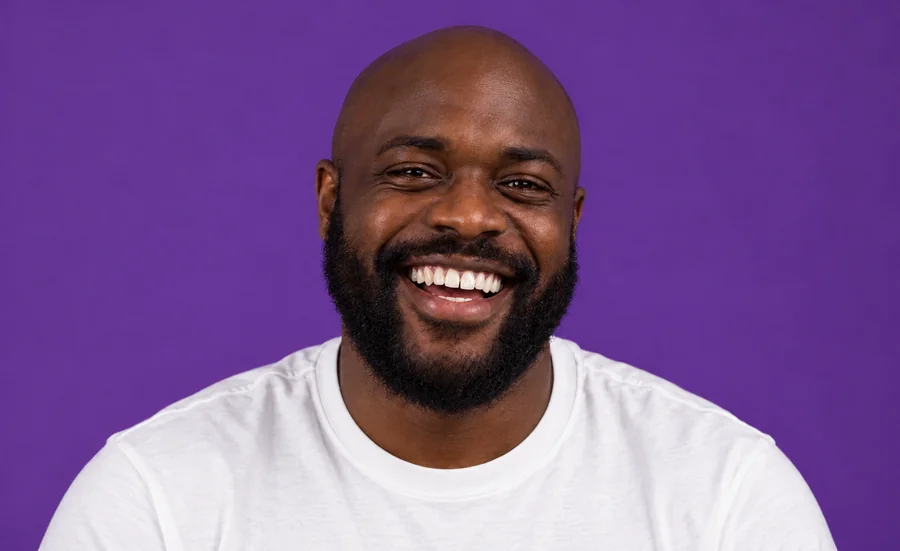
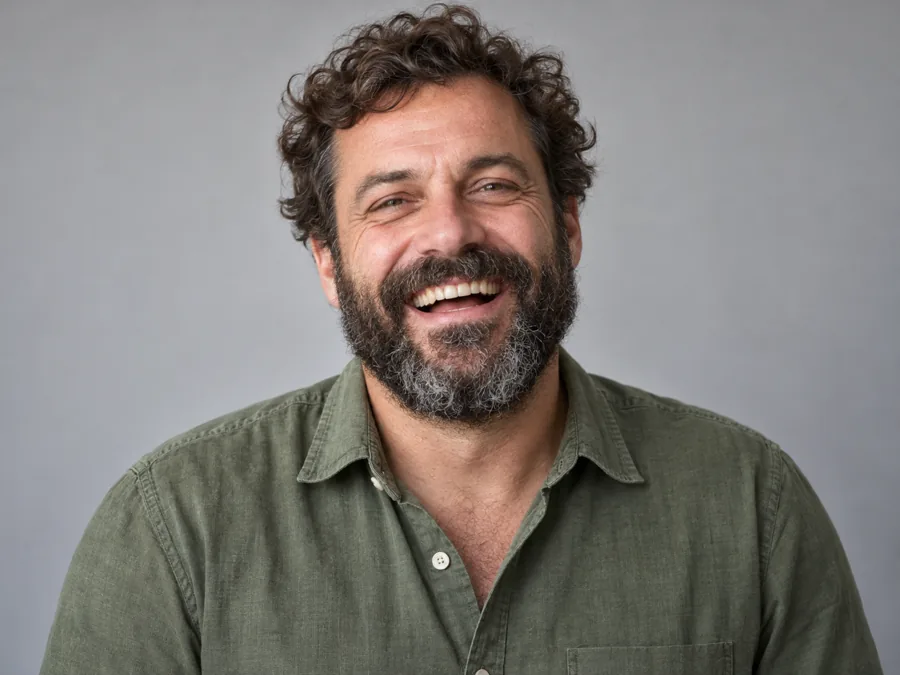
A tired, downcast face becomes a full toothy grin, with the beard, curls and sweater untouched.
The fastest way to add smile to photo uploads: no sliders, no warping and no app to install.
Add a JPG, PNG or WebP up to 10 MB with a clear, roughly front-facing face. Selfies, headshots and group photos all work.
Choose a smile from Subtle to Big Laugh, or open More Looks to remove a smile or soften smile lines. Name the person in the note for group photos.
Create 1 to 4 versions, drag the slider to compare, then download the smile that looks most like you.
A believable smile is more than curved lips. This is what the AI smile generator does differently.

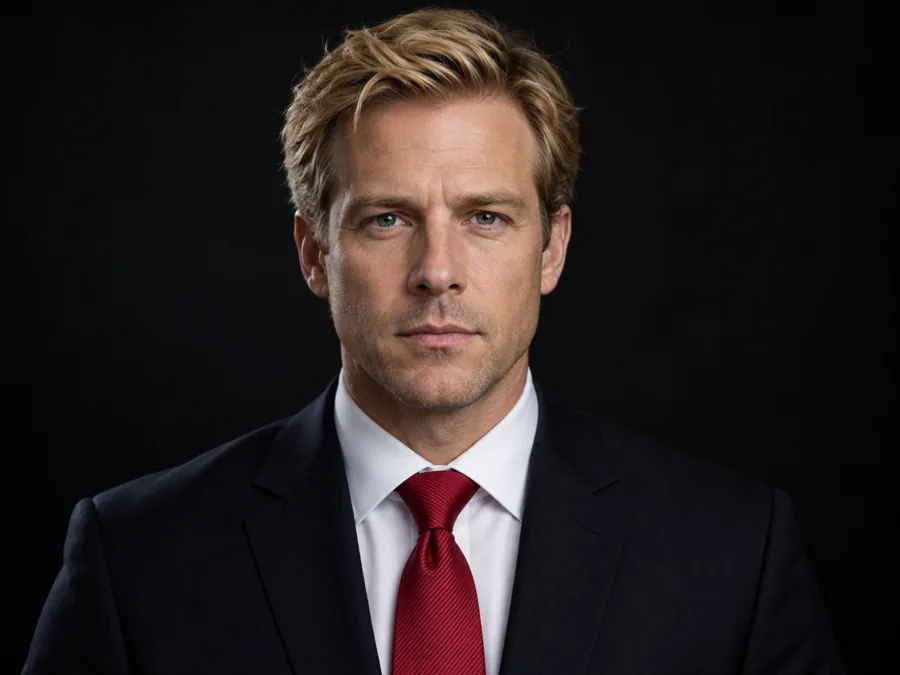
Face shape, skin, hair, clothes, lighting and background stay exactly as they were. The AI smile filter edits the mouth, cheeks and eyes and nothing else, so the photo still looks like the moment you took, just with the smile that was missing.
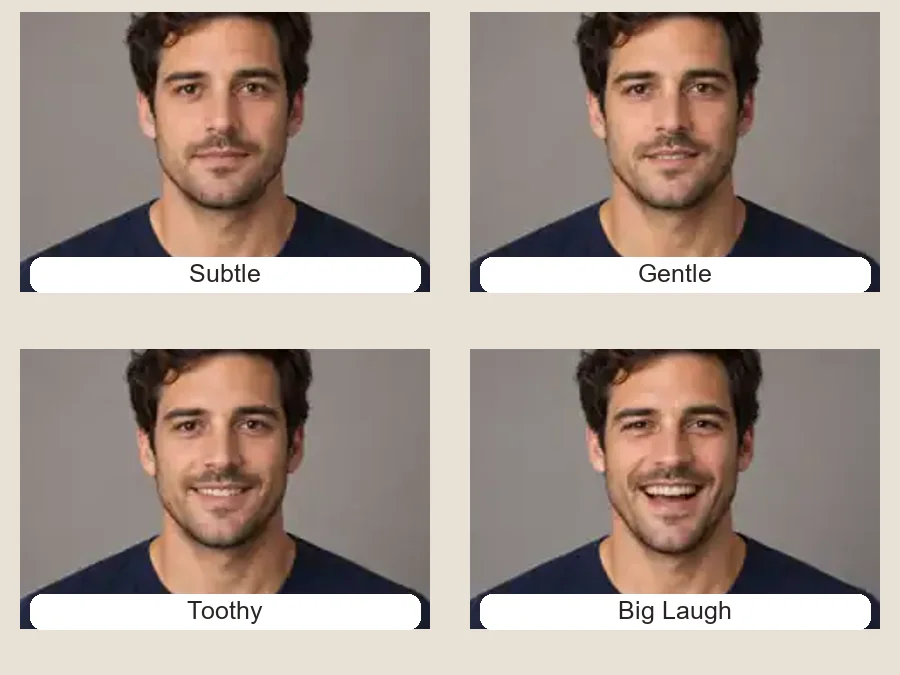
A formal headshot needs a different smile than a holiday snap. Go from a barely-there subtle smile to a gentle, toothy or laughing one, and compare them on the same photo. Most people find their favorite in the middle.
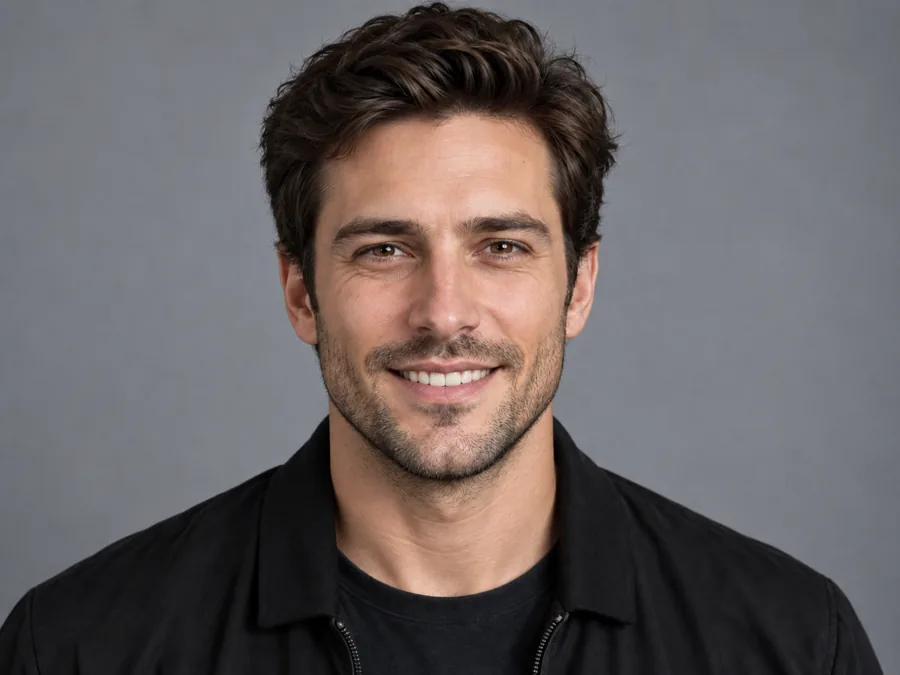
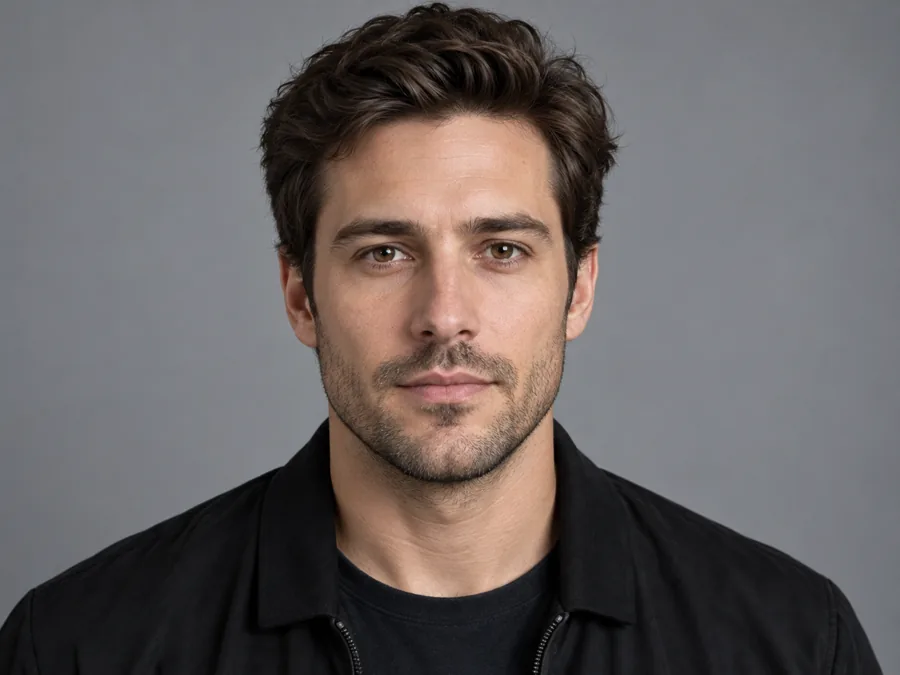
A real smile lifts the cheeks and narrows the eyes a little. This smile AI moves all of it together, with natural teeth, dimples and soft crinkles at the eye corners, which is why the result reads as a genuine smile rather than a filter.
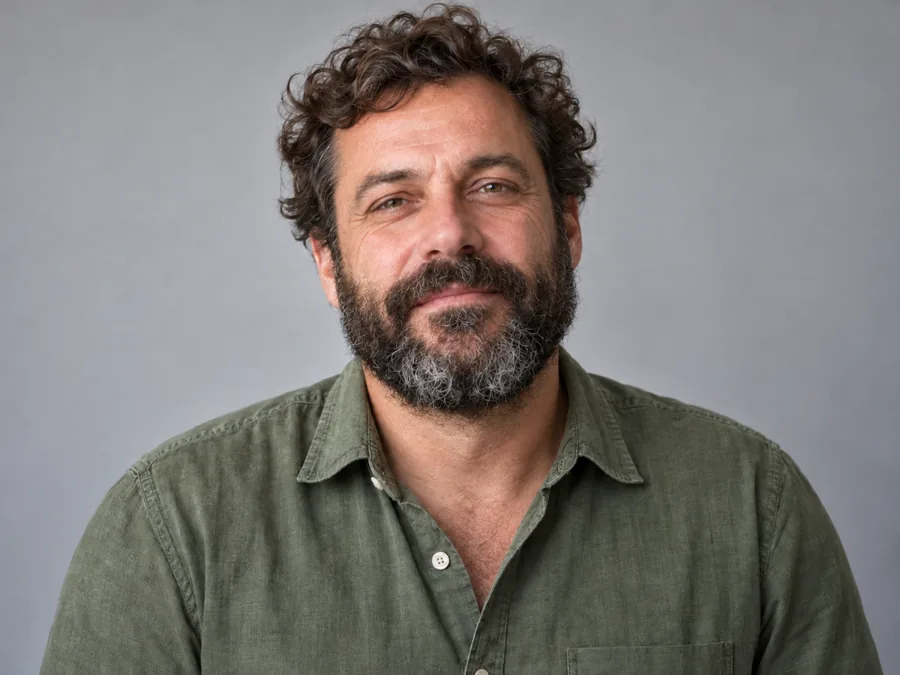
Need the opposite? Remove a smile from a photo for a calm, neutral look, or keep the smile and soften the smile lines around the mouth. It is the same AI, just pointed the other way.
Searching how to put smiley face on photo files, or how to put smiley face on picture posts? People mean two different things. Here is how to do both, plus the quick phone option.
To make a photo smile, upload it above and pick a smile. The AI changes the person’s actual expression, so there is a real smile on photo subjects instead of a sticker on top.
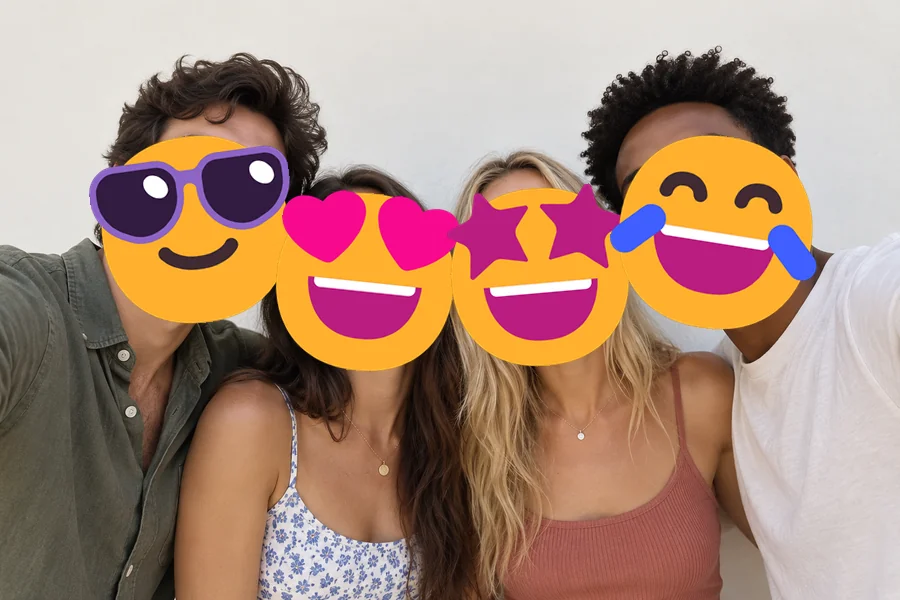
Want a yellow smiley face on a picture, for fun or to hide a face? Use our free Add Emoji to Photo tool: drop any emoji on the image, resize and rotate it, and download. It runs in your browser.
Most phone galleries can add stickers or text: on iPhone use Markup in Photos, on Android the editor in your gallery app. They place an emoji on top; they cannot change the expression itself.
One great photo with one missing smile. These are the most common reasons people use it.
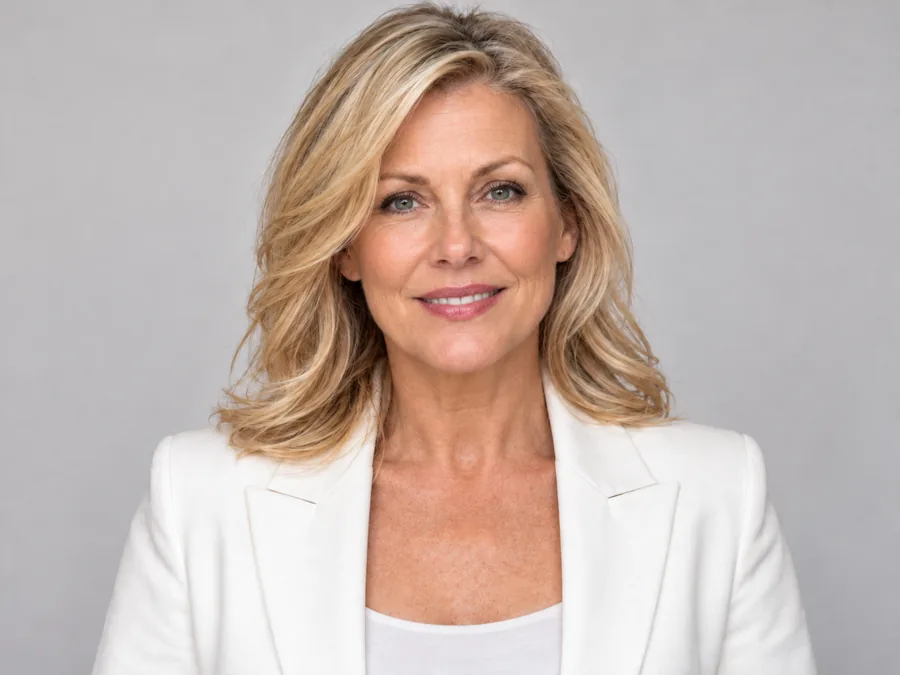
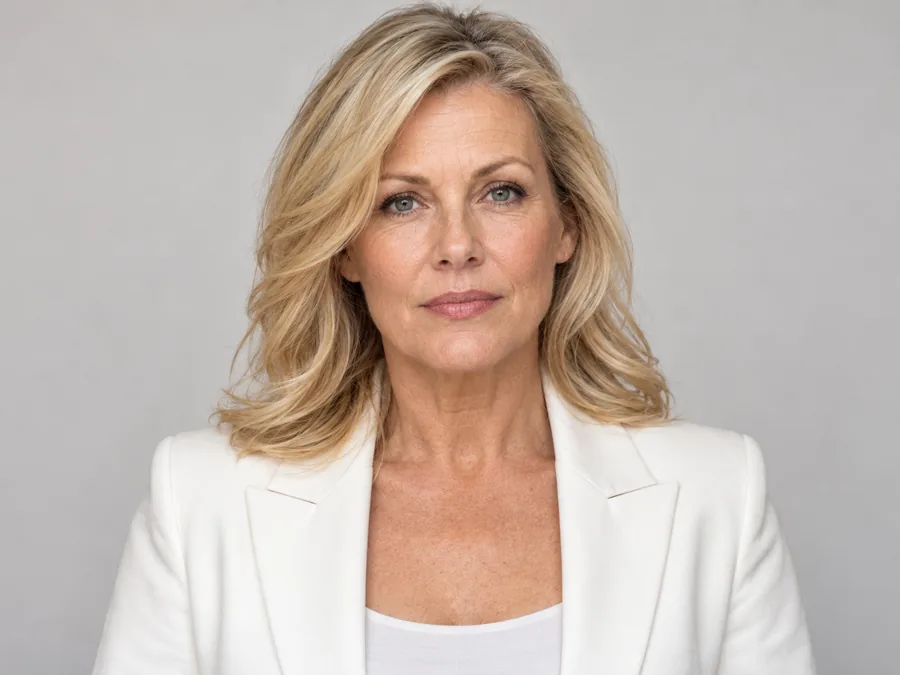
Swap a stiff or nervous look for a warm smile on the picture you already like best.
Give a professional headshot a confident, approachable smile without booking a reshoot.
Fix the one person who forgot to smile, without asking everyone to pose again.
Rescue candids where someone was caught mid-blink or mid-thought, then compare a few versions.
A friendlier face makes a cover photo, thumbnail or story feel more inviting.
Warm up a serious old portrait for a slideshow or a post, and keep the original alongside it.
The source photo decides how convincing the new smile looks.
Front-facing or slightly angled faces give the AI the full mouth, cheeks and eyes to work with.
Even light shows natural teeth and creases; deep shadows across the mouth make smiles harder to read.
A big laugh suits a candid, a subtle or headshot smile suits a formal portrait.
In a group photo, write who to change in the note, for example “the woman on the left”.
Finish the portrait with the tools people use next.
Thirty expressions beyond smiles: surprised, playful, serious and more.
Try itSomeone blinked in the same shot? Open their eyes with their own eye shape.
Try itBrighten the new smile to a natural white, keeping lips and gums as they are.
Try itAdd a playful wink to the smile for a fun profile picture or sticker.
Try itSoften fine lines across the whole face, not just the smile lines.
Try itEvery face tool in one place: expressions, makeup, teeth and face shape.
ExploreCommon questions about adding, changing and removing smiles in photos.
Upload a clear portrait, choose a smile such as Subtle Smile, Toothy Smile or Big Laugh, and generate. The AI changes the expression and keeps the rest of the photo. Create 2 to 4 versions and keep the most natural one.
Both, in a way. It works like a smile filter you apply to a photo, but underneath it is an AI smile generator: it draws a new mouth, teeth, cheeks and eye creases for the smile you pick instead of stretching the old pixels.
That is the goal. Face shape, skin texture, teeth color, hair and features are kept, and only what a smile moves is changed. Big changes, such as a closed mouth into a laugh, need more new detail, so compare a few versions.
Yes, it is free to try: you get free credits when you sign up, enough to try the smile editor free on your first photos. After that each generation uses credits, shown on the Start button before you begin.
Yes. To remove smile from photo portraits, open More Looks and pick Remove Smile: you get a calm, neutral expression with relaxed lips. It does not add a frown unless you ask for one in the note.
Pick Soften Smile Lines to keep the smile and gently soften the lines around the mouth. To remove smile lines from photo edits across the whole face, the remove wrinkles tool handles forehead and eye lines too. Both keep natural skin texture.
For a real smile on the person, use this tool. For a yellow smiley emoji on top of the picture, use Add Emoji to Photo, which places, resizes and rotates any emoji in your browser for free.
Yes. Write who to change in Extra details, for example “only the girl in the red dress”. Without a note the AI may change several faces, so naming the person gives the most predictable result.
No. Passports, IDs and visas need an unedited photo, usually with a neutral expression. Use the smile filter for personal, social and profile photos instead.
Only edit photos you have the right to use, and ask before sharing an edited picture of someone else. Do not use an edited smile to mislead people about a real moment.
Upload a portrait and try the AI smile filter with your free sign-up credits: subtle, toothy or laughing, your face stays yours.