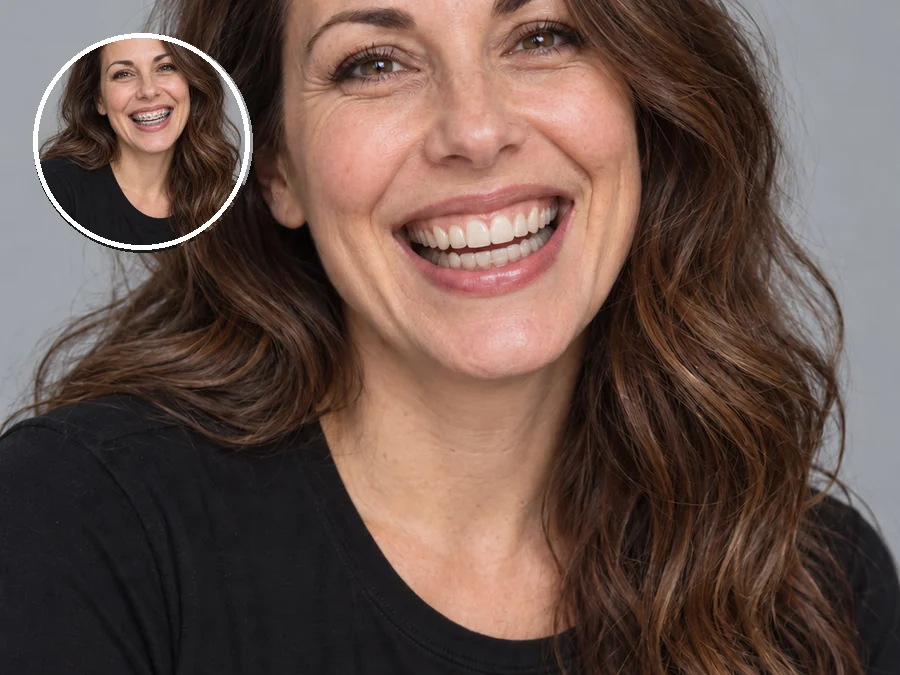
Metal Braces Removed
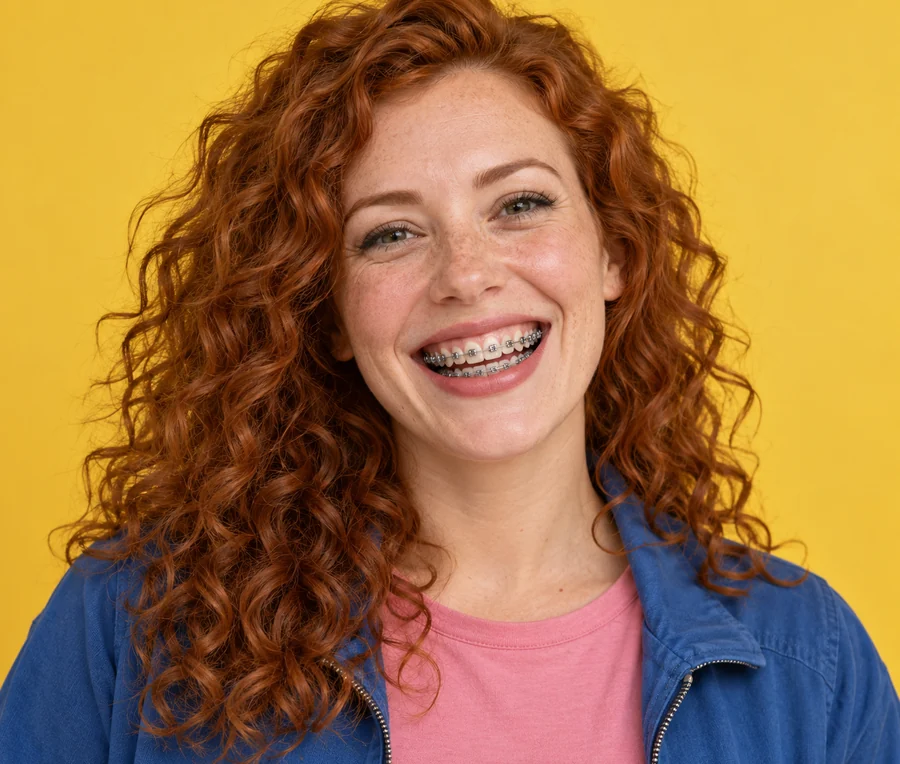
Brackets and wire are gone, and the enamel underneath keeps its natural texture and edges. The smile, freckles and curls stay exactly as photographed.
Counting down to debond day, or just tired of seeing brackets in every picture? Upload a smiling photo, tell the AI which braces you wear, and it removes the brackets, wires and bands while keeping your own teeth, lips and smile exactly as they are.
Braces in Your Photo: Metal Braces · Teeth After Removal: Keep My Teeth
Reference example. It is not a result generated from your upload.
A no braces filter is an AI braces remover for photos. It finds the brackets, archwire, elastic bands or aligner trays on your teeth, removes them, and rebuilds the enamel underneath with natural texture and shading, so your smile looks as if the braces had never been there. Lips, gums, face and background stay exactly as they were.
Unlike tools that also "perfect" your smile, this one keeps your teeth as they are: the same shape, size, alignment and color, unless you ask for a clean polish or a natural white. That makes it the honest way to remove braces from photo memories (weddings, graduations, trips) taken during treatment. Want straighter teeth as well? That is a separate, clearly labeled tool.
Drag each slider. Only the hardware is removed; the teeth, lips and expression are the originals.
Brackets and wire are gone, and the enamel underneath keeps its natural texture and edges. The smile, freckles and curls stay exactly as photographed.

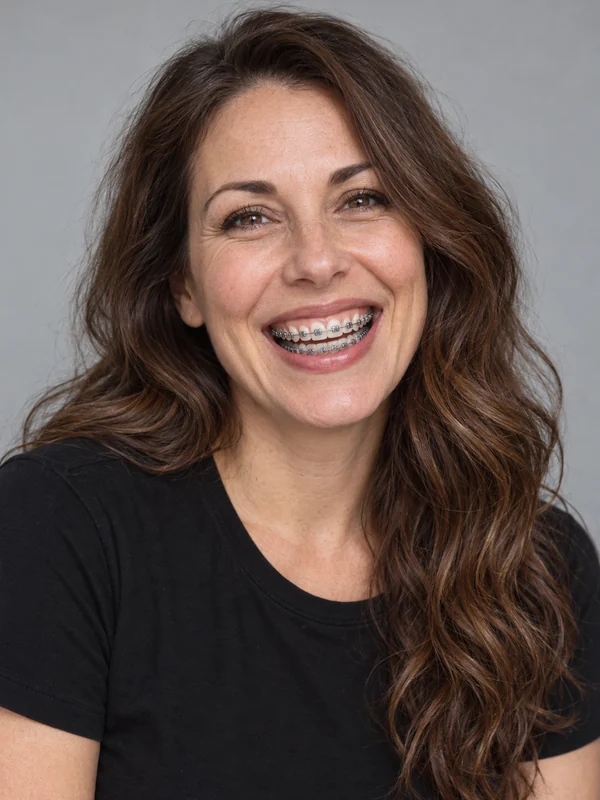
A big, open smile with braces on every visible tooth becomes the same smile with no braces, ready for a profile photo or print.
Three steps, no masking and no editing skills.
Add a JPG, PNG or WebP up to 10 MB where the braces are visible: a selfie, a portrait, or a group photo from a wedding or graduation.
Choose Metal, Ceramic, Colored Bands or Aligners, then Keep My Teeth, Clean & Polished, Natural White or Bright White. Name the person in a group photo in the note.
Create 1 to 4 versions, drag the slider to compare with the original, and download the one that looks most like you.
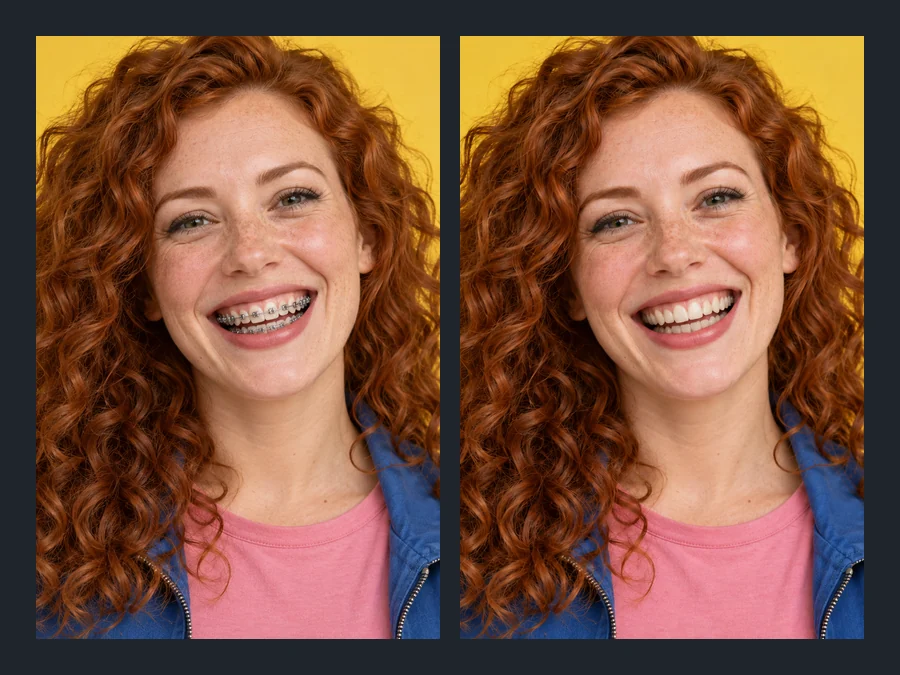
Brackets, wires and bands are removed and the hidden enamel is rebuilt with real texture, edges and shading, not a glowing white strip. Your tooth shape, size and spacing stay as they are, so the photo still shows your own smile.
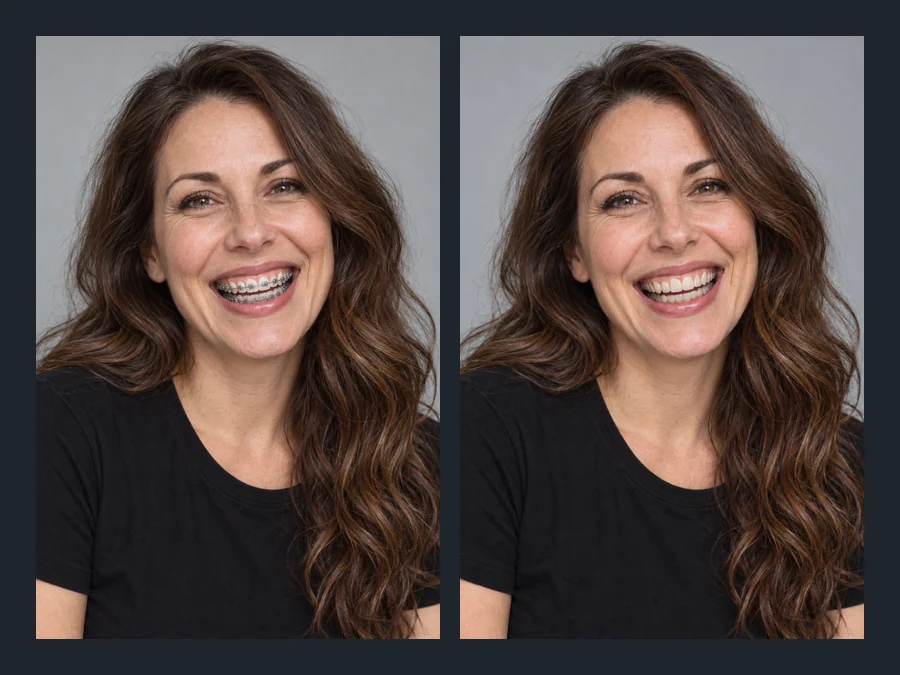
Tell the AI what you wear and it knows what to look for: shiny metal brackets, tooth-colored ceramic ones that are easy to miss, colorful elastic bands, or the glossy edge of a clear aligner or retainer. It works on close-ups, portraits and group photos.
Keep My Teeth changes nothing but the hardware. Clean & Polished also lifts glue residue and the white spots that sometimes show around brackets, and Natural White or Bright White brightens the smile while keeping the enamel texture.
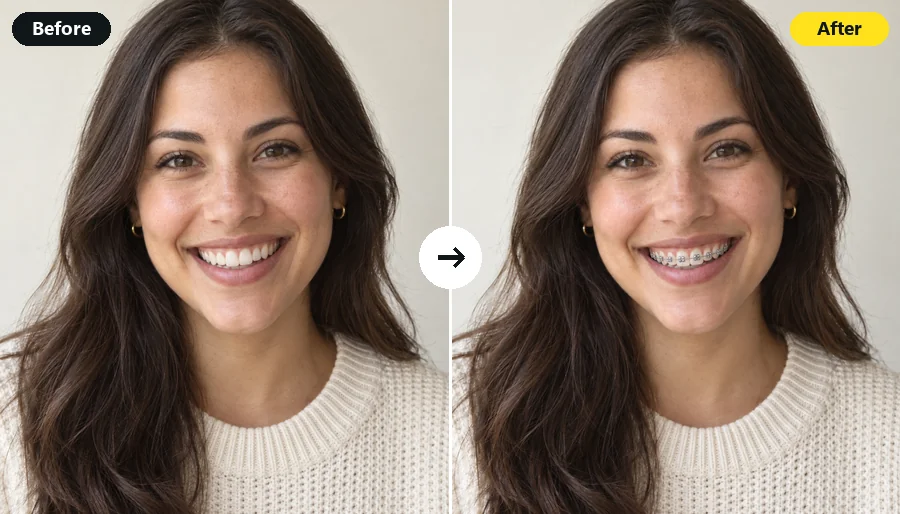
This page is the mirror of the braces filter: one adds realistic braces to a smile, the other removes them. Preview metal or ceramic braces before treatment there, and see the braces-free smile you are waiting for here.
A good source photo makes the rebuilt teeth look real.
A smile where the brackets are visible and in focus gives the AI clean tooth edges to rebuild.
Flash glare on metal brackets can hide the enamel underneath. Soft light works best.
Ceramic and aligners are subtle; choosing them tells the AI to look harder for faint edges.
The most believable result changes only the hardware. Add whitening afterwards if you want it.
Braces are temporary; the photos from that time are not.
See your smile without brackets before the big day, for motivation through the last months.
Remove braces from photos of the moments that happened during treatment.
A braces-free version of the portrait you will keep for years.
A clean smile for social and professional profiles while you are still in treatment.
A visual reference of how your teeth look without hardware today, not a prediction of the final result.
Give pictures from your braces years a fresh look before you print or share them.
Add braces instead, straighten the teeth, or whiten the smile.
The reverse: add metal, ceramic or gold braces in the band color you pick.
Try On BracesFix crooked teeth, close gaps and even out a smile in photos.
Straighten TeethLift yellow stains and pick a natural or bright shade for any smile.
Whiten TeethSmile, jawline, nose, makeup, teeth and skin edits in one place.
Open Face EditorHow the no braces filter works and what it keeps.
Upload a photo where the braces are visible, choose the type you wear (Metal, Ceramic, Colored Bands or Aligners), pick Keep My Teeth, and generate. Compare the before and after, then try Clean & Polished if glue marks or spots show.
They should not. The braces remover rebuilds the covered enamel with natural texture, edges and shading, and Keep My Teeth leaves the color as it is. A bright, uniform white usually means a whitening option was picked; switch back to Keep My Teeth for the most natural look.
No. It removes the hardware and keeps your teeth exactly as they are today, including gaps and alignment. To see straighter teeth, use the straight teeth filter after removing the braces.
Yes. Pick the matching type so the AI knows what to look for: tooth-colored ceramic brackets, colored elastic bands, or the glossy edges and small attachments of clear aligners and retainers.
Yes. By default it removes braces from everyone whose braces are visible. To edit one person only, write who in the note, for example "only the woman on the right".
It is free to try with the free credits you get when you sign up, enough for a few photos. After that, each generation uses credits, and the cost is shown on the start button.
No. It runs in the browser on iPhone, Android and desktop, so you can upload straight from your camera roll without installing anything.
No. It shows your teeth as they are now, without the hardware. Treatment moves teeth, so your final smile will differ; only your orthodontist can tell you what to expect.
Only edit photos of yourself or photos you have permission to edit, and ask before sharing an edited picture of someone else. Do not use edited smiles to mislead people, for example in orthodontic or dental advertising.
Upload a photo, pick your braces type, and get a braces-free smile that still looks like you.
Braces-free images are AI photo edits, not predictions of orthodontic results. Only edit photos of yourself or photos you have permission to edit.