Short answer: Canva's background remover, called BG Remover, removes the background from a photo or video in one click inside the Canva editor, and lets you fine-tune the edges with Erase and Restore brushes. It is a paid feature: as of October 2026 Canva says it is included with paid plans (Pro, Teams, Business, Education and Nonprofits), not Canva Free. Photos must be under 9 MB, and results above 10 MP are downscaled. If you just need a transparent PNG without a subscription, EzImgMaker's Background Remover and Make Image Transparent are free to try with sign-up credits.
This guide explains how the background remover Canva offers works, where to find it, its limits, how to download a transparent PNG, and when a free alternative makes more sense.
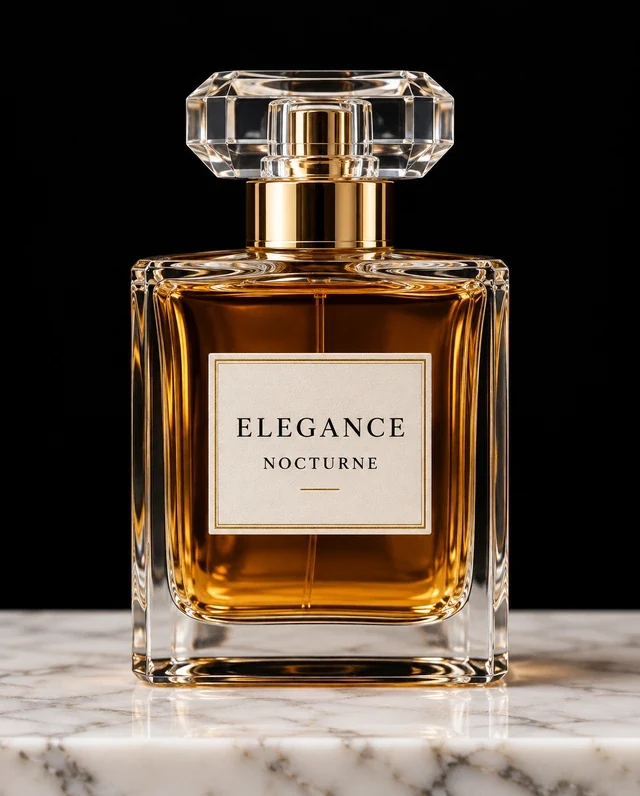
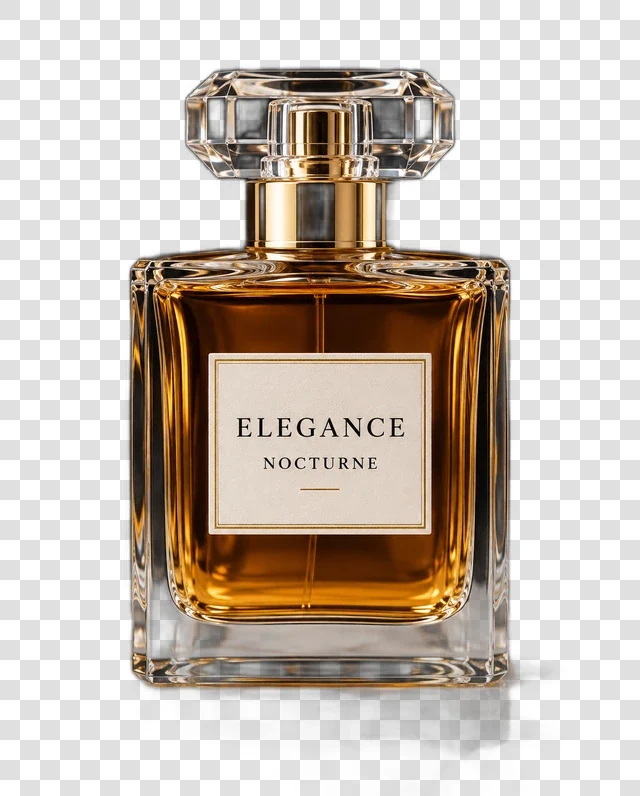
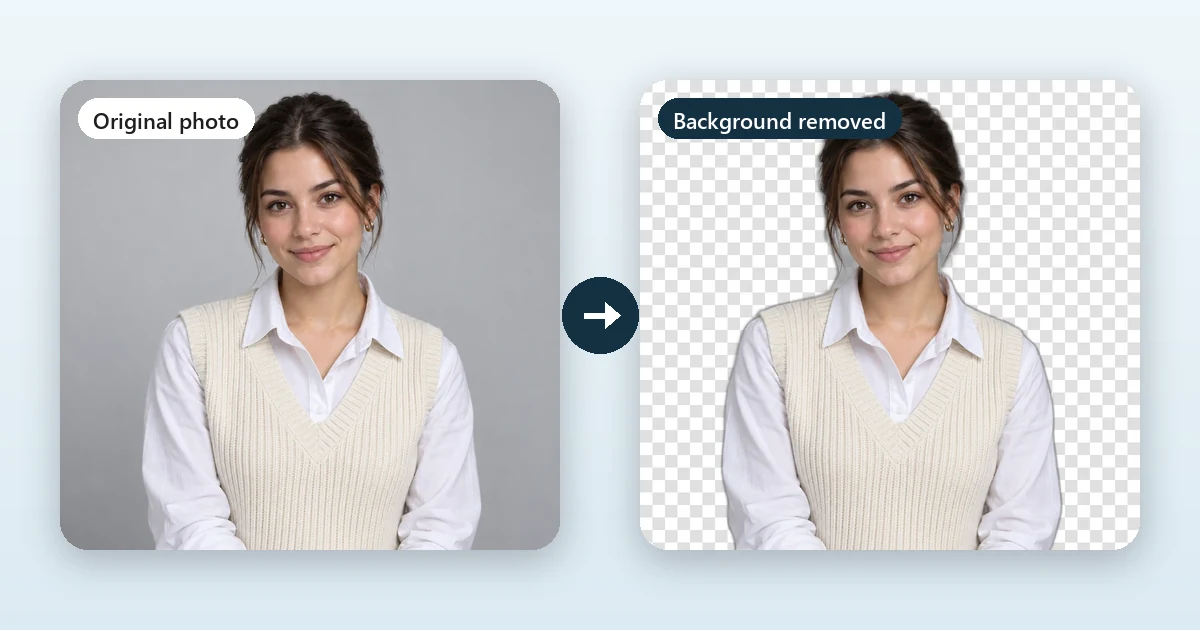
A typical background remover job: the product stays, the backdrop goes. This example comes from the EzImgMaker Make Image Transparent page; it is not a Canva output.
Canva Background Remover at a Glance
| Canva BG Remover | |
|---|---|
| What it does | Removes photo and video backgrounds automatically, with Erase and Restore brushes to refine |
| Where | Editor toolbar, Projects tab, folders (bulk), Canva Sheets, Canva AI and Ask Canva |
| Plans | Paid plans only: Pro, Teams, Business, Education, Nonprofits (as of October 2026) |
| Price | Canva Pro is listed at US$144 per year for one person on Canva’s US pricing page; local prices and monthly billing differ |
| Photo limits | Under 9 MB, not vector images; results above 10 MP are downscaled to 10 MP |
| Bulk | Up to 50 uploaded images per folder, one folder at a time |
| Video | Original length under 10 minutes |
| Transparent download | PNG with Transparent background toggle, paid plans only |
Background Remover Canva: Free or Paid?
It is paid. Canva's help article "Remove photo and video backgrounds" states that Background Remover is included with paid plans, and the plan comparison on its pricing page lists "Remove backgrounds from images and videos" as unavailable on Canva Free and included on Pro without using your monthly AI allowance (fair-use limits apply).
A few details are worth knowing before you subscribe:
- Free trial. Canva's pricing page offers a free trial of Pro, which is enough to test the remover on your own photos.
- Education and nonprofits. Canva says eligible K-12 schools and not-for-profits can get most premium features for free.
- Transparent downloads are paid too. Even after you remove a background, downloading the design as a transparent PNG requires a paid plan.
- Prices vary by country and billing period. The US pricing page lists Pro at US$144 a year for one person and Business at US$250 a year per person in October 2026. Check canva.com/pricing for your region.
How to Use the Canva Background Remover
In the editor (most common)
- Open or create a design and add your photo.
- Select the photo, then select BG Remover on the editor toolbar.
- Wait for the background to be processed.
- To fix the edges, select BG Remover again, choose the Erase or Restore brush, set the brush size, and paint over the areas to remove or bring back. Show original image helps you compare.
From Projects, without opening a design
Go to Projects > Images, hover over a photo, choose More > Edit image, then Tools > BG Remover.
In bulk from a folder
In Projects, hover over a folder, choose More > Remove background. Canva processes each uploaded photo and saves the results in a new folder named "[folder name] - Edited", leaving the originals unchanged. Limits: up to 50 images per folder, one folder at a time, and only images you uploaded (Canva library photos and designs are skipped).
With Canva AI
On paid plans you can also ask the Canva AI assistant to "remove background" from an uploaded photo, then open the result in the editor to refine it with the brushes.
Download a transparent PNG
- Delete the page background, or set it to white.
- Go to Share > Download and choose PNG.
- Toggle Transparent background on, then download.
Canva Background Remover Limits
From Canva's help center (October 2026):
- File size: photos must be under 9 MB.
- Vectors: Background Remover is not available for vector images.
- Resolution: photos above 10 MP (such as a 12 MP phone photo of 4000 × 3000 pixels) are downscaled to 10 MP after the background is removed.
- Bulk: up to 50 images per folder and one folder at a time.
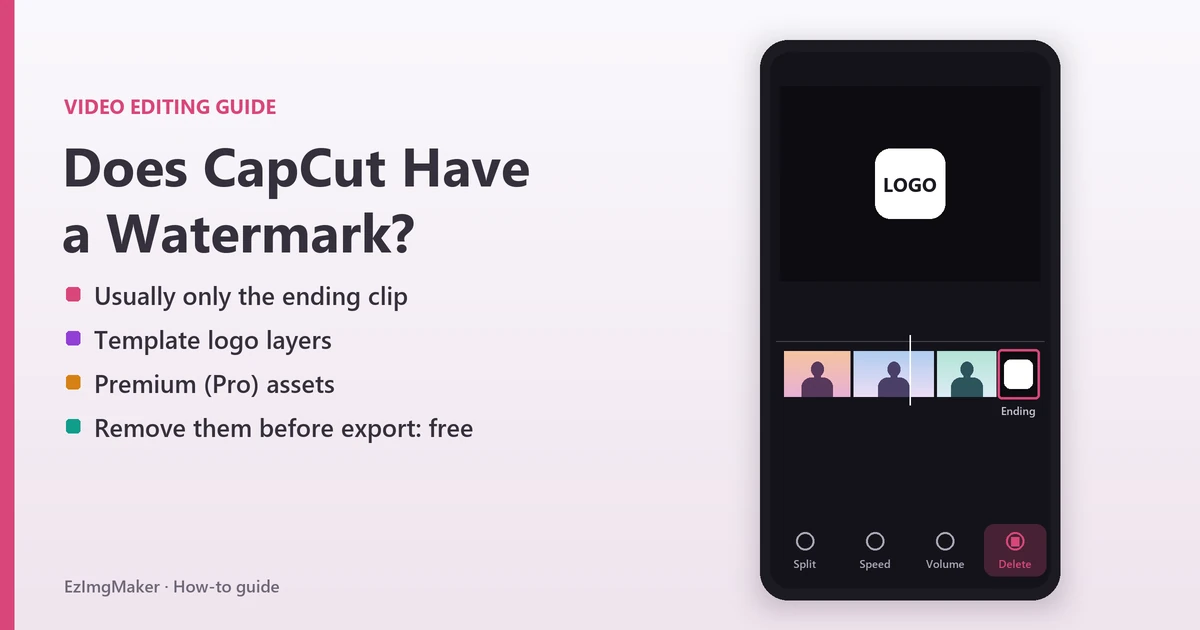
- Video: the original video must be under 10 minutes; if you trimmed it in Canva, download and re-upload it before removing the background.
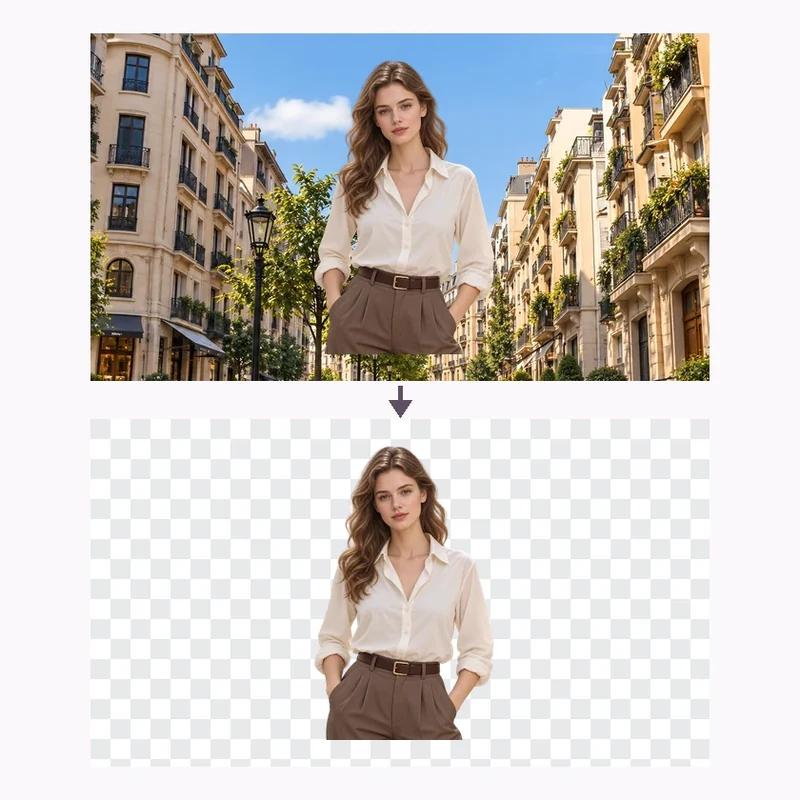
Like any automatic remover, it can struggle with low-contrast photos, motion blur and very fine details such as wispy hair or transparent objects, which is what the Restore brush is for.
Canva Background Remover: Pros and Cons
What it does well
- One click, right where you design, so the cutout can go straight into a post, slide or flyer.
- Erase and Restore brushes for manual touch-ups.
- Works on photos and videos, plus bulk removal for up to 50 images in a folder.
- Does not draw from the AI allowance on Pro, and does not add AI-content metadata on its own.
Limits to weigh
- Not available on Canva Free, and transparent PNG downloads also need a paid plan.
- 9 MB upload limit and 10 MP output cap, which matters for large product or print photos.
- Worth it mainly if you already use Canva for design; it is a lot to pay for occasional cutouts.
Who Should Use Canva's Background Remover?
If you already pay for Canva Pro, use it: it is the quickest way to cut out a photo and drop it into a design. It is a great fit for social media managers, small businesses and teachers who build posts, thumbnails and slides in Canva every week.
If you only need an occasional transparent PNG, a cutout for a marketplace listing, or a new background without designing anything, a standalone background remover is simpler and cheaper.
Free Canva Background Remover Alternatives
| Tool | Best for | Free option | Output |
|---|---|---|---|
| EzImgMaker Background Remover | Cutouts with a new background: transparent, white, black, color, blur or an AI scene | Free credits when you sign up | PNG or JPG |
| EzImgMaker Make Image Transparent | The quickest transparent PNG, nothing to set | Free credits when you sign up | Transparent PNG |
| EzImgMaker Bulk Background Remover | Up to 30 product photos or headshots at once, matching results | Free credits when you sign up | Transparent, white, gray or black |
| EzImgMaker Green Screen Remover | Plain green or blue backdrops (chroma key) | Free in your browser, no upload | Transparent PNG |
| Photopea | One-click removal inside a layer editor | Free with ads | Any format Photopea saves |
1. EzImgMaker Background Remover (free to try)
The Background Remover finds the subject (people, products, pets, logos), keeps hair and edges, and lets you choose what goes behind it. It accepts JPG, PNG or WebP up to 10 MB (5 MB for a transparent PNG) and works in any browser on phone or desktop. New accounts get free credits; after that you buy credit packs only when you need them.

Transparent PNG
Drop the cutout into Canva, Slides, Figma or any design tool.
Make it transparent
Pure white
Marketplace and ID-style photos on an even white background.
Make it white
Brand color
Any solid color, from soft pastels to your exact brand shade.
Pick a color
Blurred background
Keep the setting but soften it so the subject stands out.
Blur it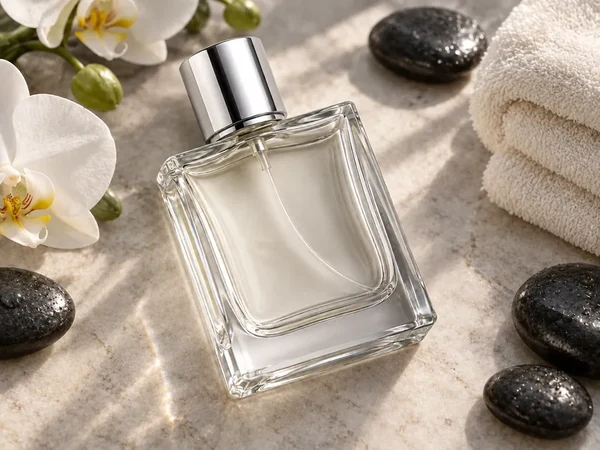
New AI scene
Describe a new setting and the light and shadows are matched.
Add a scene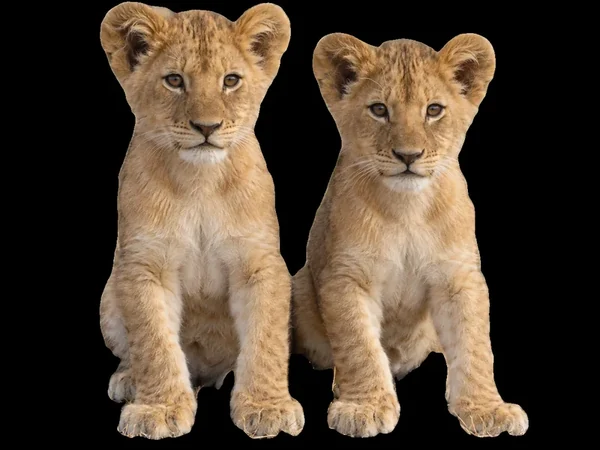
Solid black
Dramatic, high-contrast portraits and product shots.
Make it black2. EzImgMaker Make Image Transparent
If you only want the cutout, Make Image Transparent has no settings to get wrong: upload, and download a transparent PNG (JPG, PNG or WebP up to 5 MB and 4096 px per side). It is handy for logos, signatures and product shots you will place in Canva or a slide deck. For handwritten signatures there is also a dedicated signature background remover.
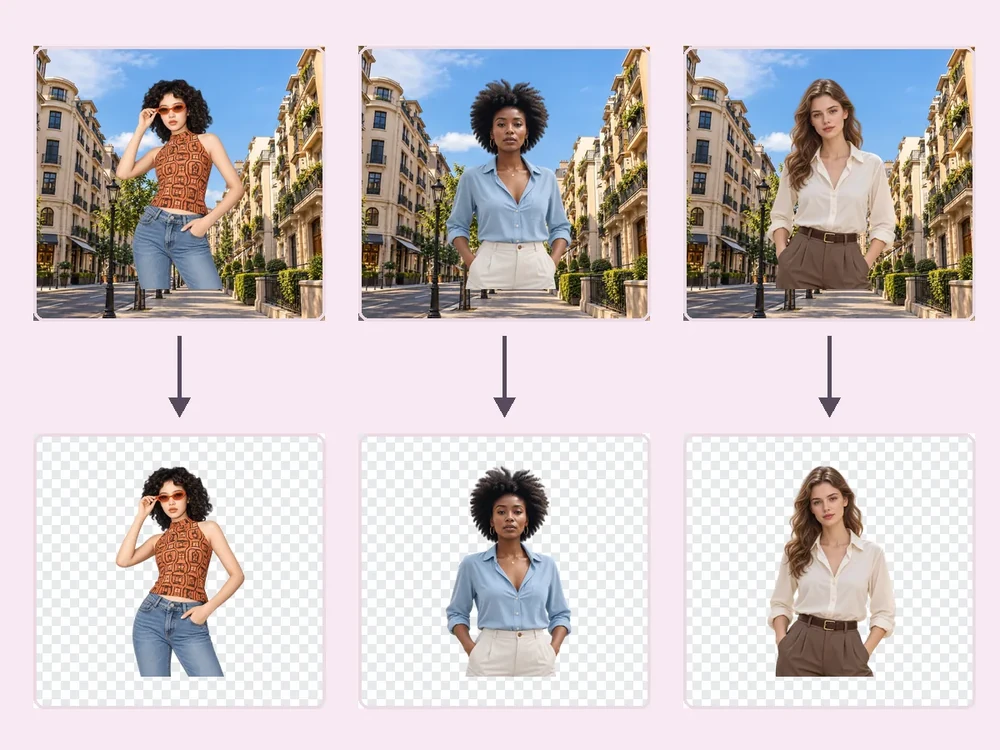
3. EzImgMaker Bulk Background Remover
Canva's folder tool handles 50 images at a time on paid plans. The Bulk Background Remover takes up to 30 JPG, PNG or WebP images (10 MB each) per batch and gives every image the same transparent, white, gray or black background, which keeps a product catalog or team page consistent.
4. EzImgMaker Green Screen Remover (free, no upload)
Shot your subject on a green or blue backdrop? The Green Screen Remover keys out the color in your browser, so the photo never leaves your device and it costs nothing.
5. Photopea
Photopea, a free browser editor with layers and PSD support, includes one-click background removal and processes files on your device. It is free with ads. Choose it if you also want to edit the cutout with layers and masks. For more free editors with one-click cutouts, see our best free photo editors for Mac and our LunaPic review.
How to Make a Transparent PNG for Canva, Free to Try
- Open the Background Remover (or Make Image Transparent) and upload your photo.
- Choose Transparent as the new background and PNG as the format.
- Check the edges around hair, fingers and straps. If something is missing, try again with a sharper photo.
- Download the PNG and upload it to Canva (or anywhere else). Because the transparency is already in the file, you can place it in a free Canva design.
Need a smaller file or a different format afterwards? The free Image Converter turns PNG into WebP while keeping transparency, right in your browser.
Tips for Cleaner Cutouts in Any Background Remover
- Contrast helps. A dark subject on a light wall (or the reverse) gives cleaner edges than similar colors.
- Light evenly. Harsh shadows behind the subject can be mistaken for part of it.
- Keep it sharp. Motion blur and heavy compression make edges fuzzy; use the original photo, not a screenshot.
- Leave space around the subject so hair and hands are not cut off by the frame.
- Check at 100% zoom before you publish, especially around hair, glasses and jewelry.
Frequently Asked Questions
Is the Canva background remover free?
No. As of October 2026 Canva’s help center says Background Remover is included with paid plans, and its plan comparison marks background removal as unavailable on Canva Free. Canva Pro, Teams, Business, Education and Nonprofits plans include it, and Canva offers a free trial of Pro. For a free-to-try option, EzImgMaker’s Background Remover gives new accounts free credits.
How do I remove a background in Canva?
Select the photo in your design, then select BG Remover on the editor toolbar and wait for it to process. To fix the edges, select BG Remover again and use the Erase or Restore brush. You can also remove backgrounds from the Projects tab (Images > Edit image > BG Remover) or by asking Canva AI to "remove background".
Does the Canva AI background remover use my AI allowance?
According to Canva’s pricing page in October 2026, removing backgrounds from images and videos on Pro uses no AI allowance, with fair-use limits. Canva’s help center also says Background Remover is treated as an editing tool, so on its own it does not add AI-generated content metadata to your design.
What are the Canva background remover limits?
Canva says Background Remover works only for photos under 9 MB and not for vector images, and photos above 10 MP are downscaled to 10 MP after the background is removed. Bulk removal in a folder handles up to 50 uploaded images at a time, one folder at a time. Videos must have an original length under 10 minutes.
How do I download a transparent PNG from Canva?
Remove the background, delete or whiten the page background, then go to Share > Download, choose PNG and toggle Transparent background on. Canva says downloading with a transparent background is only available on Pro, Teams, Business, Education and Nonprofits plans.
Can Canva remove the background from a video?
Yes, on paid plans: select the video and choose BG Remover. Canva says the video’s original length must be under 10 minutes, and if you trimmed it in Canva you need to download and re-upload it first. On mobile, upload videos through the Uploads tab.
What is the best free alternative to Canva’s background remover?
EzImgMaker’s Background Remover is free to try with sign-up credits and lets you download a transparent PNG or pick a white, black, colored, blurred or AI-generated scene background. For plain green or blue backdrops, the free Green Screen Remover runs entirely in your browser. Photopea’s one-click background removal is another free option.
Why did the background remover cut off part of my subject?
Low contrast between the subject and the background, motion blur, and thin details such as hair, glasses or straps are the usual causes, in any tool. Start with a sharp, well-lit photo, then refine: in Canva use the Restore brush, and in EzImgMaker try again or add a short note about the subject.
The Verdict
The Canva background remover is excellent value if you already pay for Canva: it is fast, sits right in your design workflow, handles video and bulk folders, and does not eat into the Pro AI allowance. It is not part of Canva Free, though, and neither is the transparent PNG download. If you need cutouts without a subscription, start with the free credits on EzImgMaker's Background Remover or Make Image Transparent, then bring the PNG into any Canva design. Comparing free online editors more broadly? See our LunaPic review.
Canva, Canva Pro and Photopea are trademarks of their respective owners. EzImgMaker is not affiliated with them. Canva features, limits and prices were taken from Canva’s official help center and pricing page in October 2026 and may change; check canva.com for current information. Example images are AI-generated illustrations from EzImgMaker's own tool pages, not screenshots or outputs of Canva.