Short answer: the best free photo editor for Mac depends on the job. Your Mac already has two good free editors, Photos and Preview. If you need a Mac photo editor free of charge for AI edits that built-in apps cannot do, a browser tool such as EzImgMaker's AI Photo Editor works on any Mac with nothing to install (free to try with sign-up credits). For full desktop editing, Affinity is now free for individuals and GIMP is free and open source; Photopea gives you Photoshop-style layers in a browser, and darktable is the free pick for RAW photos.
Below, nine free picture editing apps and programs for Mac are compared, from the best photo editing apps Mac free users already have to full desktop software: what each one does, exactly what you get for free as of October 2026, which Macs it runs on, and who it suits. We list our own tool first and explain its limits too.
The Best Free Photo Editing Software for Mac at a Glance
If you want photo editing software for Mac for free, these are the free Mac photo editors worth installing (or opening in a browser) in 2026:
| Editor | Type | Best for | What is free (October 2026) | Mac requirements |
|---|---|---|---|---|
| EzImgMaker | Online, in your browser | AI edits: backgrounds, retouching, enhancing, edit with words; HEIC and format conversion | Free credits when you sign up; HEIC converter, image converter and crop tools are free | Any Mac with a modern browser |
| Apple Photos | Built-in app | Everyday fixes, light and color, organizing | Free, preinstalled | Included with macOS; Apple Intelligence tools need a supported Mac |
| Preview | Built-in app | Crop, resize, convert, remove background | Free, preinstalled | Included with macOS |
| Affinity | Desktop app | Professional photo editing, design and layout | Free for individuals; AI tools need a Canva premium plan | Mac (download with a Canva account) |
| GIMP | Desktop app, open source | Layers, masks and selections at no cost | Completely free | macOS 11 Big Sur or newer, Apple silicon or Intel |
| Photopea | Online, runs on your device | Photoshop-style editing and PSD files | Free with ads; premium removes ads | Any Mac with a modern browser |
| darktable | Desktop app, open source | RAW photo development | Completely free | Apple silicon, macOS 14 or later |
| Krita | Desktop app, open source | Digital painting over photos | Completely free | Mac download from krita.org |
| Pixelmator Pro | Desktop app (paid) | A polished Mac-native upgrade | Not free: US$49.99 one-time, or Apple Creator Studio | macOS 12 or later |
How we chose: we checked each editor's official site in October 2026 to see what free photo editing for Mac really includes, and looked at four things: what you can really do without paying, whether it runs natively on current Macs, how quickly a beginner can get a good result, and which file types it handles (HEIC, PNG, PSD, RAW). Nobody paid to be listed.
1. EzImgMaker: best free online photo editor for Mac (no install)
EzImgMaker is a set of AI image tools that run in Safari, Chrome or any browser on your Mac, so it works as free photo editing software for MacBook Air, MacBook Pro or iMac with nothing to download. Instead of one big program, you open the tool for the job:
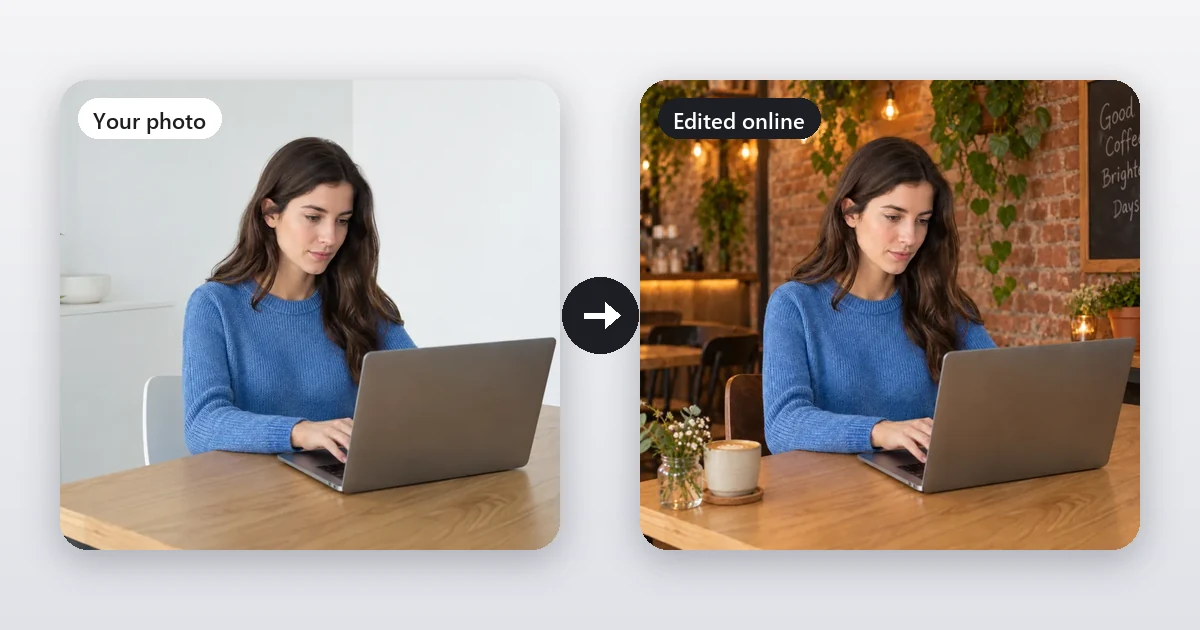
- AI Photo Editor: upload a photo and type the change ("replace the background with a bright café", "change the jacket to navy blue", "add the text Grand Opening"). Choose the AI model (Nano Banana 2, Nano Banana Pro, Seedream 4.5, GPT Image 2 or FLUX.2) and an aspect ratio.
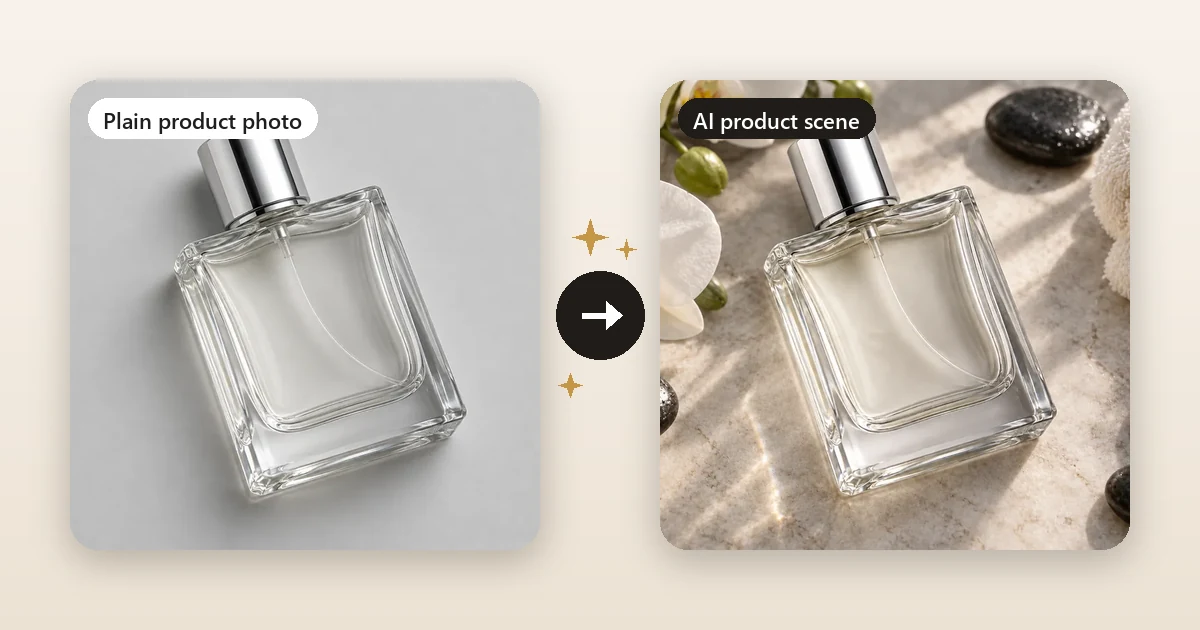
- Background Remover: transparent PNG, white, black, a color, a blur or a new scene.
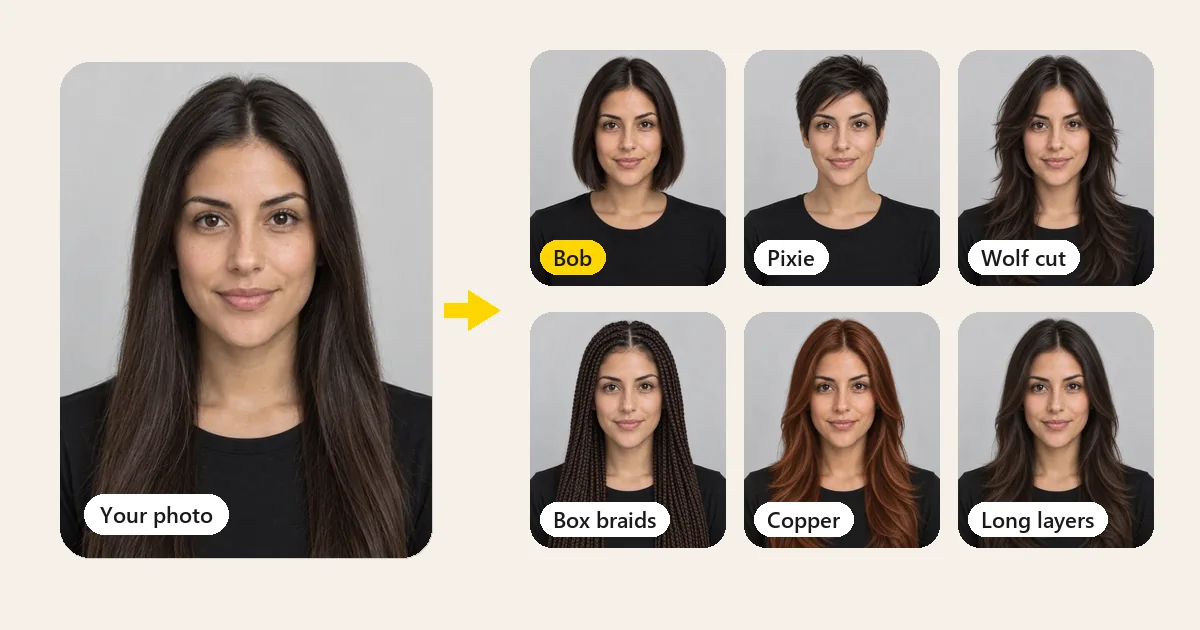
- Image Enhancer and Photo Retouch: upscale 2x or 4x, fix blur and noise, restore old photos, remove blemishes or passersby.
- Free browser tools: HEIC to JPG, Image Converter (JPG, PNG and WebP), Crop Image and Reduce Image Size process files on your Mac without uploading them.
Free: the AI tools are free to try with the credits you get when you sign up, then use credit packs; the converter, HEIC and crop tools are free with no sign-up. Best for: anyone who wants AI results without learning a desktop editor. Limits: no layers or freehand painting, AI edits need an internet connection, and AI results can vary, so you may want to run an edit twice.

Edit with words
New background, outfit, light or style from one sentence.
Open the AI Photo Editor
Remove a background
Transparent PNG or a clean white backdrop for listings.
Remove a background
Enhance a photo
Sharpen, upscale 2x or 4x, or restore an old print.
Enhance a photo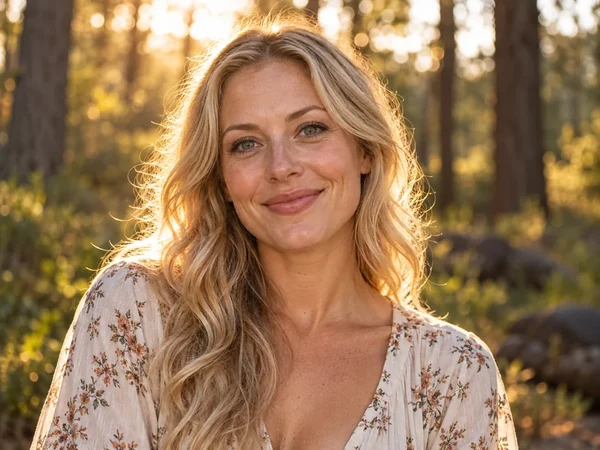
Retouch a portrait
Brighten, color correct, clear blemishes, keep skin texture.
Retouch a photo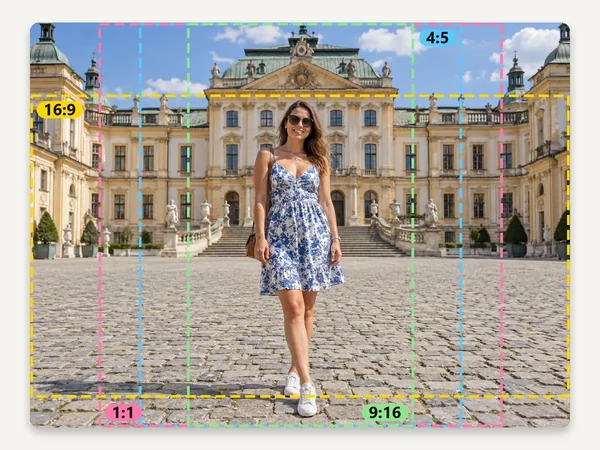
Crop to any ratio
Free, in your browser: 1:1, 4:5, 16:9, 9:16 or passport sizes.
Crop an image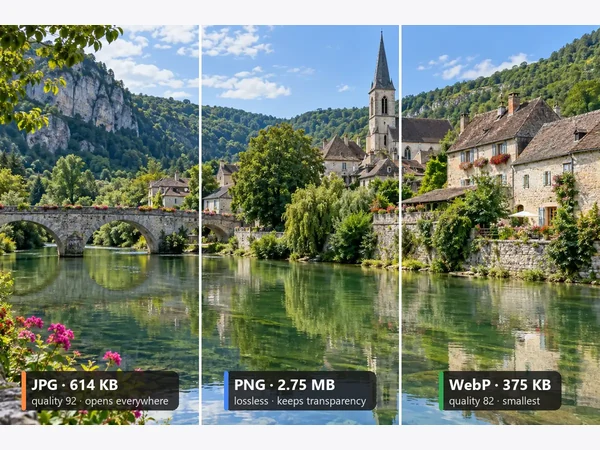
Convert JPG, PNG, WebP
Free image converter with quality and resize options.
Convert an image2. Apple Photos: the free photo editor already on your Mac
Photos is the obvious starting point and a genuinely good free photo editor for Mac: it is the best free photo editor Mac users already own. Open a picture, click Edit, and you get one-click Auto Enhance, crop and straighten, filters and Photographic Styles, light, color and white balance sliders, levels, curves, definition, sharpening, noise reduction, vignette, retouching and red-eye removal. It edits videos and Live Photos too, and every edit is non-destructive, so you can revert to the original.
On Apple Intelligence–enabled Macs, Apple lists intelligent editing tools such as Clean Up (remove distractions), Reframe and Extend. Apple notes these are not available in every language or region, and server-side features have daily usage limits.
Free: everything, it comes with macOS. Best for: everyday fixes and anyone who keeps their library in iCloud Photos. Limits: no layers, no text or graphic design, and no way to replace a background with a scene.
3. Preview: quick crops, resizes and conversions
Preview is the Mac's built-in viewer and a quick picture editor for Mac. For small jobs it is capable mac image editing software free of charge:
- Crop and resize: select an area and crop, or use Tools > Adjust Size to change the pixel dimensions.
- Adjust color: exposure, contrast, saturation, temperature and sharpness.
- Remove background: click the Remove Background button (Preview converts the file to PNG to keep the transparency).
- Markup: add text, shapes, arrows and signatures.
- Convert: File > Export saves as JPEG, PNG, HEIC, TIFF and other formats.
Free: everything. Best for: quick, precise jobs without opening another app. Limits: no layers, no retouching brushes, and batch work is clunky.
4. Affinity: best free professional photo editing software for Mac
Affinity, now owned by Canva, combines vector design, pixel photo editing and page layout in one fast app. It is the most complete photo editing program for Mac free for individuals, and the best free graphics editor Mac designers can get for vector logos and layouts. It is free for individuals (you download it after signing in with a Canva account). It opens PSD and other professional files with layers preserved, works non-destructively, and saves undo history in the file. Optional AI tools unlock if you have a Canva premium plan.
Free: the full app for individuals. Best for: people who want pro-level photo editing and design without a subscription. Limits: a learning curve similar to Photoshop; AI features are not part of the free tier; you need a Canva account.
5. GIMP: the classic free and open-source editor
GIMP is the long-standing free image editing program for Mac, Windows and Linux, and probably the most capable free software to edit pictures for Mac: free photo editor software for Mac with layers, masks, selections, filters and plug-ins. Many people looking for a Mac photo editing program free of ads and fees end up here. The current stable release is GIMP 3.2.6 (September 2026), with separate downloads for Apple silicon and Intel Macs running macOS 11 Big Sur or newer. GIMP is downloaded from gimp.org; the team does not publish it on the App Store.
Free: everything, forever. Best for: users who want a powerful editor with no account, ads or fees. Limits: the interface takes time to learn, and it is less polished on Mac than native apps.
6. Photopea: a free Photoshop-style editor in your browser
Photopea looks and works like Photoshop, but runs in your browser, which makes it a free image editor for Mac with no install. It supports layers, masks, layer styles, smart objects, adjustment layers, channels and paths, opens PSD, AI, PDF, HEIC, WebP and RAW files (DNG, CR2, CR3, NEF, ARW and more), and offers one-click background removal. Photopea says files never leave your device because processing runs on your own computer.
Free: all features, with ads; a premium account removes the ads. Best for: anyone who knows Photoshop or receives PSD files. Limits: ads on the free version, and very large files depend on your Mac's memory.
7. darktable: the free RAW photo editor
darktable is a free, open-source photography workflow app and RAW developer, a virtual light table and darkroom for photographers: it manages your RAW files and develops them non-destructively with exposure, tone, color, lens correction and noise tools. The current macOS download (darktable 5.6.2) is built for Apple silicon Macs on macOS 14 or later.
Free: everything. Best for: photographers who shoot RAW and want a Lightroom-style workflow at no cost. Limits: complex for beginners, and it is not meant for compositing or design.
8. Krita: free painting over photos
Krita is a free, open-source painting program. It is not a photo editor first, but if you like to paint over photos, add illustrated elements or make digital art from a picture, its brushes are excellent. Download it from krita.org.
Free: everything. Best for: artists and illustrators. Limits: limited photo-specific tools such as RAW support or automatic retouching.
9. Pixelmator Pro: the paid upgrade worth knowing
Pixelmator Pro is not free, but it is the Mac-native editor many people move to: a polished interface, layers, AI-assisted tools that build on Apple Intelligence, and editing across Mac and iPad. As of October 2026 it costs US$49.99 as a one-time purchase on the Mac App Store (macOS 12 or later), or comes as part of Apple Creator Studio, a subscription bundle with a free trial.
Best Free Picture Editing Apps for Mac by Need
- Best free photo editor for beginners: Apple Photos, then EzImgMaker for AI jobs.
- Best free photo editing apps for Mac with AI: EzImgMaker (free credits to try) and Apple Photos' Apple Intelligence tools on supported Macs.
- Best free picture editing software for Mac with layers: Affinity, GIMP or Photopea.
- Best free Photoshop-style editor for Mac: Photopea (browser) or Affinity (desktop).
- Best free picture editor for Mac for drawing over photos: Krita.
- Best free RAW editor for Mac: darktable.
- Best free mac photo editing app for quick crops and resizes: Preview, or the free Crop Image tool.
- Best free option on an older Intel Mac: GIMP (Intel build) or any browser-based editor.
How to Edit Pictures on Mac Free: A Simple Workflow
- Import or AirDrop the photos into Photos.
- Fix the basics in Photos: Edit > Auto Enhance, crop and straighten, then fine-tune Light and Color.
- Do the jobs Photos cannot: export the photo (File > Export), then use the AI Photo Editor to change the background or outfit, the Background Remover for a transparent PNG, or the Image Enhancer to sharpen a blurry shot.
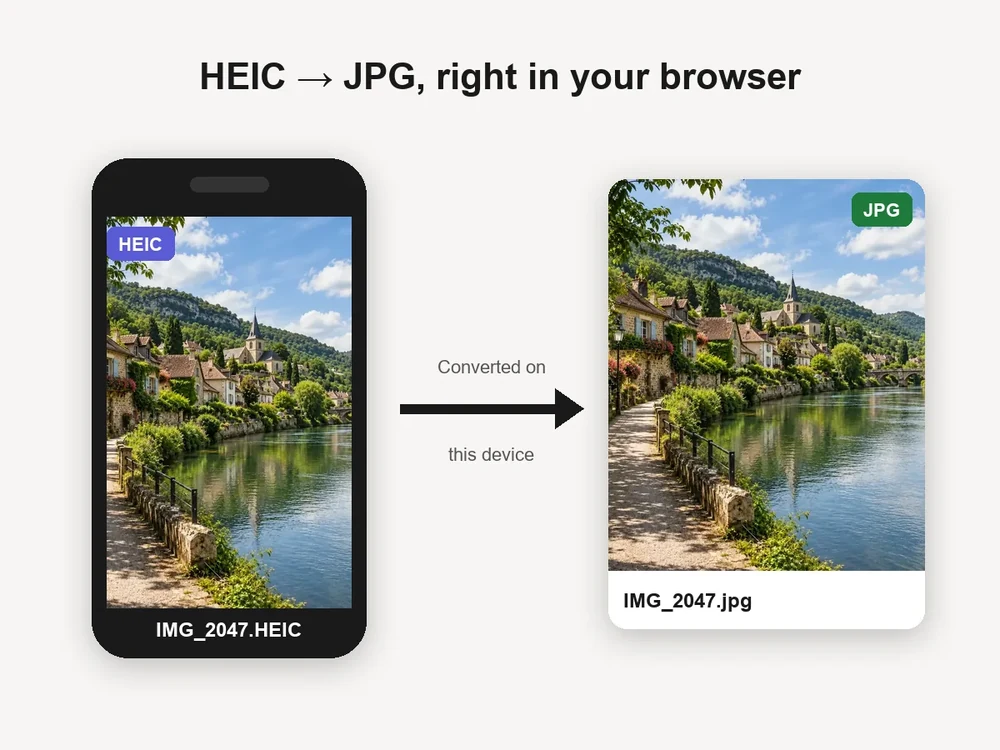
- Convert and resize for where it is going: turn HEIC into JPG with the free HEIC to JPG converter, switch between JPG, PNG and WebP with the free Image Converter, or shrink the file with Reduce Image Size.
- Keep your original in Photos so you can always start over.
HEIC Photos on a Mac: Convert Before You Share
iPhones save photos as HEIC by default. Macs open them without trouble, but many websites, Windows PCs and upload forms still expect JPG. Preview can export one photo at a time; for a batch, a free browser converter is quicker.
How to Choose a Good Free Photo Editor for Mac
Looking for good Mac photo editing software free of charge, or simply good free photo editing software for Mac that you will not outgrow? Check these points:
- Know what "free" means. Built-in and open-source apps are free with no limits; online AI tools usually give free credits; some web editors are free with ads.
- Check Apple silicon support. Most current editors are native on M-series Macs; darktable's current Mac build requires Apple silicon.
- Match the tool to the task. Light and color fixes need nothing more than Photos; compositing needs layers; replacing a background or retouching is quickest with AI.
- Mind your file types. If you shoot RAW, pick an editor that opens your camera's files; if you share online, make sure you can export JPG, PNG or WebP.
- Think about privacy. Prefer tools that process on your device for sensitive photos.
Frequently Asked Questions
What is the best free photo editor for Mac?
For most people, the best free photo editor for Mac is a combination: Apple Photos for everyday light, color and crop edits, and a browser tool such as EzImgMaker for AI jobs like background removal, enhancing a blurry photo or editing with a written instruction. If you want a full desktop editor, Affinity is free for individuals, and GIMP is free and open source. Photographers who shoot RAW should try darktable.
Does a Mac have a built-in photo editor?
Yes, two. Photos edits light and color, crops and straightens, applies filters and Photographic Styles, retouches blemishes and removes red-eye, and on Apple Intelligence–enabled Macs adds intelligent tools such as Clean Up, Reframe and Extend. Preview crops, resizes, adjusts color, marks up images and has a Remove Background button. Both are free and already installed.
Is there a free Photoshop editor for Mac?
Adobe Photoshop is a paid subscription, but there are free editors with similar tools. Photopea runs in your browser with layers, masks, adjustment layers and PSD support; Affinity is a free professional desktop app that opens PSD files; and GIMP is a free open-source editor with layers, masks and selections.
Is Affinity really free on Mac?
Yes. As of October 2026 Affinity, which combines vector design, pixel photo editing and page layout in one app, is free for individuals: you download it after signing in with a Canva account. Its optional AI tools require a Canva premium plan.
What is the best free photo editor for MacBook beginners?
Start with Apple Photos, because it is already on your MacBook and its Auto Enhance, crop and light and color sliders cover most fixes. When you need something Photos cannot do, such as replacing a background or turning a photo into a cartoon, use a browser tool rather than installing a complex program.
How do I convert HEIC photos to JPG on a Mac for free?
Open the photo in Preview and choose File > Export, then pick JPEG. For many photos at once, use a free browser tool such as the EzImgMaker HEIC to JPG converter, which converts a batch on your own device without uploading anything, and lets you download each file or all of them together.
Can I edit RAW photos on a Mac for free?
Yes. Apple Photos opens RAW files from supported cameras, darktable is a free open-source RAW workflow app (its current macOS build is for Apple silicon Macs on macOS 14 or later), and Photopea in your browser opens DNG, CR2, CR3, NEF, ARW and other RAW formats.
Is Pixelmator Pro free?
No. As of October 2026 Pixelmator Pro is US$49.99 as a one-time purchase on the Mac App Store, and it is also included in Apple Creator Studio, Apple’s subscription bundle of creative apps, which offers a free trial. It is a strong paid upgrade if the free editors feel limiting.
Are online photo editors safe to use on a Mac?
Reputable ones are. Check whether the editor uploads your photos or processes them in your browser: EzImgMaker’s HEIC converter, image converter and crop tool, and Photopea, process files on your device, while AI tools upload your photo to generate the result. Avoid uploading documents or private pictures you would not want stored online.
The Verdict
There is no single best free Mac photo editor or best free mac photo editing software for everyone, but there is an easy setup that covers almost everything for free: Photos and Preview for everyday edits, Affinity or GIMP when you need layers, darktable for RAW, and a browser tool for AI jobs. Start with the EzImgMaker AI Photo Editor and its free sign-up credits when you need a new background, a retouch or an edit described in words, and use the free HEIC to JPG and Image Converter tools to get your Mac photos into the right format. Looking at older online editors instead? Read our LunaPic and iPiccy reviews.
Apple, Mac, MacBook, macOS, Photos, Preview, Pixelmator Pro, Apple Creator Studio, Apple Intelligence, Affinity, Canva, GIMP, Photopea, darktable, Krita and Photoshop are trademarks of their respective owners. EzImgMaker is not affiliated with them. Features, system requirements and prices were taken from each official website in October 2026 and may change; check the official sites for current information. Example images are from EzImgMaker's own tool pages.