Short answer: LunaPic is one of the oldest free online photo editors. You can crop, resize, add text, apply 200+ effects and art filters, make simple GIF animations, and use newer AI tools such as background removal, object removal and 2x or 4x super resolution, all without an account. It is completely free because it shows ads, and its menu-driven interface takes some getting used to. If you mainly want quick AI results, the best LunaPic alternatives are EzImgMaker's Background Remover, Image Enhancer, Photo to Cartoon and AI Photo Editor (free to try with sign-up credits), plus Photopea, Pixlr, Canva and GIMP.
This LunaPic review explains what the LunaPic photo editor does, how to use its most-searched tools (remove background, transparency, resize, paint bucket), why results sometimes look low quality, and which alternative fits each job.


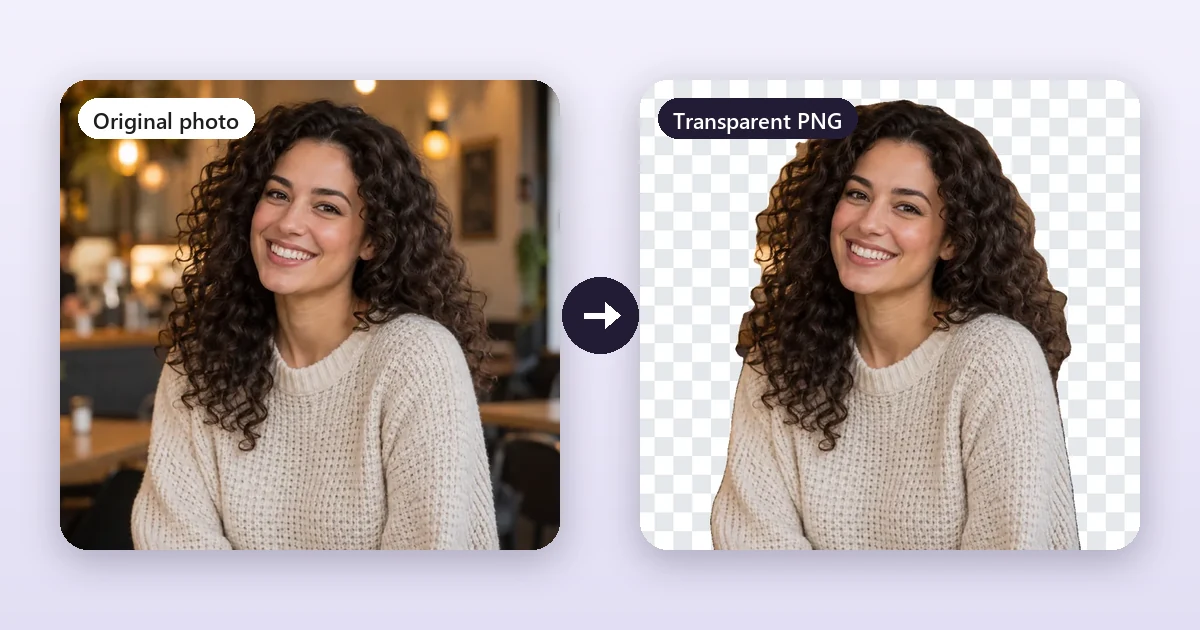
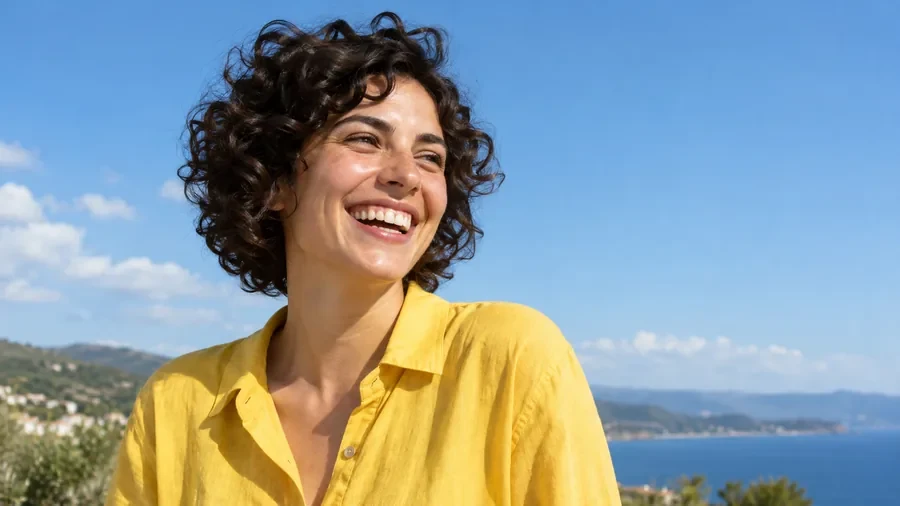
The goal of most LunaPic remove background searches: the same photo, background gone. This example comes from the EzImgMaker Background Remover page; it is not a LunaPic output.
LunaPic at a Glance
| LunaPic | |
|---|---|
| What it is | The LunaPic online image editor: free menus for editing, drawing, effects, art and animation |
| Where it runs | In any browser at lunapic.com (a mobile site and a Chrome extension are also offered) |
| Price | Free, supported by ads (as of October 2026) |
| Account | None: LunaPic says it has no accounts or logins |
| AI tools | Auto background removal, smart object removal, 2x and 4x AI super resolution, AI enhancer, colorize old photo |
| Classic tools | Crop, resize, rotate, text, paint bucket, transparent background, borders, 200+ effects, GIF animation |
| Best for | Quick one-off edits and fun effects when you do not want to install or sign up for anything |
What Is LunaPic?
LunaPic is a free online image editor that has been around for well over a decade. You upload a picture (or open one from a URL or Dropbox) and edit it with drop-down menus: File, Edit, Adjust, Draw, Borders, Filters, Effects, Art and Animation. Each menu opens a small tool page, you apply the change, and the edited image is shown with options to save it, undo, or keep editing.
The home page sums up its pitch: "Completely free online photo editing. No signup, login or install needed!" Its support FAQ adds that the site is advertiser supported and that it has no accounts at all.
What you can do in the LunaPic online editor, based on its menus in October 2026:
- Edit: crop (including a magic wand and auto crop), resize, scale, resize canvas, rotate, skew, eraser, layers mask, and AI tools such as smart object removal, auto background removal, auto blur or pixelate background, and 2x AI super resolution or 4x AI ultra resolution.
- Adjust: light levels, colors, saturation, focus, dehaze, sharpen, straighten, perspective, color temperature, skin smoother, red-eye reduction, colorize old photo, photo restore and an AI enhancer.
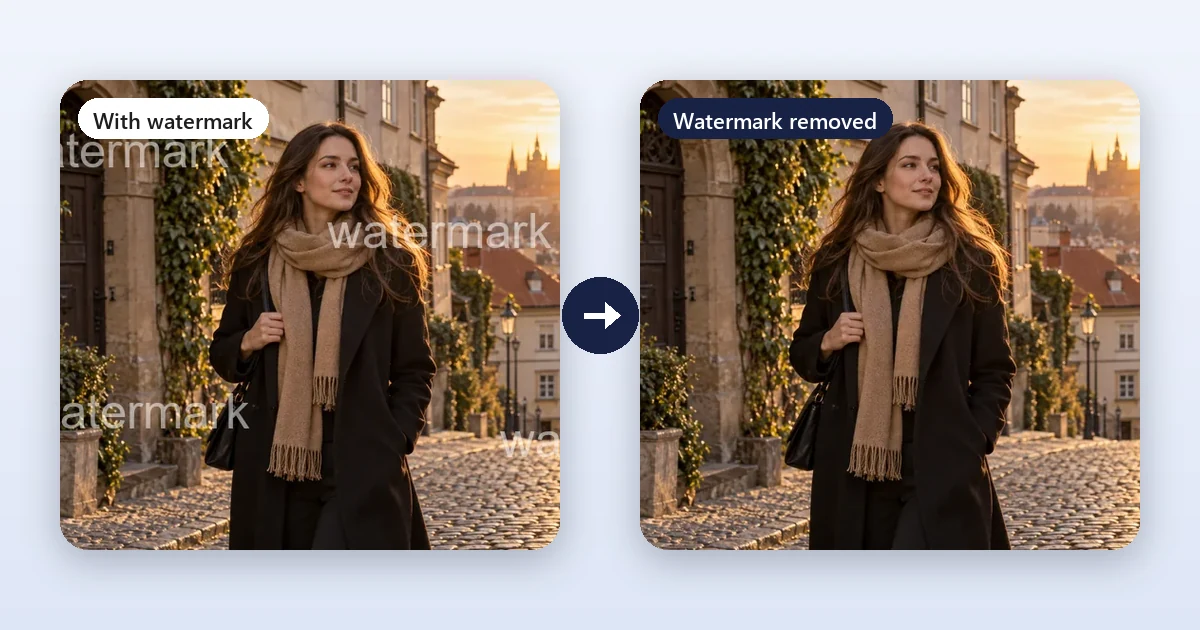
- Draw: paint and drawing tools, text, captions, speech bubbles, a watermark tool, the paint bucket, a color picker, a blemish remover and blur a face.
- Borders, Filters, Effects and Art: frames, Polaroid and film-strip borders, black and white, sepia, neon, HDR, pencil sketch, cartoon, coloring book, comic book, Warhol-style grids, famous-painting styles (Picasso, Van Gogh, watercolor) and a "use your own style" option.
- Animation: edit GIF animations, crop video, transitions, snowfall, sparkles and other animated effects.
- File: upload multiple images, convert file format, QR code generator and reader, a "doctored photo detector" (error level analysis), print, and share to Pinterest, Facebook or Imgur.
How to Use the LunaPic Online Photo Editor
- Open lunapic.com to use the LunaPic photo editor online, and click Upload (or paste an image URL).
- Pick a tool from the menus. For example, Edit > Crop Image, Adjust > Sharpen, or Art > Watercolor.
- Apply the change. LunaPic shows the result; use Undo or the undo history if you do not like it.
- Save with File > Save Image (Ctrl+S) and choose the format. Use PNG if your picture has transparency.
Because every LunaPic edit is a separate step, a typical session is a chain of small actions: crop, then adjust, then add text, then save. It is simple once you know where each tool lives.
How to Remove a Background With LunaPic
LunaPic offers three ways to remove a background, and the right one depends on your photo.
Option 1: Auto Background Removal (AI)
- Upload your photo.
- Choose Edit > Auto Background Removal.
- Check the edges, especially hair and fingers, then save as PNG.
This LunaPic background remover is the quickest route for portraits, products and pets.
Option 2: Transparent Background tool (plain backgrounds)
- Choose Edit > Transparent Background.
- Click the color you want to remove, for example a white or green backdrop. Adjust the tolerance if too much or too little disappears.
- Save as PNG or GIF to keep the transparency; for transparency LunaPic recommends these two formats.
LunaPic's own help says this is the quickest way when the background is plain. Its FAQ also explains a common surprise: a photo you start as a JPG or GIF is saved as a GIF, and GIF does not support smooth edges. For cleaner LunaPic transparent results, convert the picture to PNG first with File > Convert File Format.
Option 3: Cut out and paste
For complex backgrounds, cut the subject out with the scissors tool (Edit > Crop Image), then use Edit > Paste to place it on a new background. You can also fill leftover areas with the paint bucket.
When to use something else: if the background is busy, low-contrast, or the edges include flyaway hair, an AI tool that understands the subject usually gives cleaner LunaPic background removal results than a color-based tool. EzImgMaker's Background Remover cuts out people, products and pets and lets you choose a transparent PNG, white, black, a custom color, a blurred background or a new scene you describe, and Make Image Transparent gives you a transparent PNG in one step.
LunaPic Image Resize: How to Resize an Image
The LunaPic image resizer (some people call it the LunaPic photo resizer) lives in the Edit menu, and the LunaPic resize image steps are short:
- Choose Edit > Resize Image.
- Type the new width or height in pixels. Keep the proportions linked so the photo does not stretch.
- Apply, check the result, and save.
Related options: Scale Image resizes by percentage, Resize Canvas adds space around the photo without stretching it, and AutoCrop trims empty borders. To resize image LunaPic files for a specific site, crop to the right shape first, then resize. If the image resizer LunaPic offers feels slow for a batch, a dedicated resizer is quicker.
Making an image bigger? A plain resize only stretches the existing pixels, which is one reason people search for "lunapic low quality". Use Edit > 2x AI Super Resolution or 4x AI Ultra Resolution, or an AI tool such as the EzImgMaker Image Enhancer, which upscales 2x or 4x and can restore blurry or old photos.
If you only need to resize or crop and want to keep the photo on your own device, two free browser tools do the job without uploading anything: Crop Image (ratio presets such as 1:1, 4:5, 16:9 and passport sizes) and Reduce Image Size (shrink by pixels or to a target file size in KB).
The LunaPic Paint Bucket Tool
The LunaPic paint bucket tool is under Draw > Paint Bucket Tool. Click an area and LunaPic fills it with your chosen color or a pattern. It is handy for recoloring a flat background, filling the transparent area after a cutout, or coloring a simple graphic. On real photos, similar colors next to each other can make the fill spread too far, so start with a low tolerance and work in small areas.
LunaPic Quality: Why Results Can Look Low Quality
LunaPic quality depends mostly on what you feed it and how you save. The usual causes of a blurry or blocky result are:
- Enlarging a small photo with a normal resize, which stretches pixels instead of adding detail.
- Saving as JPG again and again. Every JPG save compresses the image a little more. Save PNG while you edit and export JPG once at the end.
- GIF transparency. Transparent GIFs are limited to 256 colors and hard edges, which looks jagged on photos. Use PNG.
- Starting from a compressed copy, such as a picture saved from social media or a screenshot of a photo.
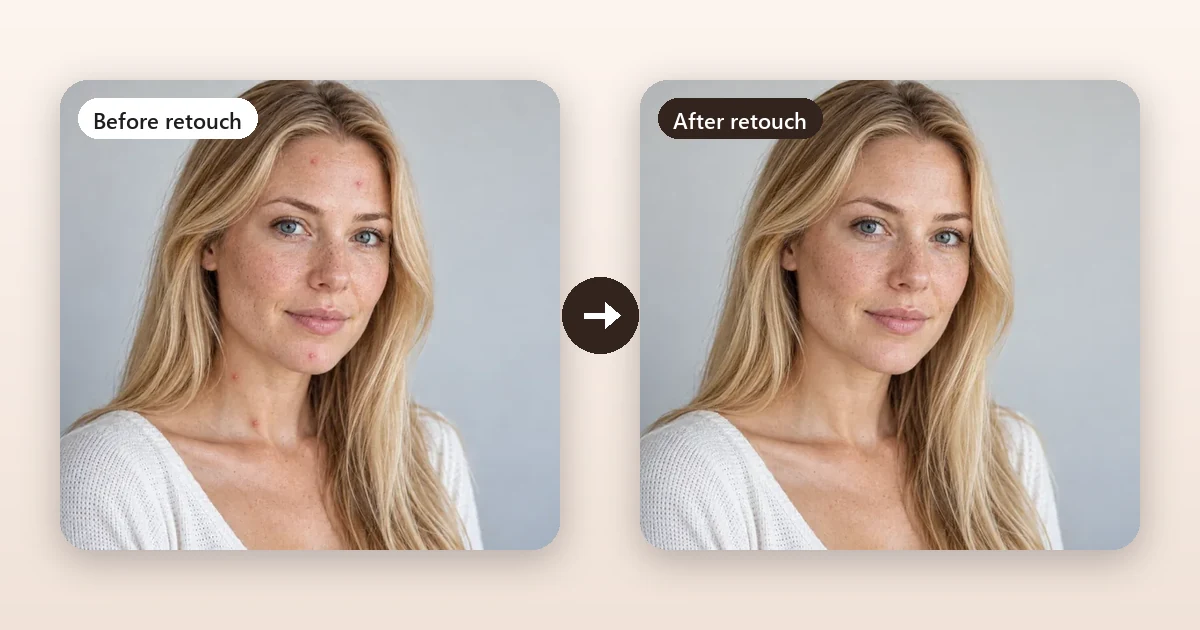
For an old, blurry or small photo, an AI enhancer usually helps more than any manual sharpen filter:
Ads, Privacy and Other Limits
LunaPic is honest about its business model: it is free because of advertising. Ads appear around the editor, and if they get in the way, Help > Ad Trouble offers a button that turns off most ads for the current session. There is no paid ad-free plan, because there are no accounts.
Other things to know before you rely on it:
- No accounts means no saved projects. Download your result before closing the tab.
- One edit at a time. Most tools apply a single change and return you to the image, which is simple but slower for multi-step edits than a layer-based editor.
- Your photo is uploaded to LunaPic's servers for editing. Avoid uploading documents or private pictures, and read the privacy policy linked in the footer.
- The interface is dated. Hundreds of tools in drop-down menus can feel crowded, especially on a phone.
LunaPic Pros and Cons
What LunaPic does well
- Completely free, with no sign-up or install.
- A huge range of tools, from basic cropping to animation and art effects.
- Useful AI additions: background removal, object removal and AI super resolution.
- Handy extras such as format conversion, QR codes and error level analysis.
Limits to weigh
- Ads around the editor (with a session-only off switch).
- Menu-by-menu workflow and an older interface.
- Transparency saved as GIF can look jagged unless you start from PNG.
- No account or cloud storage for unfinished work.
Who Should Use LunaPic?
LunaPic suits anyone who needs a quick, free online photo editor for a one-off job: crop and resize a picture, add a caption, apply a fun effect, or make a simple GIF, without creating an account. Teachers, students and casual users who like exploring effects will enjoy it.
It is a weaker fit if you want modern one-step AI results, a clean interface, an ad-free experience, or detailed layer editing.
Best LunaPic Alternatives (Compared)
| Tool | Best for | Runs | Free option | Paid (as of Oct 2026) |
|---|---|---|---|---|
| EzImgMaker | One-step AI edits: background removal, enhance, cartoon, edit with words | Browser | Free credits when you sign up; free browser tools for crop, resize and convert | Credit packs |
| Photopea | Layer-based, Photoshop-style editing | Browser (processing on your device) | Free with ads | Premium account removes ads |
| Pixlr | Quick browser edits with templates and AI tools | Browser and mobile | Free tier | Paid plans (see pixlr.com) |
| Canva | Designs around a photo: posts, flyers, slides | Browser, desktop and mobile | Free plan | Background remover and many AI tools need a paid plan |
| GIMP | Free, full desktop editing | Windows, macOS, Linux | Free and open source | None |
Prices and plans for third-party tools change; check each official site before you rely on them.
1. EzImgMaker (free to try, AI tools for each job)
EzImgMaker is a set of focused AI image and video tools. Instead of hunting through menus, you open the tool for the job, upload a photo and get the result:

Remove a background
Transparent PNG, white, color, blur or a new scene. A one-step answer to LunaPic remove background.
Remove a background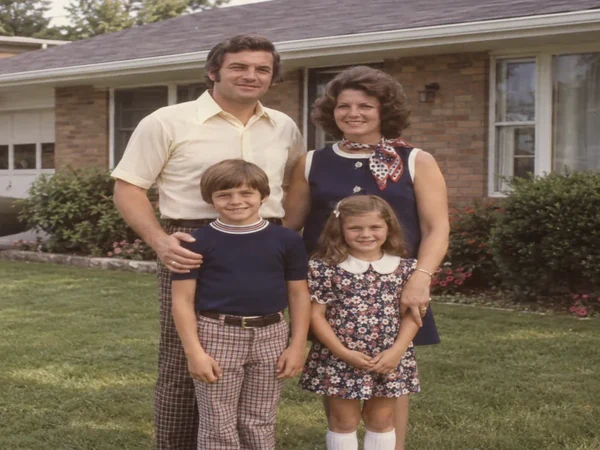
Fix low quality
Upscale 2x or 4x, sharpen blurry shots, clean low-light noise or restore an old photo.
Enhance a photo
Photo to cartoon
Turn a photo into a 2D cartoon, 3D animated character, anime, comic or caricature.
Cartoonize a photo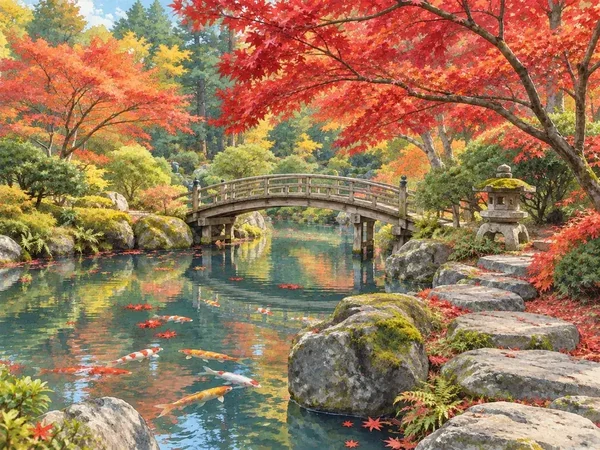
Edit with words
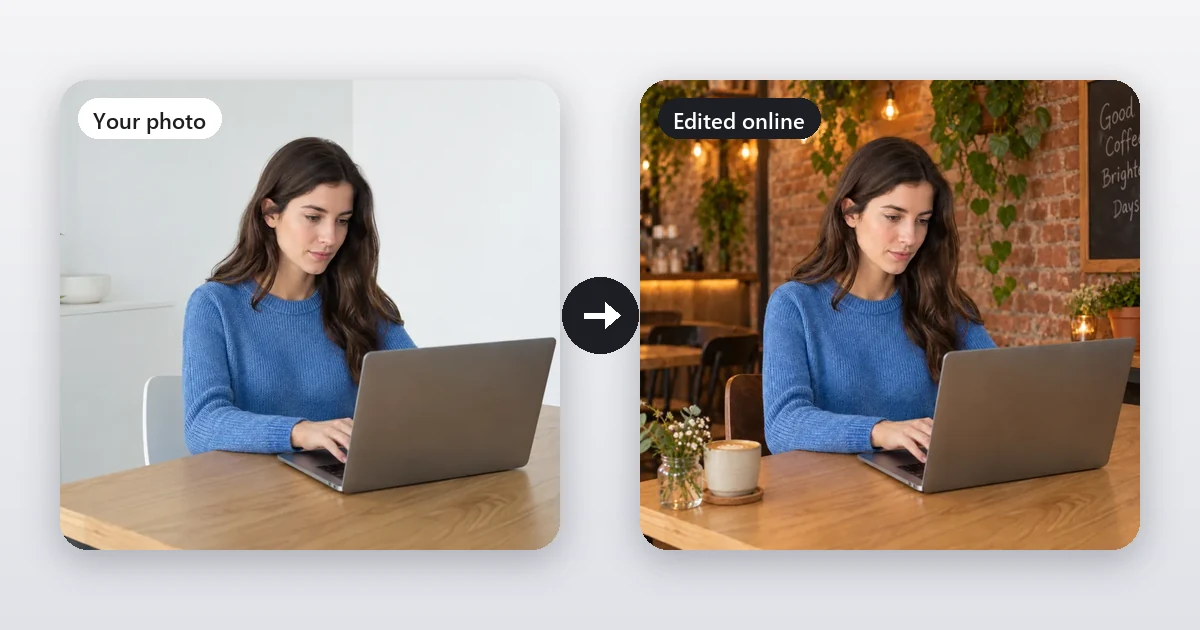
Type the change: new background, outfit, light, style or text. Pick the AI model and aspect ratio.
Open the AI Photo Editor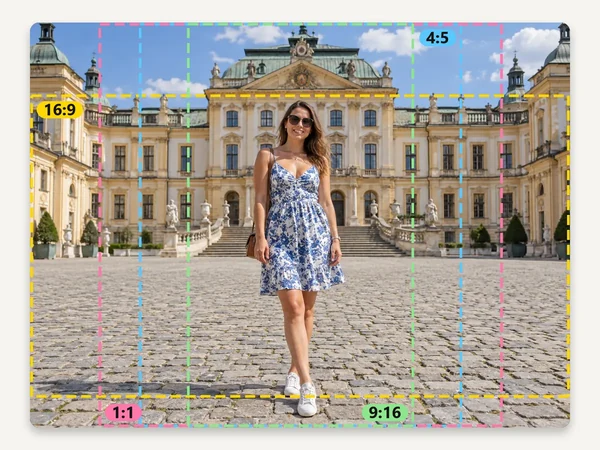
Crop to any shape
Free in your browser: 1:1, 4:5, 16:9, 9:16, passport sizes or a custom ratio. Nothing is uploaded.
Crop an image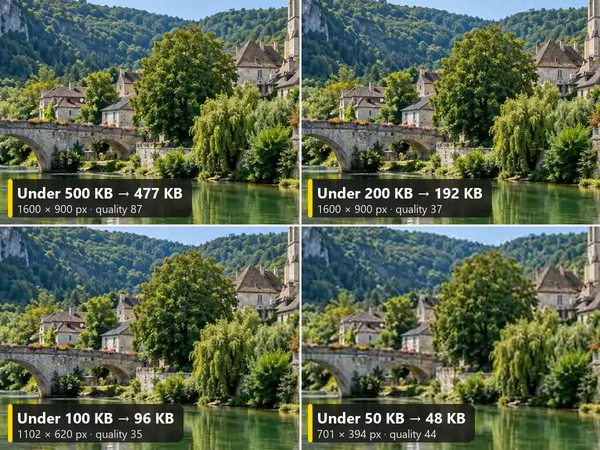
Resize and compress
A free image resizer that also hits a target size in KB for upload forms. Runs on your device.
Reduce image sizeNew accounts get free credits for the AI tools, and after that you buy credit packs only when you need them; the crop, resize and image converter tools are free and run in your browser. The trade-off: EzImgMaker is not a single all-in-one canvas with layers and drawing tools, so for freehand painting or GIF animation LunaPic or a desktop editor still makes sense.
2. Photopea
Photopea is a free browser editor modeled on Photoshop, with layers, masks, adjustment layers, smart objects and full PSD support. It says files never leave your device because processing happens on your computer. It is free with ads, and a premium account removes them. Choose it when you need detailed, layer-based control in a browser.
3. Pixlr
Pixlr offers quick browser and mobile editors with templates, filters and AI tools. It has a free tier and paid plans. Choose it if you want a more modern interface than LunaPic for everyday edits.
4. Canva
Canva is a design tool first: it is the right pick when your photo becomes part of a social post, flyer or slide. Its free plan covers basic photo edits, but the background remover and many AI tools need a paid plan. See our Canva background remover guide for details and free options.
5. GIMP
GIMP is a free, open-source desktop editor for Windows, macOS and Linux with layers, masks, selections and filters. It takes longer to learn, but nothing about it is limited or ad-supported. If you edit on a Mac, see our list of the best free photo editors for Mac.
How to Do Common LunaPic Jobs With EzImgMaker
- Remove a background: open the Background Remover, upload, pick Transparent (or White, Color, Blur or New scene) and download.
- Fix a low-quality photo: open the Image Enhancer, choose Upscale 2x or 4x, or Restore & fix for blur, noise and fading.
- Cartoon or art effect: open Photo to Cartoon and pick a style such as 3D animated, anime, comic book or caricature.
- Any other edit: open the AI Photo Editor and type what should change, for example "replace the sky with a sunset" or "remove the person on the left".
- Crop, resize or convert: use the free browser tools Crop Image, Reduce Image Size and Image Converter.
Frequently Asked Questions
Is LunaPic free?
Yes. LunaPic says lunapic.com is 100% free: editing images costs nothing, the site is supported by advertising, and there are no accounts to create. As of October 2026 it does not sell a membership; instead, Help > Ad Trouble turns off most ads for your current session.
How do I remove a background in LunaPic?
Open your photo, then choose Edit > Auto Background Removal: it is the quickest way to remove background LunaPic offers. If the background is plain, Edit > Transparent Background lets you click the color you want to drop. For tricky edges, cut the subject out with the scissors (Edit > Crop Image) and paste it onto a new background. Save the result as a PNG so the transparency is kept.
How do I make a picture transparent in LunaPic?
Use Edit > Transparent Background and click the area you want to make see-through, or Adjust > Alpha Transparency for a translucent effect. LunaPic notes that a photo you start as a JPG or GIF is saved as a GIF, which cannot have smooth edges, so convert it to PNG first (File > Convert File Format) and always save as PNG or GIF to keep the transparency.
How do I resize an image in LunaPic?
Go to Edit > Resize Image, type the new width or height (keep the proportions linked), apply, then save. Scale Image changes the size by a percentage and Resize Canvas adds space around the photo. To make a small picture bigger without heavy blur, use Edit > 2x AI Super Resolution or 4x AI Ultra Resolution instead of a plain resize.
Why does my LunaPic image look low quality?
Usually it is the workflow, not the site: enlarging a small photo stretches its pixels, every save as JPG compresses the image again, and a transparent GIF is limited to 256 colors with hard edges. Start from the largest original you have, save PNG while you are still editing, enlarge with an AI upscaler, and export a JPG only once at the end.
Where is the LunaPic paint bucket tool?
It is in the Draw menu: Draw > Paint Bucket Tool. Click an area to fill it with a solid color or a pattern. It works best on flat areas such as a plain wall or a simple background; on detailed photos the fill can spill into similar colors, so lower the tolerance or select the area first.
Is Lunap or Luna Pick the same as LunaPic?
Yes. Lunap, luna pick, lunapick, lunar pic, lunarpic, lunpic, lunipic, lunpaic, kunapic, lunapoc and lunaoic are all common misspellings of LunaPic. The official editor is at lunapic.com.
What is the best LunaPic alternative?
It depends on the job. For AI edits that take one step (background removal, enhancing a blurry photo, turning a photo into a cartoon, or changing a photo with a written instruction), try EzImgMaker, which is free to try with sign-up credits. For layer-based editing in a browser, Photopea is a strong free option. Pixlr, Canva and GIMP are also worth a look.
The Verdict: Is LunaPic Still Worth Using?
Yes, for what it is: the free photo editor LunaPic remains a genuinely free, no-sign-up online tool with an enormous menu of tools and some useful AI additions. If you are happy to work around ads and an older interface, it handles quick crops, resizes, captions and fun effects well. If you want one-step AI results instead, such as a clean background removal, a sharp version of a blurry photo, a cartoon portrait or an edit described in words, try the EzImgMaker Background Remover, Image Enhancer, Photo to Cartoon and AI Photo Editor with your free sign-up credits, and keep Photopea or GIMP for detailed layer work.
LunaPic, Photopea, Pixlr, Canva, GIMP and Photoshop are trademarks of their respective owners. EzImgMaker is not affiliated with them. Product details were taken from each official website in October 2026 and may change; check the official sites for current information. Example images are AI-generated illustrations from EzImgMaker's own tool pages, not screenshots or outputs of the tools reviewed.